
If your Lenovo laptop cannot detect Wi-Fi networks, keeps disconnecting, or shows a "No Wi-Fi available" message, the wireless network driver is often the main cause. Wireless driver issues can appear after Windows updates, system upgrades, driver corruption, or incorrect network settings. This guide explains all effective methods to diagnose and fix Lenovo wireless network driver problems step by step.
Common Symptoms of Lenovo Wireless Driver Issues
You may be dealing with a wireless driver problem if you notice:
Wi-Fi option missing from Settings
"No networks found" message
Wireless adapter missing in Device Manager
Frequent Wi-Fi disconnections
Slow or unstable internet connection
Error codes related to network adapters
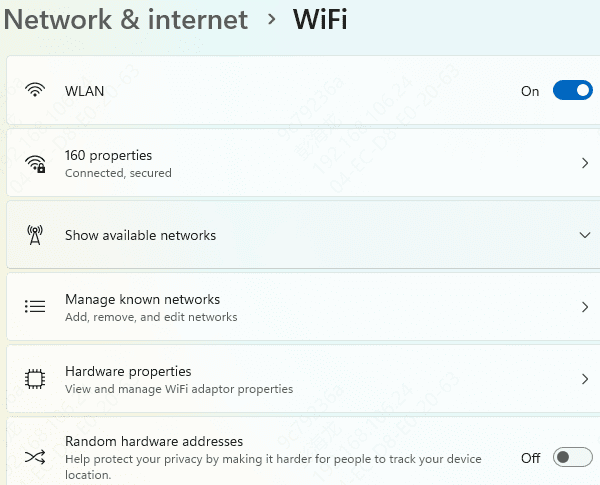
Check If Wi-Fi Is Enabled
Before troubleshooting drivers, confirm Wi-Fi is enabled.
Press Fn + F5 / F7 / F8 (varies by model) to toggle wireless
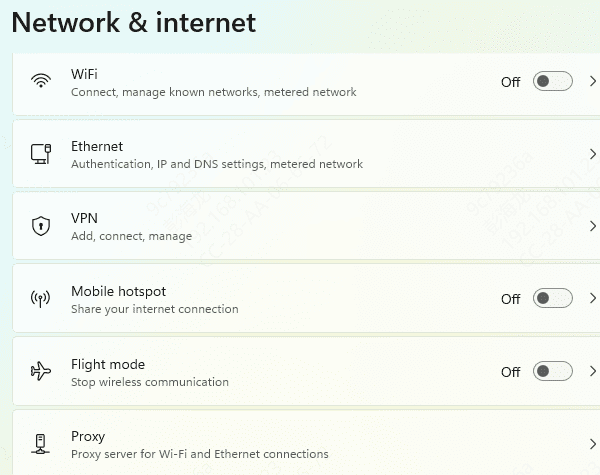
Go to Settings → Network & Internet
Make sure Wi-Fi is turned On
Disable Airplane Mode if enabled
Restart Network Services
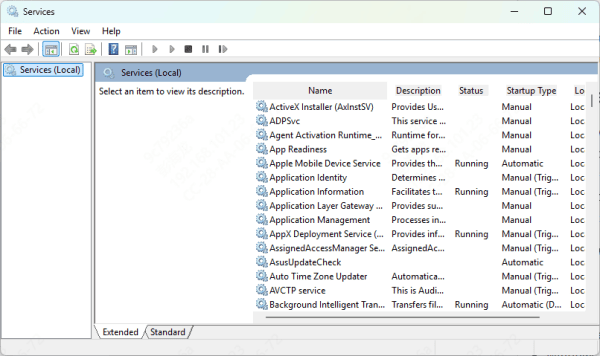
Restarting network-related services can restore Wi-Fi functionality.
Press Win + R, type services.msc
Restart these services:
WLAN AutoConfig
Network Connections
Network List Service
Reboot your Lenovo laptop
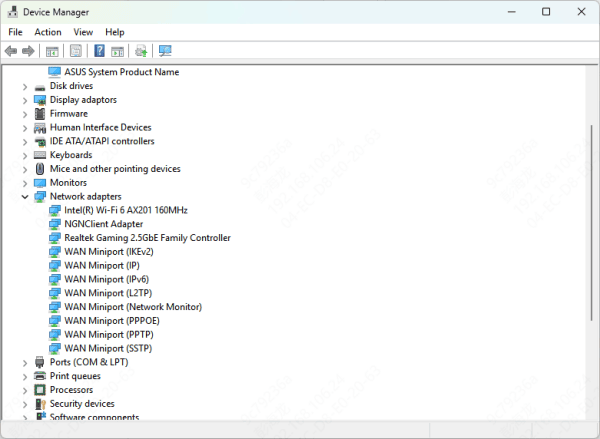
Check Wireless Adapter in Device Manager
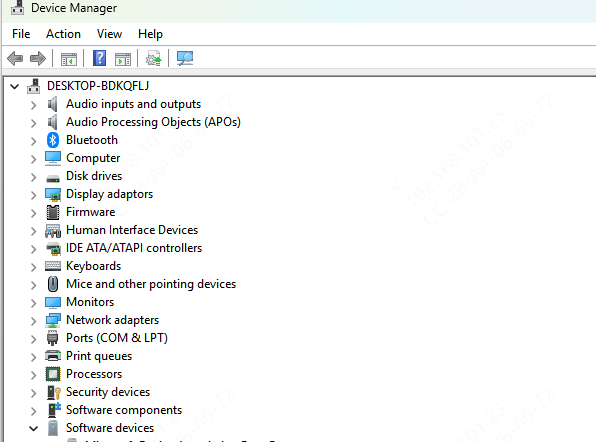
Driver issues often cause the adapter to disappear or show errors.
Press Win + X → Device Manager
Expand Network adapters
Look for Intel / Realtek / Qualcomm wireless adapter
If you see:
Yellow warning icon → Driver issue
Unknown device → Missing driver
Adapter missing → Driver disabled or corrupted
Right-click the adapter and select Enable if available
Update Lenovo Wireless Network Driver
Outdated or corrupted drivers are the most common cause of Wi-Fi failures.
Use Driver Talent X (Recommended)
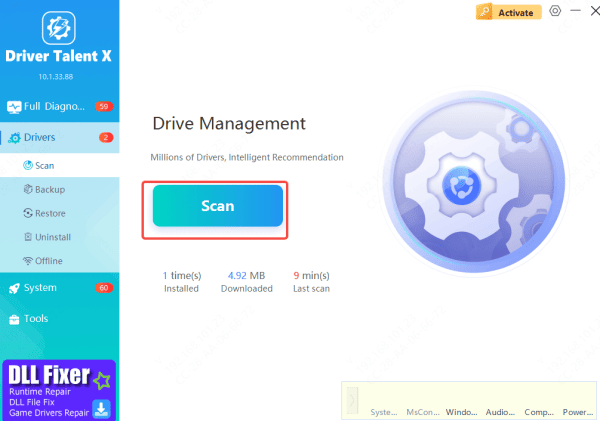
Driver Talent X automatically detects and installs the correct Lenovo wireless drivers.
Download and install Driver Talent X
Open the software and go to Drivers → Scan
Let it detect missing or faulty wireless drivers
Click Repair Now or Update
Restart your laptop
This method prevents incorrect driver installation and resolves compatibility issues.
Update Wireless Driver Manually from Lenovo Support
If you prefer manual updates:
Visit support.lenovo.com
Enter your Lenovo model or serial number
Go to Drivers & Software
Select your Windows version
Download the Wireless LAN driver
Install and restart
Always install drivers designed specifically for your Lenovo model.

Reinstall the Wireless Network Driver
Reinstalling removes corrupted driver files
Open Device Manager
Right-click your wireless adapter
Select Uninstall device
Check Delete the driver software for this device
Restart your laptop
Windows will reinstall the driver automatically
Reset Network Settings
If driver fixes don't work, reset network configurations.
Go to Settings → Network & Internet
Select Advanced network settings
Click Network reset
Restart your laptop
This removes saved Wi-Fi passwords.
Check BIOS Wireless Settings
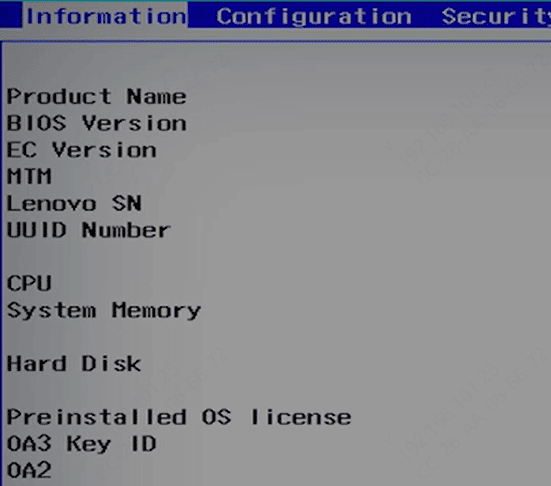
Sometimes Wi-Fi is disabled at the firmware level.
Restart your laptop
Press F2 / F1 / Del to enter BIOS
Locate Wireless / Network Settings
Ensure Wireless LAN is Enabled
Save changes and reboot
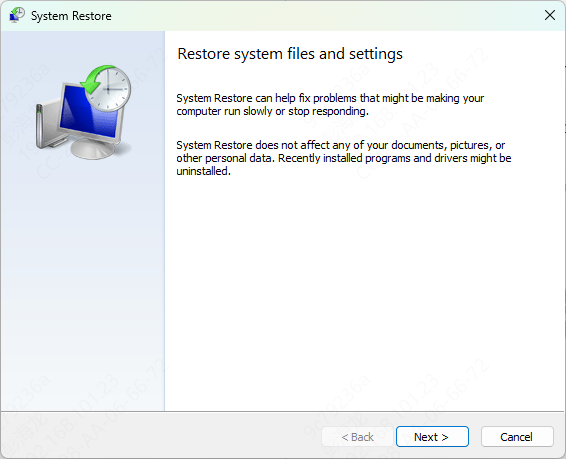
Roll Back Windows Updates (If Issue Started After Update)
Go to Settings → Windows Update → Update history
Select Uninstall updates
Remove the most recent update
Restart and test Wi-Fi
Hardware Check (Last Resort)
If none of the software fixes work:
Test Wi-Fi using a USB Wi-Fi adapter
If USB Wi-Fi works, your internal wireless card may be faulty
Contact Lenovo Support or a certified technician
Conclusion
Lenovo wireless network driver issues are usually caused by outdated drivers, Windows updates, or misconfigured settings. By enabling Wi-Fi, updating or reinstalling drivers, resetting network settings, and checking BIOS options, most problems can be resolved quickly. For the fastest and safest fix, using an automated driver tool like Driver Talent X helps ensure correct driver installation and long-term wireless stability. If your Lenovo laptop still can't connect to Wi-Fi after these steps, the issue may be hardware-related and require professional repair.









