
If your Lenovo Yoga laptop is not turning on, it can be a frustrating experience. Whether it's due to a simple software issue, a drained battery, or a more complex hardware problem, troubleshooting the issue is crucial to getting your laptop back up and running. This guide provides step-by-step solutions to help you diagnose and fix the problem.
Check the Power Source and Charging Equipment
The most common reason for a laptop not turning on is power-related issues. Before jumping into complex troubleshooting steps, first ensure that the power supply is functioning correctly.
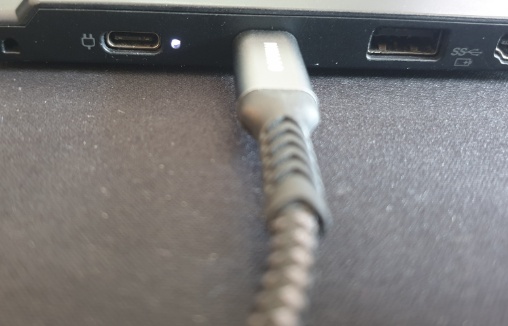
Inspect the power adapter: Ensure the charging cable and the adapter are connected properly. Look for any visible damage to the cable or adapter
Check the charging port: Make sure the charging port on your Lenovo Yoga is not clogged with dust or debris, which could prevent the charger from making a proper connection
Try a different outlet: Sometimes, the power outlet itself may not be supplying electricity. Plug the charger into a different outlet and confirm the charger's LED light is on
Test the adapter with another device: If possible, test the charger with a different device to ensure it's working
Perform a Power Reset
A power reset, also known as a hard reset, can help resolve issues caused by static power or a software glitch preventing your laptop from turning on.
Power off your laptop
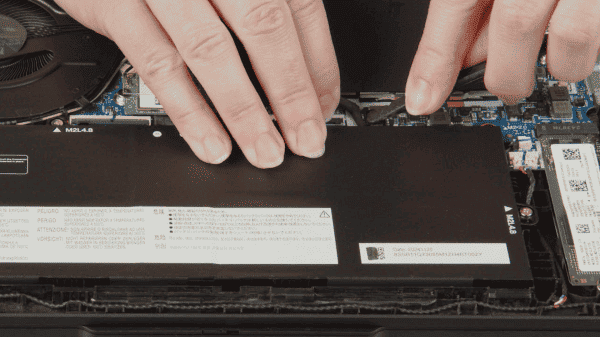
Remove the battery
Hold the power button down for 15-20 seconds to drain any residual power
Reinsert the battery and connect the charger
Try powering on your laptop again
For laptops with a non-removable battery:
Power off the laptop
Press and hold the Novo button (small button on the side or bottom of the laptop) for 10 seconds
Reconnect the charger and try powering on
Driver and System Integrity Checks
If your Lenovo Yoga laptop fails to turn on or encounters random startup issues, the root cause could be corrupted drivers—particularly for the chipset, power management (ACPI), or other system components. These corrupted drivers may be preventing your laptop from receiving the correct boot signals, causing it to malfunction.
Preparation
If your laptop turns on intermittently, start by running this method to update key drivers
If the laptop fails to power on entirely, proceed with basic troubleshooting steps (such as checking the charger, performing a power reset, and inspecting the battery) before updating drivers
Click the "Download" button to get the installer
Run the setup file and follow the on-screen prompts to install Driver Talent X on your Lenovo Yoga laptop
Perform a Full System Scan
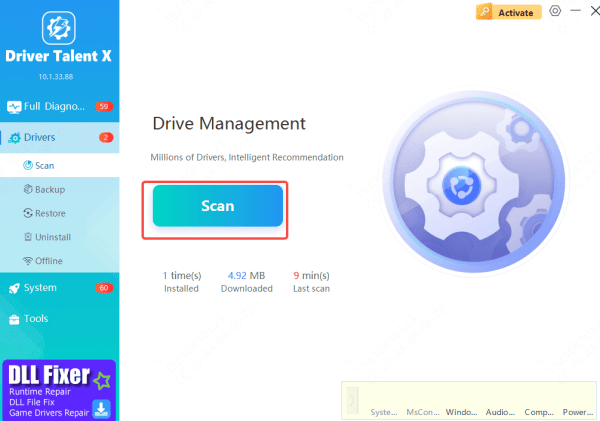
Open Driver Talent
Go to Drivers → Scan and click Scan
The tool will thoroughly check your system for outdated, missing, or corrupted drivers, focusing on critical components like power management, chipset drivers, and ACPI
Updating the Drivers
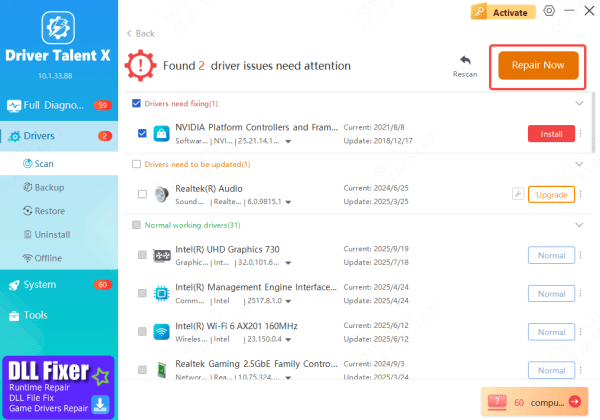
Once the scan is complete, the software will show a list of outdated drivers
Select the drivers that need updating or repairing, then click Upgrade or Repair Now
Driver Talent X will automatically download and install the most compatible drivers specific to your Lenovo Yoga model
Restart
After the updates are installed, restart your laptop to allow Windows to load the new drivers
Test your laptop to check if it now turns on properly and reliably
This process should address any boot or startup problems linked to corrupted or missing system drivers
Check for Display Issues
In some cases, the laptop turning on, but the display is blank. It's important to confirm that the issue isn't related to a display malfunction.
Perform the flashlight test: Shine a flashlight on the screen to see if you can detect faint images. If you can see images, the screen's backlight may be faulty
Connect to an external monitor: Plug your laptop into an external monitor to check if the laptop is actually powering on but the screen isn't working
Adjust the brightness: Press the appropriate function key to adjust the screen brightness, as the screen might be on but dimmed
.png "connect-to-external-monitor")
Conclusion
By systematically checking the power source and charger, performing a hard reset, updating critical system and chipset drivers with tools like Driver Talent X, and verifying the display functionality, you can identify and resolve most common startup issues. Following these steps ensures that your Lenovo Yoga laptop regains reliable power-on capability, allowing you to continue using it without interruption.









