
Bluetooth connectivity issues with your Logitech ergonomic keyboard can be incredibly frustrating, especially when you're in the middle of work or a gaming session. The good news is that most problems related to Bluetooth pairing can be fixed with a few simple steps. This guide will walk you through the best solutions to get your Logitech ergonomic keyboard back to smooth, responsive performance.
Check Battery and Power
Before diving into more complex troubleshooting, the first thing you should check is whether your keyboard has enough power
Power On: Ensure the keyboard is powered on. Look for an indicator light on your keyboard that shows it's active
Battery Check: If your keyboard uses disposable batteries, replace them with fresh ones. If it's rechargeable, plug it in and charge it fully
Power Switch: Make sure the power switch is in the "ON" position. Some models may have a switch to toggle between power modes

Verify Bluetooth is Enabled
For Bluetooth to work, your computer or device must have Bluetooth enabled
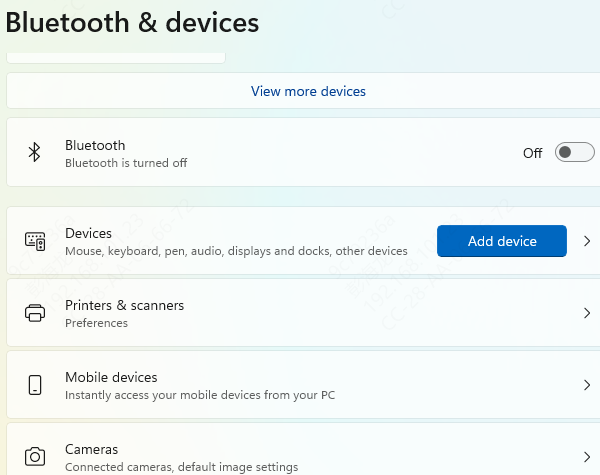
Windows: Go to Settings > Devices > Bluetooth & other devices and ensure Bluetooth is turned on
Other Devices: Make sure Bluetooth is activated on whatever device you're pairing with, whether it's a smartphone, tablet, or smart TV
If Bluetooth is disabled, your keyboard won't be able to connect, no matter what
Restart the Keyboard and Device
Sometimes, all your Logitech ergonomic keyboard needs is a simple restart
Restart the Keyboard: Turn off the keyboard, wait about 10 seconds, then turn it back on
Restart the Device: Reboot your computer or device to clear any temporary glitches or connection issues that might be interfering with the Bluetooth connection
This is a simple and effective way to solve many minor Bluetooth issues
Re-pair the Keyboard
If restarting doesn't work, you may need to unpair and then re-pair the keyboard
Unpair the Device: Go to your Bluetooth settings, find your Logitech keyboard, and remove it from the list of paired devices
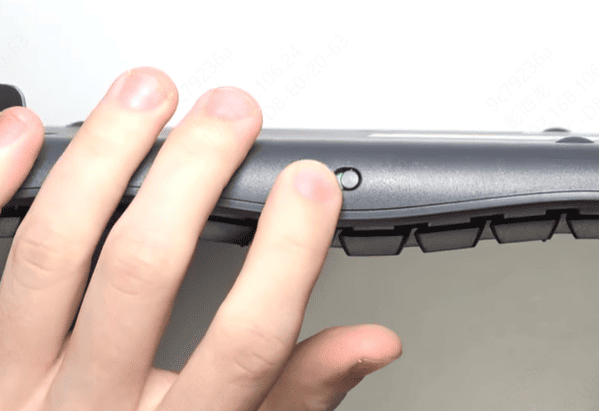
Pair Again: Press the Bluetooth pairing button on your keyboard. The keyboard should enter pairing mode, and a light will typically blink to indicate it's ready to pair
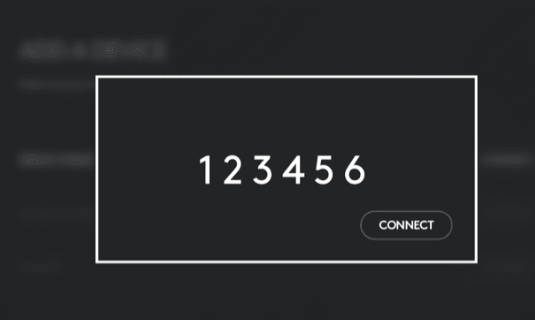
Follow the on-screen prompts to complete the pairing process on your computer or device
If your keyboard uses a button to toggle between Bluetooth channels, be sure you're connecting to the correct one
Update Drivers
Update Bluetooth Drivers via Device Manager
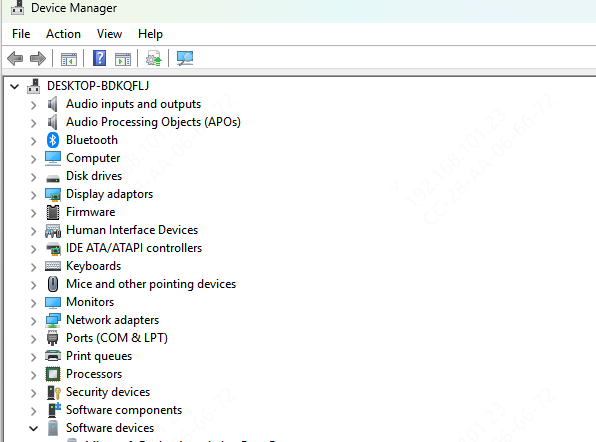
Press Windows + X and choose Device Manager
Expand the Bluetooth section and right-click on your Bluetooth adapter
Select Update Driver and follow the prompts to search for updates
Use Driver Talent X for Automatic Updates
If you want to quickly and automatically ensure that your Bluetooth drivers are up to date, using Driver Talent X is a great solution.
Download and install Driver Talent X from the official website
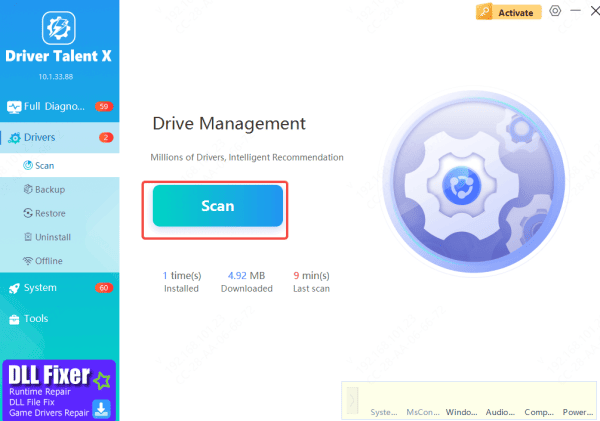
Open Driver Talent X and navigate to Drivers → Scan
The software will scan your system for outdated or missing drivers, including Bluetooth driver
Click Repair Now to automatically fix any driver issues detected
This method streamlines the process and ensures your drivers are always up to date without the hassle of manual searching
Update Firmware
Outdated drivers or firmware can often cause issues with Bluetooth pairing. It's important to keep everything up to date
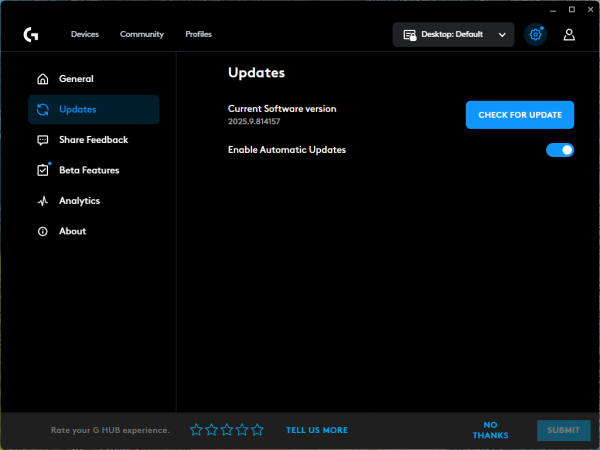
Logitech Options or Logi Options+: Open your Logitech software and check if there are any updates available for your keyboard. These updates can often resolve connectivity problems
Conclusion
Most Bluetooth pairing issues with Logitech ergonomic keyboards are fixable with the right steps. By checking power, ensuring Bluetooth is enabled, restarting the keyboard and device, re-pairing, and updating drivers, you can often restore a smooth, responsive connection. If needed, a factory reset or testing on another device can help isolate the problem. Follow these steps, and your Logitech ergonomic keyboard should be back up and running without any Bluetooth issues in no time!









