Logitech G432 gaming headphones are widely appreciated for their immersive sound quality, whether you're gaming, watching movies, or listening to music. However, some users may experience issues where the sound cuts out intermittently. This can be frustrating during an intense gaming session or while watching your favorite content. The good news is that this issue can usually be fixed with a few straightforward troubleshooting steps. In this guide, we'll walk you through how to fix the sound cutting out problem with your Logitech G432 headphones.
Check Hardware Connections
Before diving into more complex solutions, the first thing you should do is check the physical connection of your Logitech G432 headset. Sometimes the sound issue can be as simple as a loose or partially plugged cable
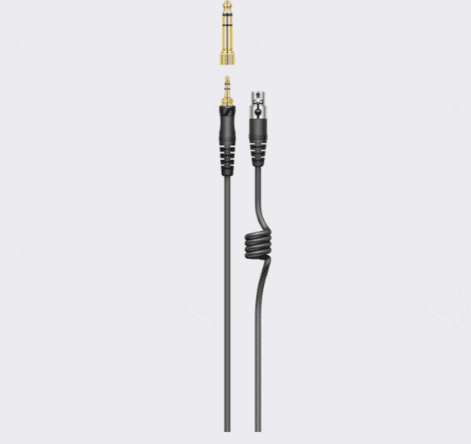
Inspect the Headphone Jack
Make sure the 3.5mm jack (or USB plug, depending on the version) is securely plugged into your computer or console
If the connection is loose, gently push it in until it clicks into place
Inspect the cable for any visible damage, such as fraying or bent connectors. A damaged cable can result in intermittent sound
Test Different Ports
If you're using the 3.5mm jack, try plugging the headset into a different audio port on your device to rule out a faulty port
If you're using the USB version, try plugging it into another USB port, preferably one directly on your PC, rather than through a hub, as this could ensure a more stable connection
Use a Different Device
If the issue persists, test your Logitech G432 headset on another device (like a different PC, mobile device, or console)
If it works fine on the other device, the problem might be related to the original device or its configuration
Update or Reinstall Audio Drivers
Method 1: Update via Device Manager
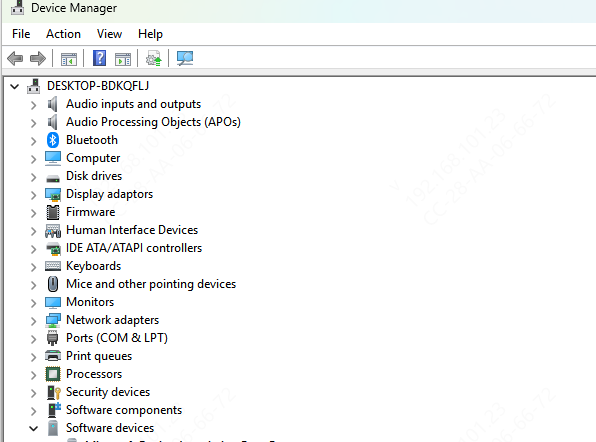
Outdated or corrupted audio drivers are a common cause of sound issues. Here's how to update them via Device Manager:
Press Windows + X, then select Device Manager
Expand the Audio Inputs and Outputs section
Right-click on your headset and select Update Driver
Select Search automatically for updated driver software. Let Windows search for and install any available updates
Method 2: Use Driver Talent X
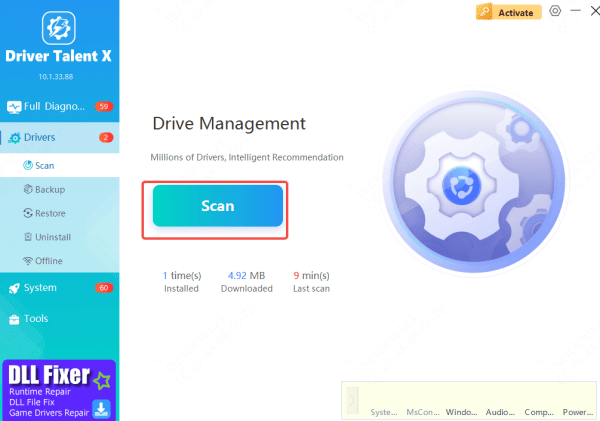
For a more comprehensive driver update, try using Driver Talent X, which automates the process of scanning and updating drivers
Download and Install Driver Talent X: Go to the official website, download, and install the application
Perform a Full System Scan: Open the application, navigate to Drivers > Scan, and click Scan
Update the Audio Driver: The tool will automatically detect outdated or missing drivers, and you can click Repair Now to update the necessary drivers for your Logitech G432 headset
Driver Talent X ensures you have the latest and compatible drivers installed for your headset, improving overall audio performance and preventing sound cutouts
Adjust Audio Settings
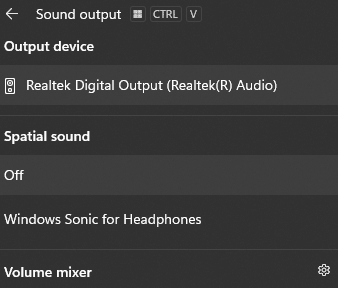
Check Sound Output Device
Make sure that your Logitech G432 is selected as the default audio device:
Right-click the speaker icon in the taskbar
Select Open Sound Settings
Under Output, make sure the Logitech G432 headset is selected
Change the Sample Rate
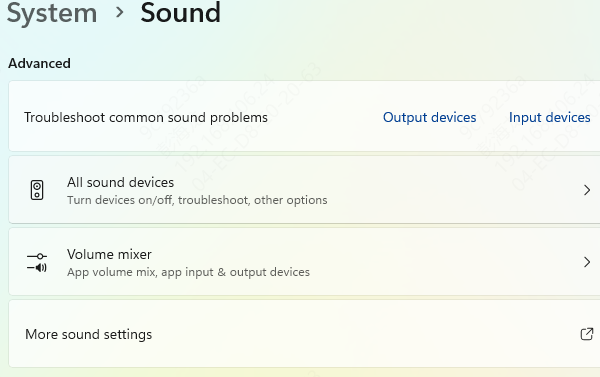
Sometimes, adjusting the sample rate can resolve audio issues. Here's how:
Go to Sound Settings > Playback Devices
Right-click on Logitech G432 and select Properties
Navigate to the Advanced tab
Change the Default Format to a different sample rate (e.g., 24-bit, 48000 Hz)
Check for Software Conflicts
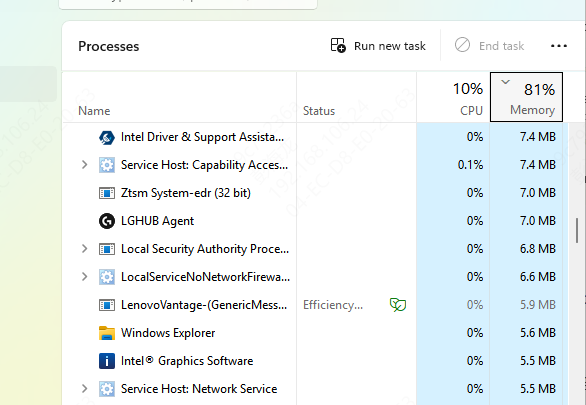
Close Background Applications
Certain software or applications may interfere with your audio output
Close unnecessary applications that could be taking up system resources or affecting the sound output, such as media players, sound enhancers, or third-party audio software
Disable Sound Enhancements
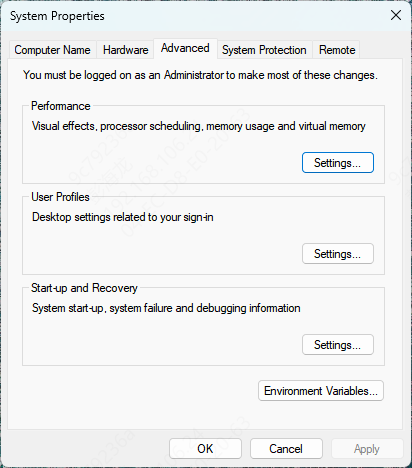
Sometimes, sound enhancements can cause instability with your audio. Disable them by following these steps:
Right-click the speaker icon in the taskbar
Select Sounds
Go to the Playback tab and right-click on your Logitech G432.
Select Properties > Enhancements
Check Disable all enhancements and click OK
Reset or Reconfigure Logitech G Hub Software
If you're using the Logitech G432 with Logitech G Hub software, try resetting the settings or updating the software:
Reset Logitech G Hub Settings: Open Logitech G Hub > Go to audio settings > Reset to default Reconfigure settings as needed
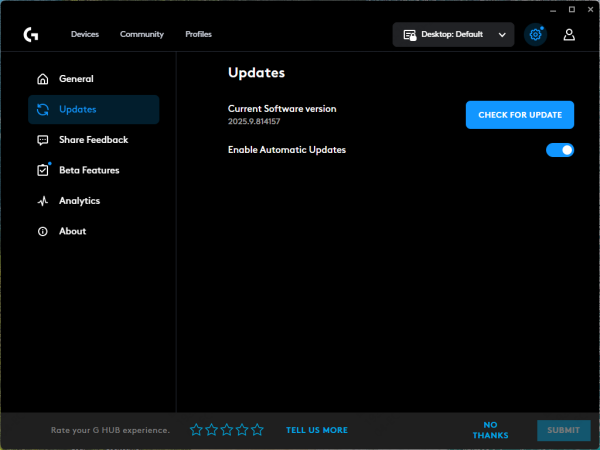
Update Logitech G Hub: Ensure you're using the latest version of G Hub software to avoid any compatibility issues that could cause sound dropouts
Conclusion
Sound issues like cutting out can be frustrating, but with the steps outlined above, you should be able to troubleshoot and resolve the problem with your Logitech G432 headset. Whether it's a hardware connection, driver issue, or software conflict, these solutions cover the most common causes. By following these steps, you'll get your Logitech G432 headset back to its optimal performance, ensuring you can enjoy uninterrupted audio during your gaming sessions or media viewing.









