
A Logitech headset with no sound can be extremely frustrating, especially when you rely on it for gaming, online meetings, or entertainment. In most cases, this issue is caused by incorrect audio settings, outdated or corrupted drivers, or software conflicts. The good news is that the problem can usually be fixed with a few straightforward troubleshooting steps. This guide will walk you through the most effective ways to fix Logitech headset no sound issues and restore normal audio output.
Check Basic Hardware Connections
Before diving into software fixes, start with the basics:
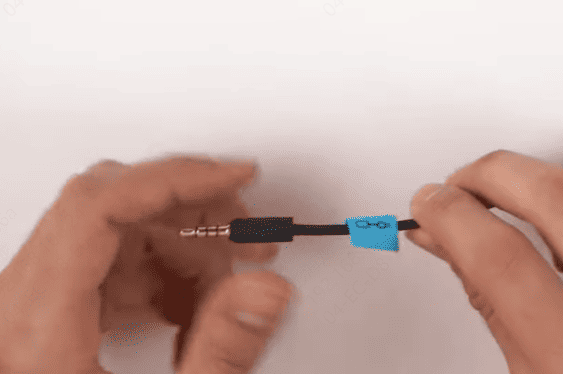
Make sure the headset is firmly connected to your computer
USB headset: plug it directly into a USB port
3.5mm headset: ensure it's connected to the correct audio jack
Try a different USB port or audio jack
Avoid USB hubs and connect directly to the motherboard
Test the headset on another computer or device to rule out hardware failure
If the headset works on another device, the issue is likely software-related
Set Logitech Headset as the Default Audio Device
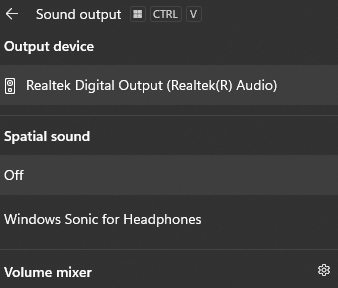
Windows may be sending audio to the wrong output device
Right-click the speaker icon in the taskbar
Select Sound settings
Under Output, choose your Logitech headset
Click Set as default device
Disable unused playback devices to avoid conflicts
After setting the correct device, play a test sound to check if audio is restored
Check Volume and Audio Settings
Sometimes the issue is as simple as muted or misconfigured audio:
Make sure system volume is turned up
Check the headset's inline volume control or volume wheel
Open Volume Mixer and confirm the app you're using isn't muted
Disable audio enhancements:
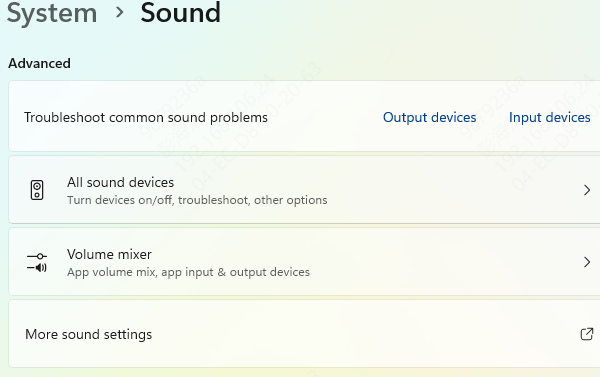
Go to Sound > Device properties > Advanced
Turn off Audio enhancements
These settings can interfere with sound output on some Logitech headsets
Update Logitech Headset Audio Drivers (Recommended)
Outdated or corrupted drivers are one of the most common causes of Logitech headset no sound issues. Keeping drivers up to date ensures proper communication between your headset and Windows.
Option 1: Update Drivers Automatically (Recommended)
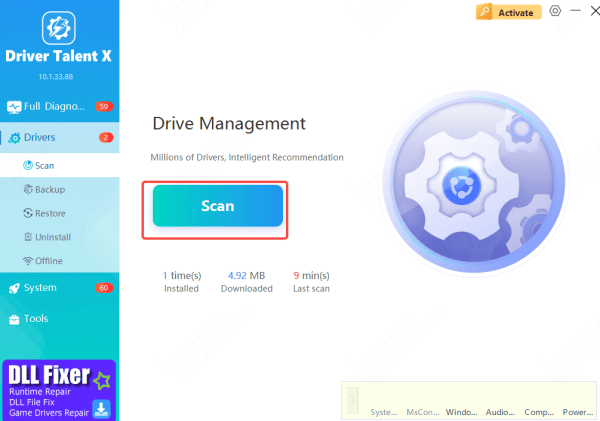
Using an automatic driver updater like Driver Talent X is the fastest and safest option:
Download and install Driver Talent X
Launch the software and go to Drivers → Scan
The tool will detect outdated, missing, or faulty drivers
Locate your Logitech headset or audio driver
Click Upgrade or Repair Now
Restart your computer to apply changes
This method is especially helpful if multiple audio or USB drivers are involved
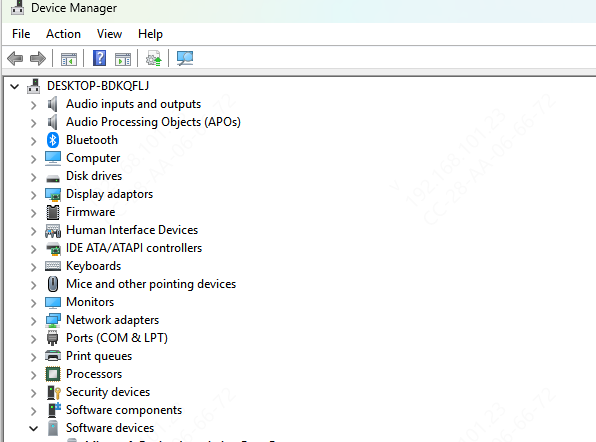
Option 2: Update Drivers Manually via Device Manager
Press Win + X and select Device Manager
Expand Sound, video and game controllers
Right-click your Logitech headset or audio device
Select Update driver
Choose Search automatically for drivers
Check Logitech Software (G HUB)
Many Logitech headsets rely on Logitech G HUB for proper functionality.
Make sure Logitech G HUB is installed
Update it to the latest version
Open G HUB and confirm your headset is detected
Check sound profiles, volume levels, and output settings
If issues persist, uninstall and reinstall G HUB
Software conflicts or outdated versions can prevent sound output.
.png "check-logitech-software")
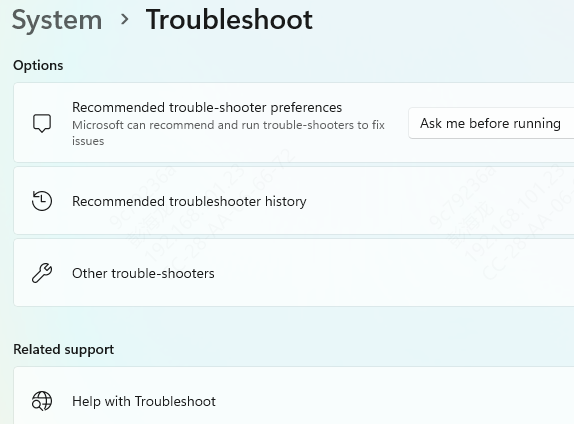
Run the Windows Troubleshooter
Go to Settings > System > Sound > Troubleshoot
Roll back audio drivers:
Open Device Manager
Right-click the audio driver
Select Properties > Driver > Roll Back Driver (if available)
Restart your system and test again
Conclusion
A Logitech headset with no sound is usually caused by driver issues, incorrect audio settings, or software conflicts. By checking connections, setting the correct default device, updating or reinstalling drivers, and keeping Logitech software up to date, you can resolve most sound problems quickly. For the best long-term solution, keeping your audio and USB drivers updated—preferably with an automatic tool—can help prevent similar issues in the future.









