
The Logitech G Pro X Superlight is a favorite among competitive gamers thanks to its ultra-lightweight design and reliable wireless performance. However, some users experience random disconnect issues, where the mouse briefly stops responding, lags, or completely disconnects during gameplay. This can be incredibly frustrating—especially in fast-paced games. The good news? In most cases, this problem is software-, driver-, or connection-related, not hardware failure. This guide walks you through step-by-step solutions to help you fix random disconnect issues and restore a stable wireless connection.
Basic Checks Before Troubleshooting
Start with these quick checks—they often solve the issue immediately:
Fully charge the mouse
Replug the USB receiver
Use a rear motherboard USB port instead of front-panel ports
Keep the receiver away from routers, USB 3.0 devices, or external hard drives
Use the included USB extender to place the receiver closer to the mouse
If the problem continues, move on to the steps below
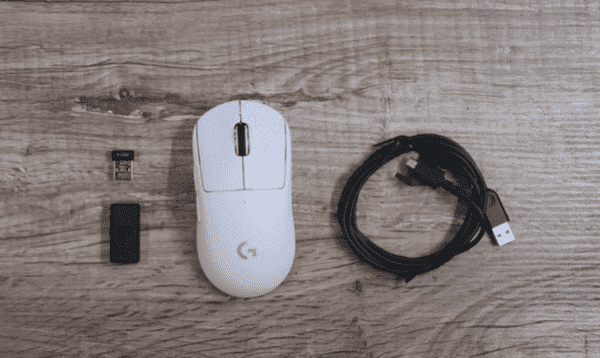
Re-Pair the Mouse and Receiver
Sometimes the wireless connection simply needs to be refreshed:
Turn off the mouse
Unplug the USB receiver
Restart your PC
Plug the receiver back in
Turn the mouse on and test the connection
You can also use Logitech G Hub to confirm the mouse is detected properly
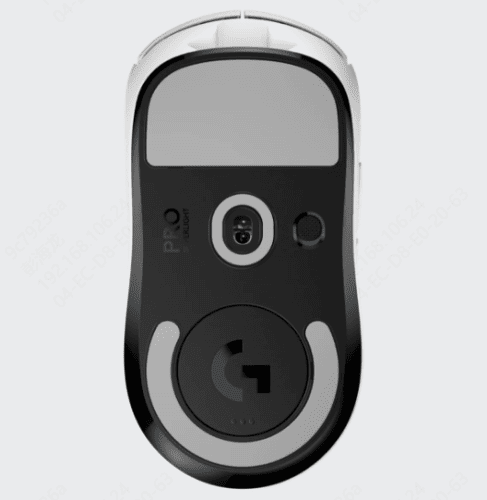
Check Logitech G Hub Software
Logitech G Hub plays a major role in device stability:
Make sure G Hub is updated to the latest version
Restart G Hub completely (including background services)
Avoid running other peripheral software that may conflict
Temporarily disable custom profiles to test stability
If G Hub keeps crashing or fails to recognize the mouse consistently, driver issues are often the real cause
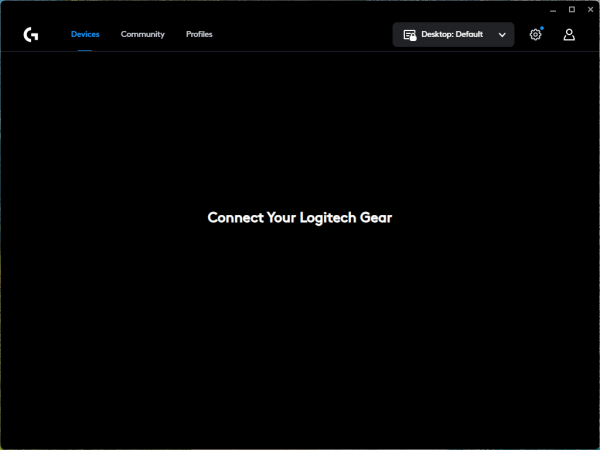
Update or Fix Mouse Drivers
Driver problems are one of the most common reasons for random disconnects on the Logitech G Pro X Superlight. This includes mouse drivers, USB drivers, and chipset drivers that handle wireless communication.
Option 1: Driver Update via Device Manager
You can try updating drivers through Device Manager
But this often fails to detect deeper compatibility issues or missing components—especially after Windows updates
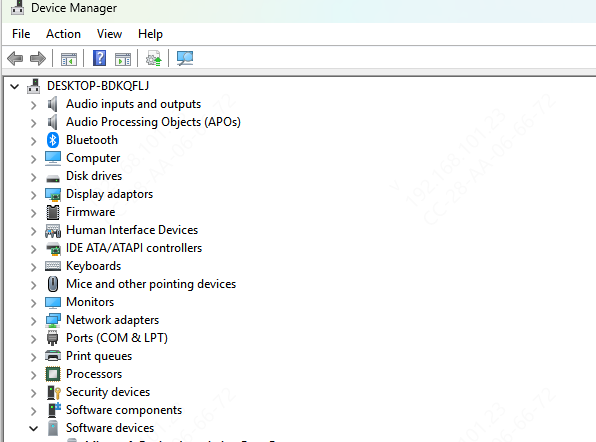
Option 2: Use Driver Talent X (Recommended)
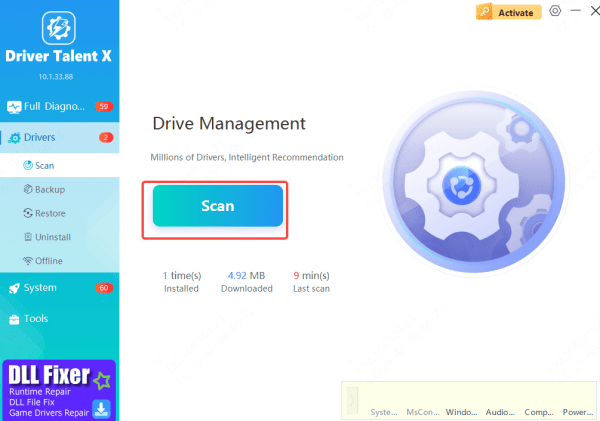
If you want a faster and more reliable solution, Driver Talent X can automatically handle driver issues for you.
Download and install Driver Talent X
Launch the program and go to Drivers → Scan
The software will detect outdated, missing, or faulty drivers related to: Logitech mouse, USB controllers and Wireless and chipset drivers
Click Repair Now to automatically install the correct drivers
Restart your computer and test the mouse connection
This approach helps eliminate hidden driver conflicts that often cause random wireless dropouts, especially on gaming systems
Adjust Windows USB Power Management Settings
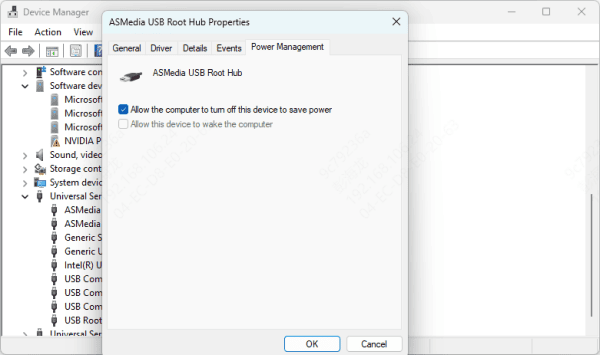
Windows may be cutting power to USB devices to save energy:
Open Device Manager
Expand Universal Serial Bus controllers
Right-click each USB Root Hub
Go to Power Management
Uncheck Allow the computer to turn off this device
Click OK and restart your PC
Also, set your Windows power plan to High Performance
Reset Mouse Settings
If custom settings are causing instability:
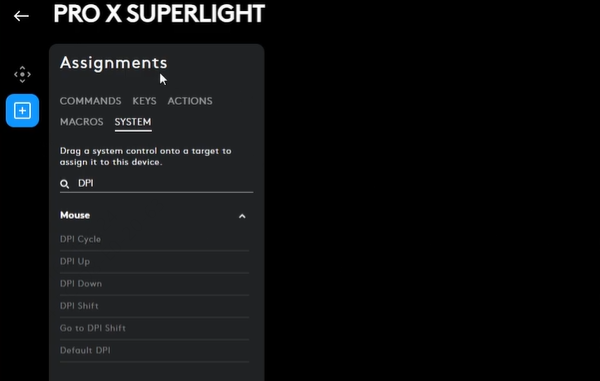
Open Logitech G Hub
Reset the mouse to default settings
Remove unused profiles
Reapply settings gradually
Common Causes of Random Disconnects
Wireless signal interference
Low battery or unstable power supply
Outdated, missing, or corrupted mouse or USB drivers
Logitech G Hub software conflicts
USB power-saving settings in Windows
Compatibility issues after Windows updates
Final Thoughts
Random disconnect issues with the Logitech G Pro X Superlight are usually fixable without replacing the mouse. In most cases, the problem comes down to drivers, USB power settings, or software conflicts. Keeping your drivers updated—especially with tools like Driver Talent X—is one of the most effective ways to maintain a stable wireless gaming experience. Once everything is properly configured, your Superlight should perform exactly as intended: fast, precise, and reliable.









