
The Logitech Wave Keyboard is well-known for its ergonomic design and smooth typing experience. However, like any piece of tech, it can sometimes experience connection issues. Whether you're using a wired or wireless version, a failure to connect can be frustrating. This guide will take you through step-by-step troubleshooting to help you fix your Logitech Wave Keyboard when it's not connecting to your computer.
Check Basic Hardware Connections
For Wired
Check the USB Port: Make sure the keyboard is securely plugged into a functioning USB port. Avoid using USB hubs, as they can cause issues with connectivity
Try Different USB Ports: If the keyboard doesn't work in one port, try plugging it into another. Preferably, use a USB 2.0 port over USB 3.0, as older ports often have better compatibility with certain devices
Inspect the Cable: Check if the USB cable is damaged or frayed. If it's physically damaged, it could be preventing the keyboard from connecting properly
.png "check-port-connetction")
For Wireless
Replace the Batteries: The issue may be as simple as dead batteries. Replace them with fresh, high-quality batteries and check if the keyboard connects
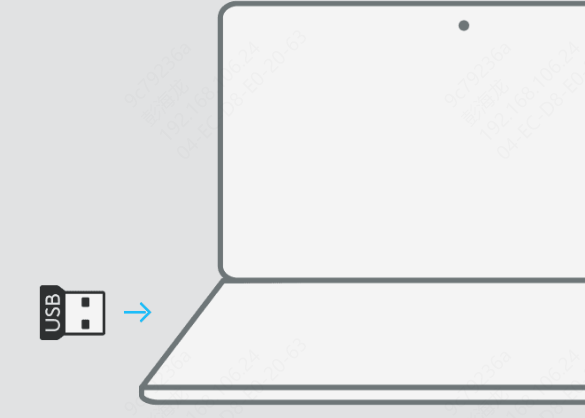
Check USB Receiver: If using a wireless USB receiver, ensure it's securely plugged into a working USB port. Again, avoid using USB hubs; directly plug it into the computer
Re-pair the Device: If your keyboard not connecting, remove the USB receiver from the port and re-pair the keyboard. You may need to press the connect button on the receiver or follow the pairing instructions in the user manual
Update the Keyboard Driver
Update via Device Manager
Outdated or missing drivers are a common cause of connectivity issues
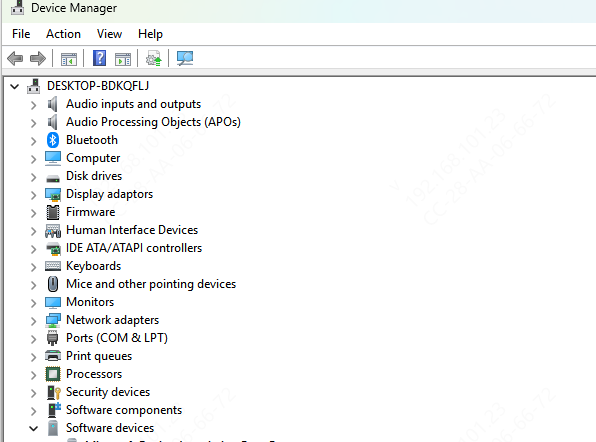
Open Device Manager (on Windows) by right-clicking on the Start button and selecting Device Manager
Expand the Keyboards section and locate your Logitech Wave Keyboard
Right-click on the keyboard and choose Update Driver
Follow the prompts to search for and install any available updates
Use Driver Talent X to Fix Driver Issues (Recommended)
If you're tired of manually updating drivers or unsure about which ones need attention, Driver Talent X offers a quick and efficient solution. It automatically scans for outdated or missing drivers, including those related to your Logitech Wave Keyboard, and updates them with just a few clicks.
Download and Install Driver Talent X
Go to the official Driver Talent website, download the installer, and follow the on-screen instructions to install the software
Scan for Driver Issues
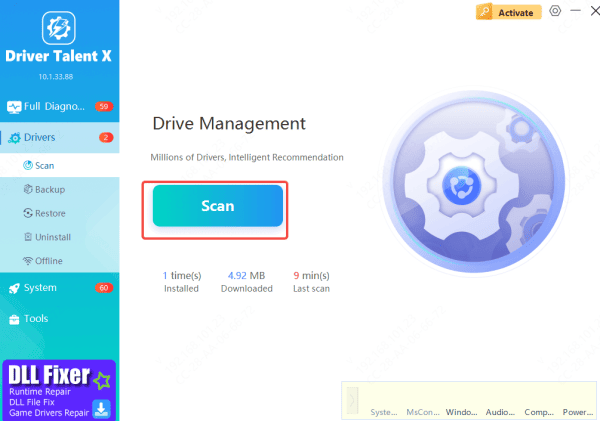
Open Driver Talent X after installation, and navigate to Drivers → Scan
The tool will scan your system for outdated, missing, or corrupted drivers, including those for your keyboard, sound card, and USB drivers
Repair or Update the Drivers
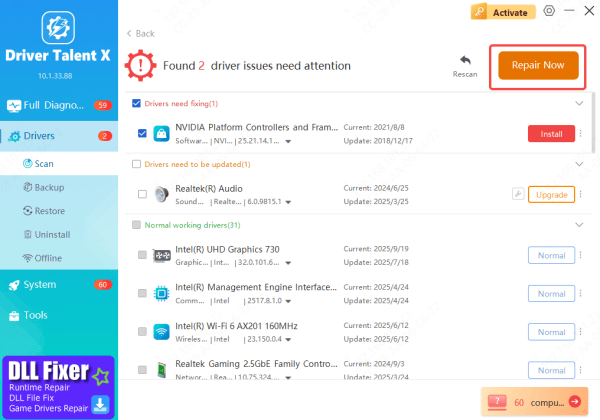
Once the scan is complete, Driver Talent X will display any issues with your Logitech Wave Keyboard drivers
Click Repair Now or Update, and the software will automatically download and install the correct drivers
Restart Your Computer
After the drivers are updated, restart your computer
Then, plug in your keyboard again and check if it's functioning properly
Factory Reset
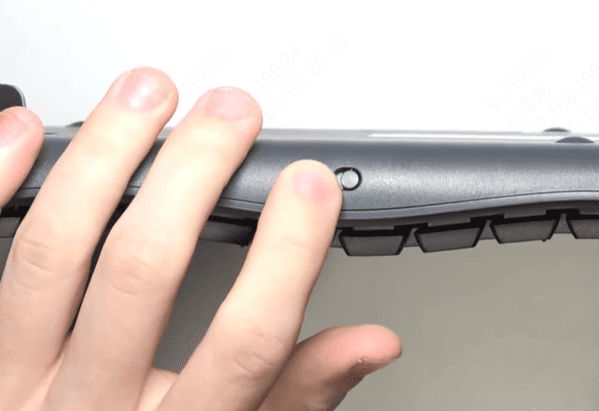
Perform a factory reset on the keyboard if other methods haven't worked:
Hold down the reset button or follow the reset instructions in the user manual (this might involve pressing a certain key or combination of keys)
After the reset, reconnect the keyboard to your computer to check if it's now working
Specific Keyboard Settings
Sometimes, keyboard connection issues may arise due to incorrect settings in your operating system. Here's how to check and reset the keyboard settings on Windows to resolve any conflicts:
Windows Settings: Reset Keyboard Configurations
Open Control Panel
Press Windows Key + R to open the Run dialog box
Type control and press Enter to open the Control Panel
Navigate to Keyboard Settings
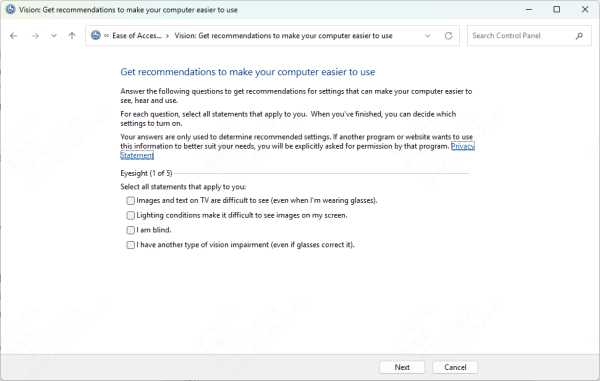
In the Control Panel, go to Ease of Access
Click on Ease of Access Center
Under the Explore all settings section, click on Make the keyboard easier to use
Reset Custom Configurations
Look for any custom configurations under the Keyboard Settings. This includes settings for Sticky Keys, Filter Keys, and Toggle Keys
Ensure that no settings are enabled that may interfere with normal keyboard operation
If you find any custom settings that may have been enabled unintentionally, uncheck them
Conclusion
Fixing a Logitech Wave Keyboard that's not connecting is typically straightforward with the right troubleshooting steps. Start with checking the hardware connections, updating or reinstalling drivers, and cleaning the keyboard. If you still can't get the keyboard working, try testing it on another device or resetting it. By following these steps, you should be able to restore your Logitech Wave Keyboard to full functionality and enjoy a seamless typing experience once again.









