
The Logitech Z150 speakers are a popular choice for desktops and laptops, offering clear audio and compact design at an affordable price. However, like any audio device, they can sometimes stop working, leaving you frustrated during calls, streaming, or music sessions. The good news is that most problems are easy to fix with a few simple steps. This guide will walk you through troubleshooting your Logitech Z150 speakers and restoring full functionality.
Quick Checks Before Troubleshooting
Before diving into software or driver solutions, it's always a good idea to check the basics.
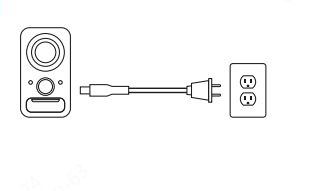
Power and Connections
Ensure the speakers are plugged in and the power switch is turned on
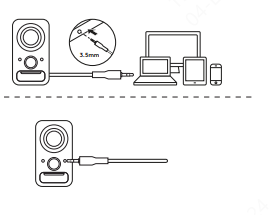
Confirm the 3.5mm audio cable is securely connected to your PC or laptop
If your Z150 uses USB for power, make sure the USB cable is plugged into a working port
Volume Settings
Turn up the volume knob on the speaker itself
Check the system volume in Windows and make sure it isn't mute
Verify the volume in apps like YouTube, Spotify, or video conferencing software
Check Sound Settings on Windows
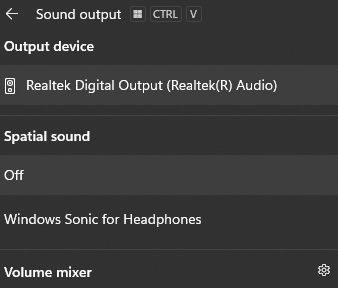
Select Open Sound Settings
Under Output, choose the Speakers (Logitech Z150)
Adjust Stereo Balance
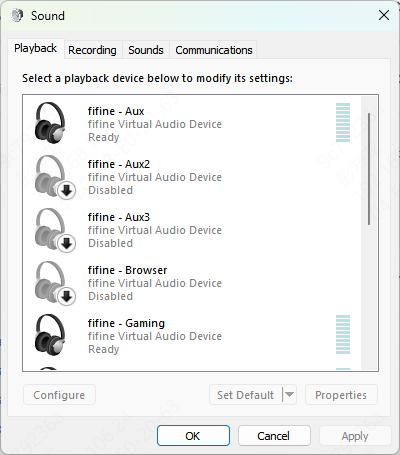
Open Control Panel → Sound → Playback → Speakers → Properties → Levels
Make sure left and right channels are balanced and not muted
Update or Reinstall Audio Drivers
Outdated or corrupted drivers are one of the most common causes of no sound issues.
Update via Device Manager
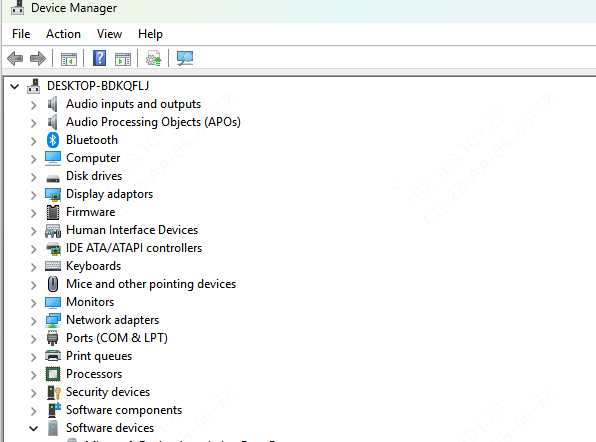
Press Win + X → Device Manager
Expand Sound, video and game controllers
Right-click your audio device → Update driver → Search automatically
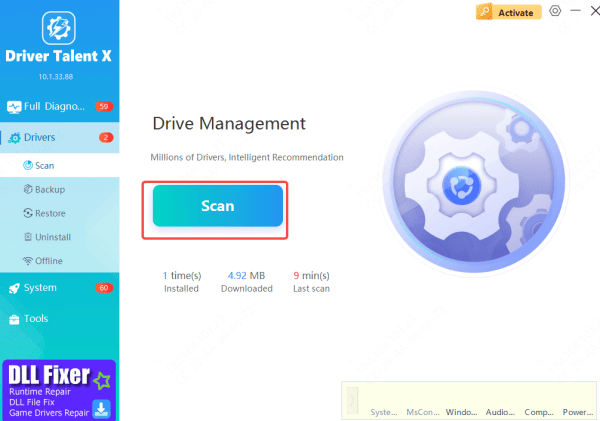
Automated Fix with Driver Talent X (Recommended)
Download and install Driver Talent X from the official website
Open the software → go to Drivers → Scan
Click Repair Now or Update, and Driver Talent X will automatically install the correct drivers
Restart your computer and test the speaker
This method ensures that you get the latest certified drivers without manually searching for them, minimizing risk and saving time
Advanced Windows Fixes
Sometimes Windows services or settings interfere with audio devices
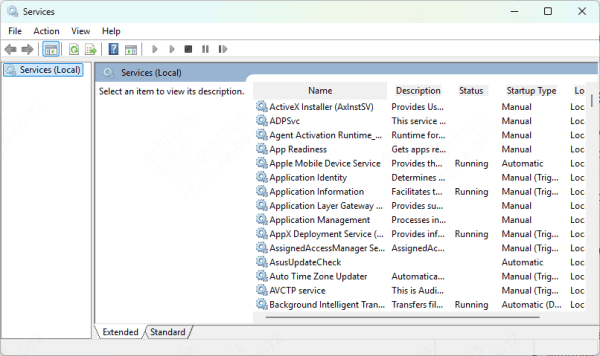
Restart Windows Audio Services
Press Win + R, type services.msc, and press Enter
Find Windows Audio and Windows Audio Endpoint Builder
Right-click each → Restart
Make sure Startup Type is set to Automatic
Run Windows Troubleshooter
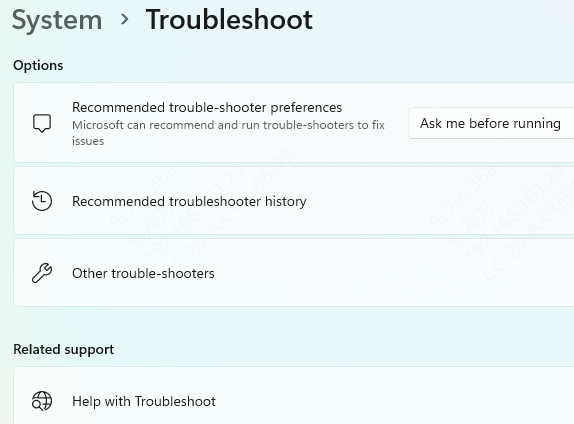
Go to Settings → Update & Security → Troubleshoot → Playing Audio and follow on-screen instructions
Check for Windows Updates
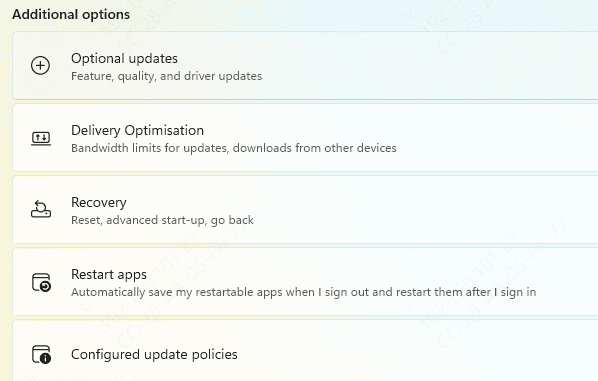
Outdated system updates can sometimes cause conflicts with audio drivers
Ensure your Windows is up to date
Inspect Hardware
If software fixes don't work, it's time to check the hardware
Audio Cable and Connectors: Look for frayed wires or bent connectors. Try replacing the 3.5mm cable
USB Power (if applicable): Plug the USB into another port to verify it provides power
Speaker Damage: Inspect the speaker cones and casing for any visible damage
Conclusion
Most issues with the Logitech Z150 speakers are related to connections, Windows settings, drivers, or minor hardware problems. Rarely is the speaker itself defective. By following this guide, you should be able to restore your speakers to full working condition. For the easiest and safest driver updates, Driver Talent X is highly recommended. It automatically scans, repairs, and updates all necessary drivers, keeping your system and speakers running smoothly without the hassle of manual troubleshooting









