
The Graphics Card (GPU) is the single most critical component determining your PC gaming experience. Installing a powerful GPU like an NVIDIA GeForce RTX or AMD Radeon RX is only the first step; maximizing its performance requires diligent driver management, correct in-game settings, and system-wide optimization.
To ensure your investment delivers its maximum potential, this guide provides a systematic approach to tuning your GPU for peak gaming performance, starting with the essential foundation: driver integrity.
Part I: Driver Integrity and System Synchronization
Outdated, corrupted, or conflicting graphics drivers are the number one cause of stuttering, low frame rates, and crashes in PC games. A clean driver installation is the mandatory first step for maximum performance.
Automated Driver Update with Driver Talent X
Manually troubleshooting and updating the GPU driver, along with the critical motherboard Chipset and CPU drivers, can be complex and risky. A specialized utility automates this entire procedure, guaranteeing a clean uninstall of old files and synchronization with the new graphics card.
Download and Install:
Click the "Download" button to download the software package.
Install it on your Windows PC.
Run Scan:
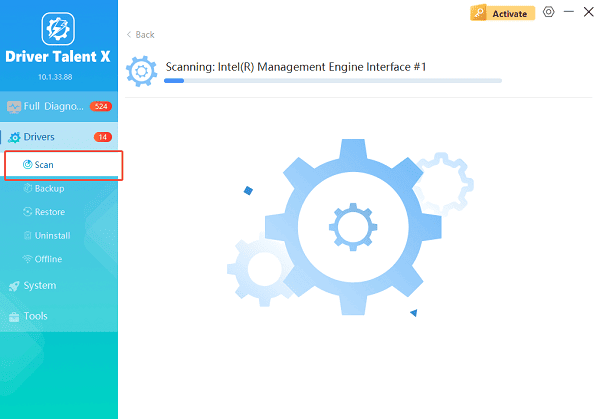
Launch the application and go to "Drivers" > "Scan", click "Scan".
The software will perform a deep analysis of your system, focusing on the GPU and core components.
Execute Clean Installation:
After the scan is complete, the software will display a list of all drivers that need attention. Select the necessary graphics drivers and click the "Upgrade" or "Repair Now" button.
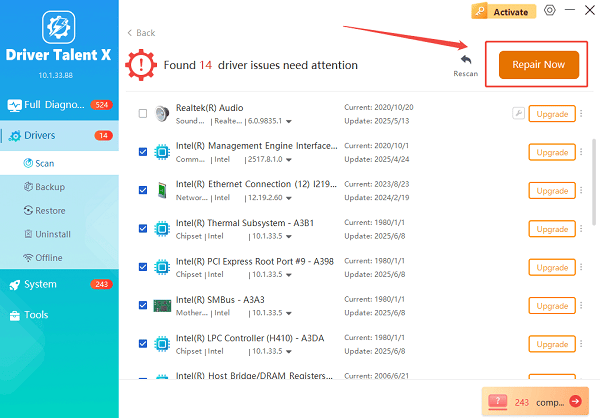
Driver Talent X will first perform a thorough cleanup of any conflicting old files, then reliably download and execute a completely clean installation of the correct, latest certified driver for your NVIDIA or AMD GPU.
Restart:
Once the installation is finalized, restart your PC to fully integrate the new driver and software.
Part II: Software Configuration for Maximum FPS
These steps optimize the GPU's control panel settings to prioritize performance over visual quality or power efficiency.
Method 1: Adjust Graphics Control Panel Settings
Manually setting the power management mode to prioritize performance ensures the GPU never unnecessarily throttles during gameplay.
Open Control Panel: Right-click on the desktop and open your GPU control panel (NVIDIA Control Panel or AMD Software: Adrenalin Edition).
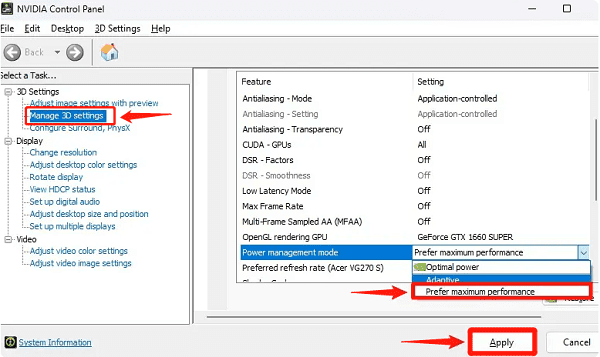
Set Power Mode (NVIDIA): Navigate to "3D Settings" > "Manage 3D settings". Under the Global Settings tab, change Power management mode to "Prefer maximum performance".
Set Performance Profile (AMD): Navigate to "Gaming" > "Graphics". Change the Tuning mode from "Balanced" to "Gaming" or "Custom", ensuring the power limit is maximized.
Method 2: Configure Windows Graphics Settings
Windows 10/11 has specific settings that can boost gaming performance by reducing input lag and prioritizing the GPU.
Press Windows Key + I to open Settings.
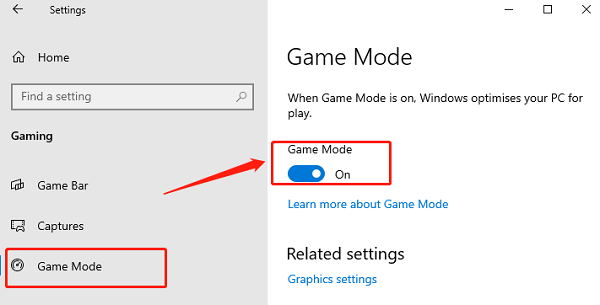
Go to "Gaming" > "Game Mode" and ensure Game Mode is On.
Go to "Display" > "Graphics". Add your game executable file (e.g., Cyberpunk2077.exe) to the list. Click "Options" and set the preference to "High performance".
If available, enable Hardware-accelerated GPU scheduling in the main Graphics Settings page.
Part III: Hardware and Firmware Optimization
These steps ensure your system hardware is configured correctly to avoid bottlenecks that limit the GPU.
Method 1: Enable Resizable BAR / Smart Access Memory
This feature allows the CPU to access the entire GPU VRAM buffer at once, which can provide significant performance gains in supported games.
Check Compatibility: Verify that your CPU (Intel 10th Gen+ / AMD Ryzen 3000 Series+) and motherboard support the feature (ReBAR for NVIDIA, SAM for AMD).
Enable in BIOS: Restart your PC and enter the BIOS/UEFI (usually DEL or F2). Navigate to the "Advanced" or "PCI settings" and set A"bove 4G Decoding" to Enabled and "Resizable BAR/Smart Access Memory" to Enabled.
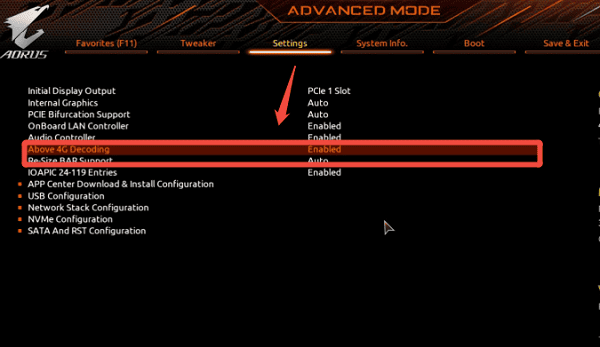
Save and exit.
Method 2: Monitor and Optimize Thermal Performance
An overheating GPU will automatically throttle its clock speeds (Thermal Throttling), severely limiting performance.
Monitor Temperatures: Use software (like MSI Afterburner or HWMonitor) to check your GPU temperature during intensive gameplay. Target temperatures should ideally remain below 80°C (176°F).
Improve Airflow: Ensure your PC case has adequate, balanced airflow, with cool air intake at the front/bottom and hot air exhaust at the back/top.
Conclusion
Achieving maximum performance from your graphics card is a combination of clean software and optimized settings. The most reliable path to stability and high frame rates is to first ensure system-wide driver integrity with Driver Talent X.
By combining this foundational fix with setting the Power Management mode to maximum performance, enabling Resizable BAR/SAM in the BIOS, and prioritizing your game executables in Windows Graphics settings, you guarantee a smooth, stable, and high-performance gaming experience.
See also:
Canon CanoScan LiDE 100 Not Recognized? Try These Fixes
How to Fix Knup Keyboard Connection Issues – Working Driver Solutions
Canon IR2520 UFRII LT Driver Not Recognized? Try These Fixes
Can't Print with HP LaserJet M1120 MFP? Complete Troubleshooting Guide









