
Updating your graphics driver on Windows 10 is one of the most effective ways to improve system performance, gaming stability, and display quality. Outdated or corrupted graphics drivers often cause low frame rates, screen flickering, application crashes, and poor visual performance.
This guide starts with updating graphics drivers using Driver Talent X to ensure your system is running the most compatible and stable driver version, followed by multiple proven methods to further optimize graphics performance on Windows 10.
Update Graphics Drivers with Driver Talent X
Driver Talent X is an automated driver management tool that scans your system for outdated, missing, or incompatible drivers and installs the correct versions for your hardware. Updating your graphics driver first helps prevent conflicts and performance issues.
Download and Install:
Click the "Download" button to download the Windows installer. Save the file to your Windows PC.
Double-click the installer and follow the on-screen instructions. Choose an installation directory and complete the setup.
Run a Full System Scan:
Open Driver Talent X from the desktop shortcut or the Windows Start menu, go to "Drivers" > "Scan", click "Scan".
Driver Talent X will analyze all drivers on your system, including NVIDIA, AMD, or Intel graphics drivers.
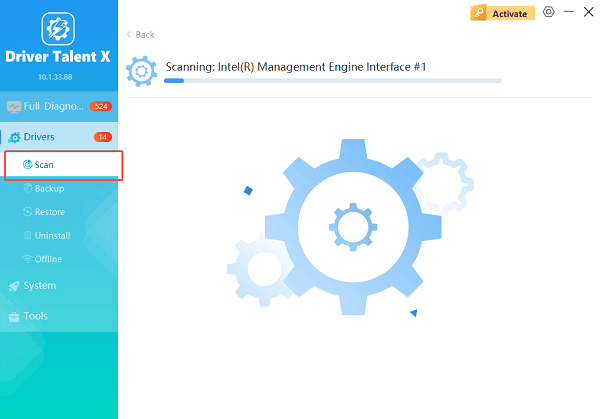
Update Graphics Driver:
After scanning, locate your graphics driver in the results list. Click the necessary drivers and click the "Upgrade" or "Repair Now" button.
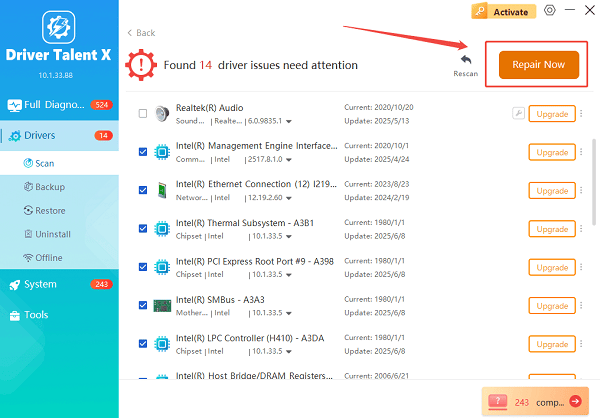
Driver Talent X will reliably download the latest drivers and execute a clean installation, critical for performance enhancements and stability fixes.
Restart Your Computer:
Reboot your system to apply the updated graphics driver properly.
Once your graphics driver is updated, you can proceed with additional performance optimizations.
Why Updating Graphics Drivers Improves Performance
Fixes bugs and stability issues
Improves game and application compatibility
Enhances frame rates and rendering performance
Supports new Windows updates and DirectX versions
Reduces screen tearing, flickering, and crashes
Additional Ways to Improve Graphics Performance
Method 1: Adjust Windows Graphics Settings
Press Windows + I to open Settings.
Go to System > Display > Graphics settings.
Enable "Hardware-accelerated GPU scheduling" if supported.
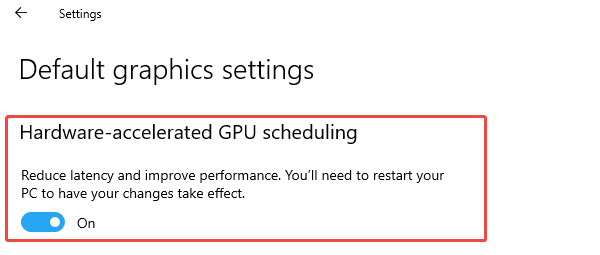
Set specific apps to "High performance" using the graphics preference menu.
Restart your PC to apply changes.
Method 2: Optimize Power Settings
Open Control Panel.
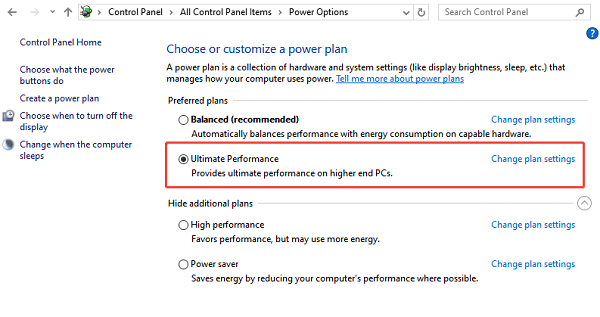
Go to Power Options.
Select "High performance" or "Ultimate performance" if available.
Method 3: Update DirectX and Windows Components
Press Windows + R, type "dxdiag", and press Enter.
Check your DirectX version.
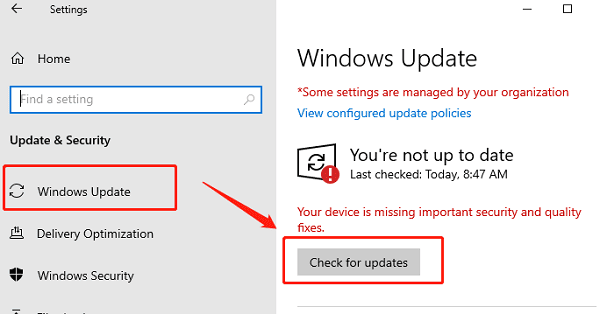
Install all available Windows updates via "Settings" > "Update & Security" > "Windows Update" > "Check for updates" to ensure the latest DirectX components are installed.
Method 4: Clean Install the Graphics Driver
Open Device Manager.
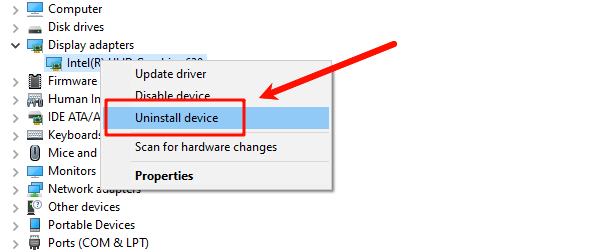
Expand "Display adapters", right-click your graphics card and select "Uninstall device".
Check "Delete the driver software for this device" and confirm.
Restart your PC and reinstall the driver using Driver Talent X.
Method 5: Update Chipset Drivers
Use Driver Talent X to scan for chipset and motherboard driver updates.
Install any available updates.
Restart your computer to improve hardware communication and graphics performance.
Common Signs Your Graphics Driver Needs an Update
Low FPS in games
Display flickering or black screens
Crashes when launching games or design software
Poor video playback quality
Driver-related error messages
Practices for Maintaining Graphics Performance
Use Driver Talent X regularly to keep graphics drivers up to date.
Avoid installing beta drivers unless necessary.
Create a system restore point before major driver updates.
Keep Windows 10 fully updated.
Monitor GPU temperatures to avoid thermal throttling.
Conclusion
Updating your graphics driver on Windows 10 is essential for achieving better performance, improved stability, and enhanced visual quality. By first using Driver Talent X to update your graphics driver and then applying additional optimization methods, you can significantly improve your PC's graphics performance. Regular driver maintenance ensures smooth operation and long-term system reliability.
See also:
Solutions to Fix Monster Hunter Wilds Crashes
How to Fix Split Fiction Not Launching on Windows
[Fixed] Whoa! Cyberpunk 2077 Flatlined Error
Solutions for 'DirectX 12 Not Supported' Error on Windows 10









