
Changing graphics card settings on Windows 10 is essential for improving gaming performance, fixing display issues, reducing lag, and optimizing power consumption. Whether you are using an NVIDIA, AMD, or Intel graphics card, correct settings and updated drivers play a critical role in system stability.
This guide explains that before changing any graphics settings, you should first update your graphics drivers to ensure compatibility and access all available options. It then introduces several reliable methods to adjust graphics card settings on Windows 10.
Update Graphics Drivers Using Driver Talent X
Outdated or incompatible graphics drivers can prevent settings from appearing or cause performance problems. Driver Talent X automatically detects and installs the most suitable drivers for your graphics card.
Download and Install:
Click the "Download" button to download the Windows installer. Save the file to your Windows PC.
Run the downloaded installer and follow the on-screen instructions to complete the installation.
Run a Full System Scan:
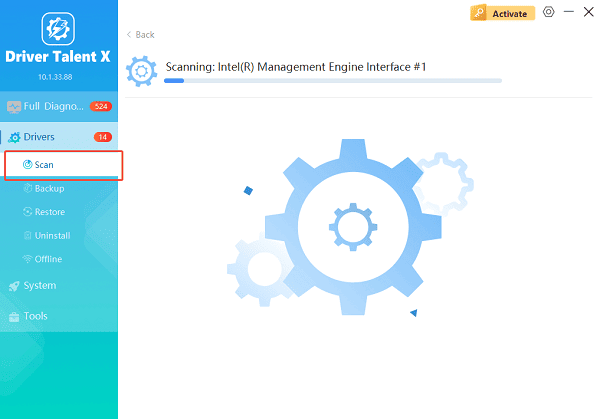
Open Driver Talent X from the desktop shortcut or the Windows Start menu, go to "Drivers" > "Scan", click "Scan".
Driver Talent X will scan your system and identify outdated, missing, or corrupted drivers, including graphics drivers.
Update Graphics Driver:
After scanning, locate your graphics driver in the results list, such as NVIDIA, AMD, or Intel graphics. Click "Upgrade" next to the graphics driver or choose "Repair Now" to update all drivers at once.
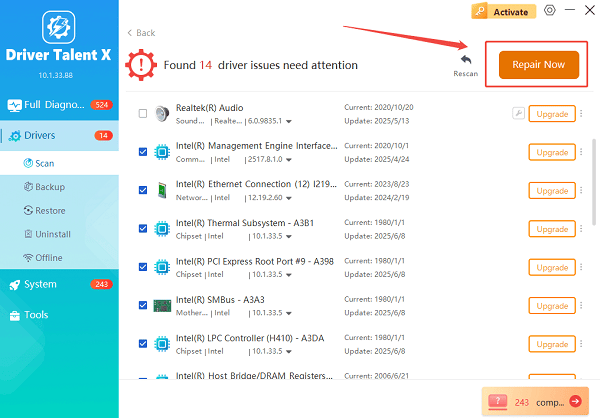
Driver Talent X will reliably download the latest drivers and execute a clean installation, critical for performance enhancements and stability fixes.
Restart Your Computer:
Reboot your system to ensure the new graphics driver is properly applied.
After updating the driver, all graphics settings and control panels should function correctly.
Method 1: Change Graphics Card Settings via Windows Settings
Windows 10 allows you to assign specific graphics performance preferences to applications.
Steps:
Press Windows + I to open Settings.
Go to "System" > "Display".
Scroll down and click "Graphics settings".
Choose an app type (Desktop app or Microsoft Store app).
Click "Browse" and select the application.
Click "Options" and choose "Power saving, High performance, or Let Windows decide".
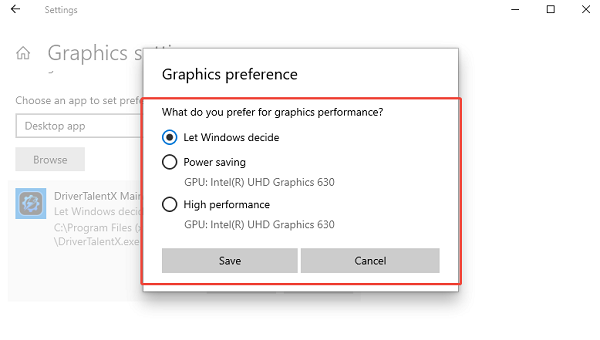
Click "Save" to apply changes.
This method is useful for optimizing games or graphics-intensive applications.
Method 2: Change Settings Using NVIDIA Control Panel
If your system uses an NVIDIA graphics card, you can customize advanced graphics settings.
Steps:
Right-click on the desktop and select "NVIDIA Control Panel".
Go to "Manage 3D settings".
Adjust global settings such as texture filtering, power management mode, and vertical sync.
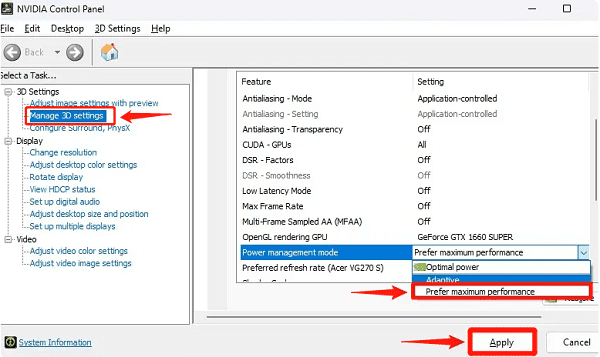
Switch to the "Program Settings" tab to customize settings for individual applications.
Click "Apply" to save changes.
Method 3: Change Settings Using AMD Radeon Software
For AMD graphics cards, Radeon Software provides detailed performance and display controls.
Steps:
Right-click on the desktop and open AMD Radeon Software.
Go to the "Graphics" or "Gaming" tab.
Select a game or application profile.
Adjust settings such as Radeon Anti-Lag, image sharpening, and power tuning.
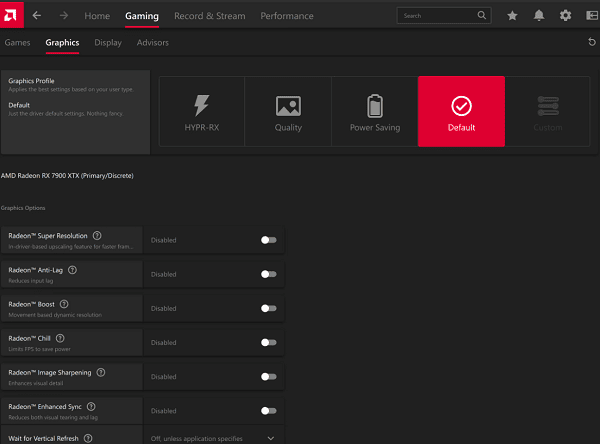
Apply and save your changes.
Method 4: Change Intel Graphics Settings
Intel integrated graphics users can modify display and performance options through Intel Graphics Command Center.
Steps:
Right-click on the desktop and select "Intel Graphics Settings" or "Intel Graphics Command Center".
Navigate to "System" > "Power" or "Display".
Adjust performance or battery optimization settings.
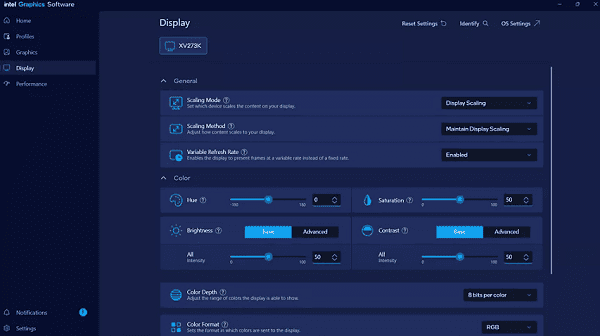
Save the changes.
Method 5: Update Graphics Settings via BIOS (Advanced)
Some systems allow limited graphics configuration through BIOS or UEFI.
Steps:
Restart your PC and enter BIOS by pressing F2, F10, or Del during startup.
Locate Advanced, Chipset, or Graphics Configuration.
Select the preferred GPU or adjust shared memory settings.
Save changes and exit BIOS.
Only advanced users should modify BIOS settings.
Common Issues When Changing Graphics Card Settings
Graphics control panel not opening due to outdated drivers
Missing high-performance GPU options on laptops
Settings resetting after restart due to driver conflicts
Keeping drivers updated with Driver Talent X prevents these issues.
Conclusion
Changing graphics card settings on Windows 10 is an effective way to boost performance, improve display quality, and optimize system behavior. The most important step is updating your graphics driver using Driver Talent X before making any changes.
By combining updated drivers with Windows Settings, manufacturer control panels, and BIOS options, you can fully customize your graphics experience on Windows 10 safely and effectively.
See also:
How to Update Graphics Driver Intel on Windows PC
HP Drivers Download – Official and Safe Methods for Windows









