
Keeping your graphics card driver up to date is essential for stable performance, smooth gaming, optimal display quality, and compatibility with new software. Whether you use NVIDIA, AMD, or Intel graphics, outdated or corrupted drivers can lead to crashes, black screens, poor frame rates, or system lag.
This guide explains how to update your graphics card driver safely using multiple methods, starting with the recommended tool: Driver Talent X.
Method 1: Update Graphics Drivers Using Driver Talent X
Driver Talent X is a dedicated Windows driver tool that automatically detects outdated, missing, or corrupted GPU drivers and installs the correct version. Follow the detailed steps below:
Download and Install:
Click the "Download" button to download the software package.
Run the setup file and follow the on-screen instructions to complete installation.
Scan Your Computer:
Launch the program, go to "Drivers" > "Scan", click "Scan".
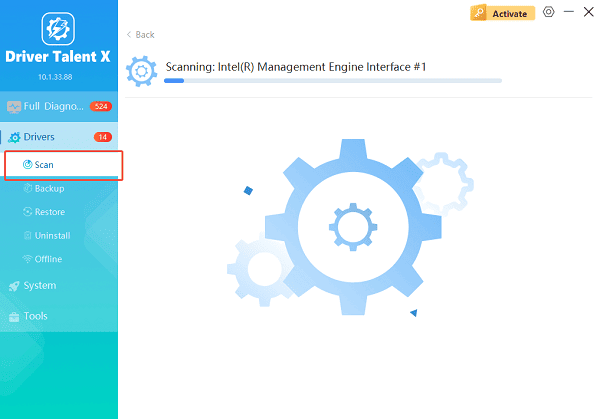
The software will automatically detect your graphics card drivers and check whether the driver is outdated, missing, or corrupted.
Update Windows Drivers:
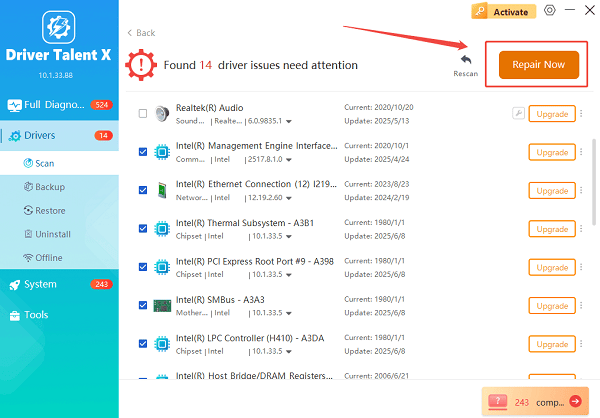
After scanning, locate the NVIDIA display driver in the list. You will see the current version and the recommended latest version.
Click the "Upgrade" or "Repair Now" button to download and install the official driver automatically. Wait until the installation finishes.
Restart Your Computer:
Restart your computer to apply the changes.
This method ensures you receive the correct, stable driver version without manually searching or installing incompatible files.
Method 2: Update Drivers Through Device Manager
Windows Device Manager offers a built-in way to update GPU drivers, though it may not always find the latest version.
How to Use Device Manager:
Right-click the Start button and select "Device Manager".
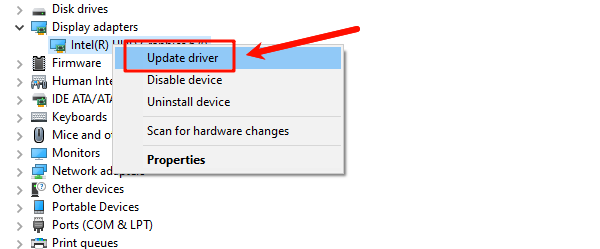
Expand the "Display adapters" section. Right-click your graphics card (NVIDIA, AMD, or Intel) and choose "Update driver".
Select "Search automatically for drivers".
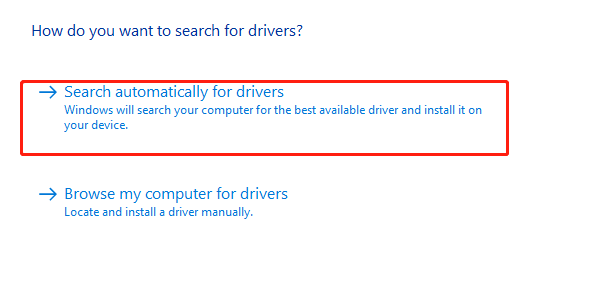
If an update is available, Windows will install it.
Restart your computer.
If Windows reports that the best drivers are already installed, you may still benefit from manually installing the newest version directly from the manufacturer.
Method 3: Download Drivers From the Manufacturer
All GPU brands provide official driver packages for manual installation.
NVIDIA Graphics Card (GeForce):
Visit NVIDIA's official driver download page.
Choose your GPU series, GPU name, and operating system.
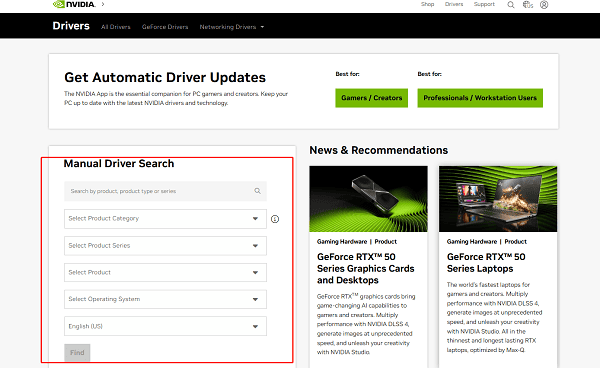
Download the driver package.
Run the installer and select Express Installation.
Restart your system.
AMD Graphics Card (Radeon):
Visit AMD's driver support page.
Select Auto-Detect or choose your GPU model manually.
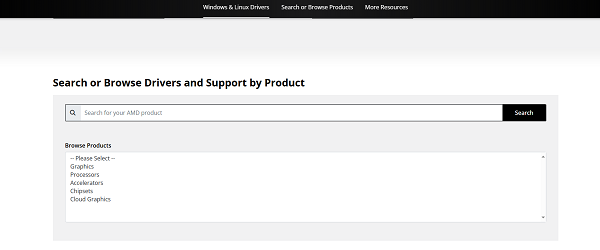
Download the recommended driver.
Install using the on-screen instructions.
Restart Windows.
Intel Graphics:
Go to Intel's Download Center.
Use the Intel Driver & Support Assistant or choose your GPU model manually.
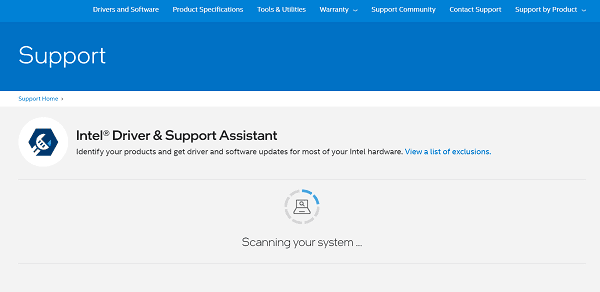
Download and install the latest available driver.
Restart your device.
Manual installation gives you access to the most recent performance optimizations and bug fixes.
Method 4: Fully Reinstall Your Graphics Driver
If your system has display problems, crashes, artifacts, or severe stuttering, a clean install may be necessary.
Steps for a Clean Installation:
Download the correct driver from NVIDIA, AMD, or Intel.
Download and install Display Driver Uninstaller (DDU).
Boot Windows into Safe Mode.
Run DDU and select "Clean and restart (Highly recommended)".
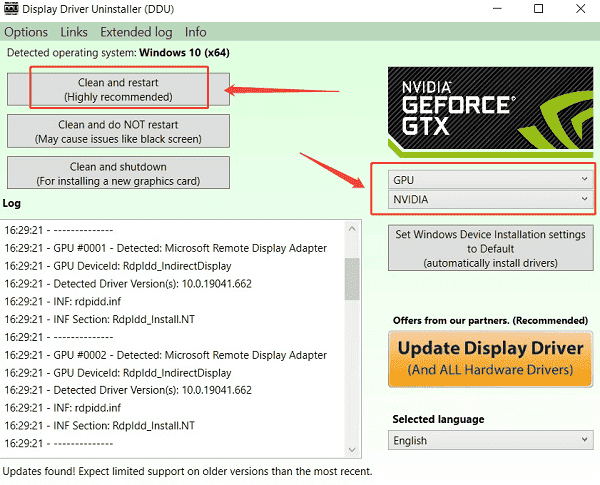
After rebooting normally, install the new driver you downloaded.
Restart again to complete the process.
A clean installation removes outdated files that may conflict with new drivers.
Method 5: Update Windows to Ensure Compatibility
Sometimes GPU drivers require the latest Windows updates to function properly.
Open Settings.
Go to "Update & Security" > "Windows Update".
Click "Check for updates".
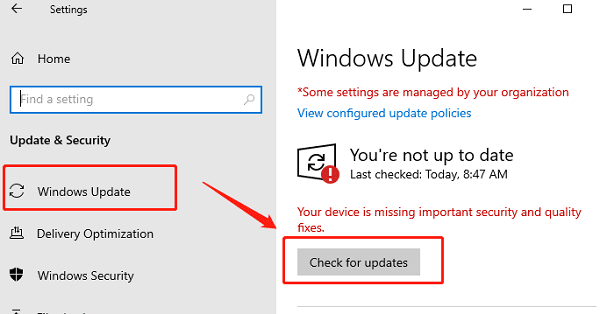
Install all available updates.
Restart your system.
This method is especially important for laptops with integrated Intel graphics or hybrid GPU systems.
Method 6: Check for OEM Laptop Drivers
Laptop manufacturers often release customized GPU drivers.
Visit your laptop brand's support website.
Search for your exact model number.
Look under "Drivers or Downloads".
Install any available graphics driver updates.
Restart your laptop.
This is important for Dell, ASUS, HP, Lenovo, Acer, and MSI laptops with modified GPU firmware.
Conclusion
Updating your graphics card driver is one of the most effective ways to improve performance, fix visual problems, enhance gaming stability, and ensure overall system health.
Using Driver Talent X is the most convenient and reliable option, especially for users who want automatic detection, safe installation, and consistent compatibility. If needed, you can also update drivers manually, reinstall them from scratch, or use manufacturer-specific tools.
See also:
How to Fix AMD FreeSync Not Working Issue
How to Fix Bluetooth Not Working Issues









