A factory reset can help resolve issues such as slow performance, software errors, malware infections, or simply prepare your Lenovo laptop for resale. It restores the system to its original state, removing all apps, settings, and personal files if you choose a full reset. Before starting, it is essential to back up all important data, as a reset can permanently delete files stored on your device.
Method 1: Using the Recovery Partition (Boot Menu)
If your Lenovo laptop includes a recovery partition, you can reset your system directly from the boot menu. This method is especially useful if you cannot log into Windows.
Shut Down Your Lenovo Laptop: Turn off your laptop completely. If it is unresponsive, press and hold the power button for about 10 seconds to force a shutdown
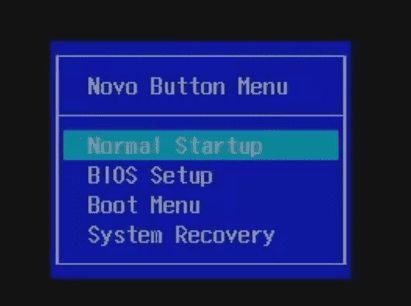
Access the Boot Menu: Turn your laptop back on and immediately press the Novo button (or F12/F8 on some models) to enter the boot menu. You may need to press the key multiple times to successfully access the menu
Select Recovery Options: In the boot menu, choose Troubleshoot, then select Reset this PC. Pick the Remove Everything option to erase all files and restore the laptop to its factory settings
Follow On-Screen Instructions: Confirm your selection and follow the prompts on the screen. Choose the options that match your situation
Wait for the Reset to Complete: The reset process may take some time, and your laptop will restart several times. Once finished, Windows 11 will be restored to its original state, ready for initial setup
Method 2: Use Lenovo OneKey Recovery (If Available)
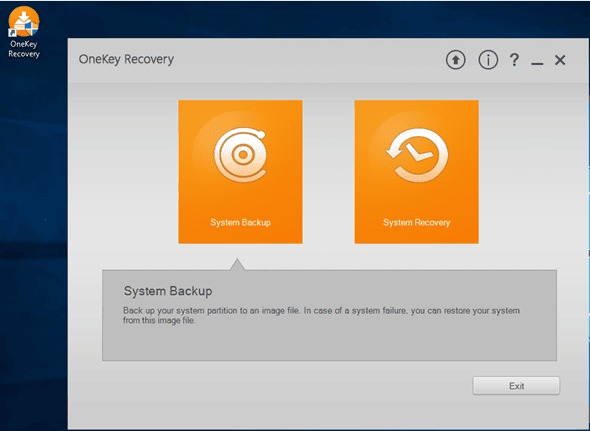
Lenovo laptops often include OneKey Recovery, a dedicated tool for restoring the system.
Locate the Novo button (usually a small pinhole near the power button) or open the pre-installed OneKey Recovery software
Select System Recovery from the menu
Follow the instructions to perform the factory reset
This method is useful if Windows fails to boot properly.
Method 3: Factory Reset Lenovo Using a Bootable USB Drive
If your Lenovo laptop doesn't have a recovery partition or you cannot access the system recovery environment, you can perform a factory reset using a bootable USB drive.
Create a Bootable USB Drive: Use tools like Rufus or Lenovo's recovery media creation tool to make a bootable USB drive. Download the required recovery files from the official Lenovo support website, or use a Windows installation tool to prepare the USB drive
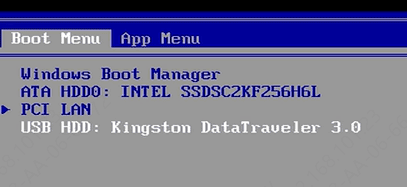
Boot from the USB Drive: Insert the bootable USB into your laptop and power it on. Press the Novo button, F12, or F2 (depending on your model) to access the boot menu. Select the USB drive as the boot device
Start the Factory Reset Process: Once your laptop boots from the USB, select Restore from USB or Repair your computer to enter the Windows Recovery Environment (WinRE). Then choose Reset this PC and follow the on-screen prompts to erase all data and restore the laptop to factory settings
Complete the Reset: After confirming your selections, the system will begin the factory reset. The process may take some time, and your laptop will restart automatically once it is finished
Method 4: Reset via Windows 11 Settings
Windows 11 provides a built-in reset feature that is simple to use.
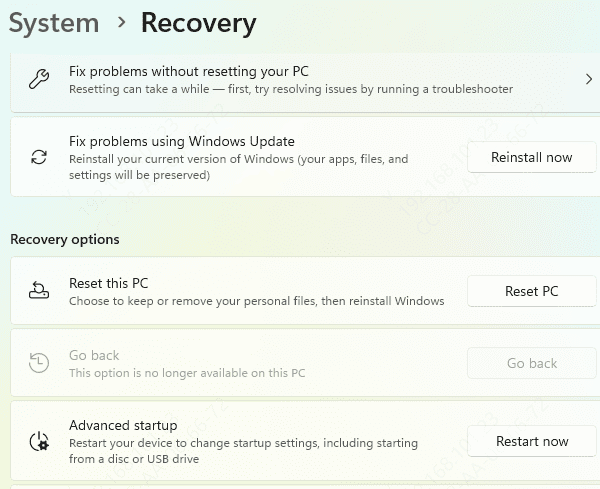
Open Settings → System → Recovery
Under Reset this PC, click Reset PC
Choose your reset option
Keep my files – removes apps and settings but preserves personal files
Remove everything – performs a full factory reset
Follow the on-screen instructions to complete the reset process
After Factory Reset: Reinstall Drivers on Your Lenovo Laptop
Once your Lenovo laptop has been restored to factory settings, it's essential to ensure all drivers are correctly installed. Using Driver Talent X can simplify this process by automatically detecting, downloading, and updating the latest drivers for your system.
Download and Install Driver Talent X
Click the Download button to get the Driver Talent X installer
Once downloaded, run the installer and follow the on-screen instructions to complete the setup
Run a Full System Scan
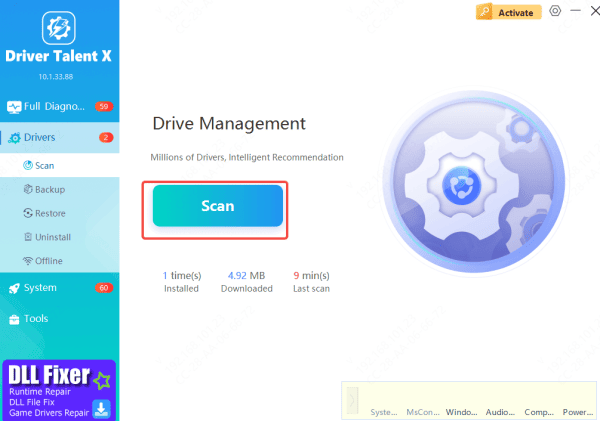
Open Driver Talent X and go to the Drivers section
Click Scan to let the software check your system for missing, outdated, or corrupted drivers
Update Drivers Automatically
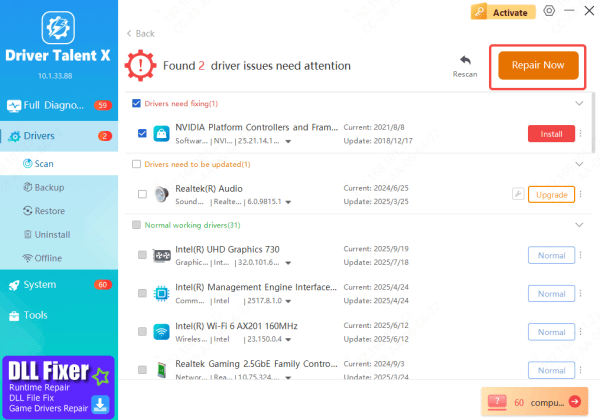
After the scan completes, Driver Talent X will display a list of drivers that need updating
Select the drivers you want to install and click Upgrade or Repair Now to download and install the latest versions automatically
Restart Your Laptop
Once all updates are installed, restart your Lenovo laptop
This ensures that the new drivers are properly applied, optimizing system performance and preventing any driver-related issues
Conclusion
Performing a factory reset on your Lenovo Windows 11 laptop can effectively resolve performance issues, software errors, or malware infections, and is also useful when preparing the device for resale. After the reset, reinstalling and updating drivers—preferably with a tool like Driver Talent X—ensures your laptop runs smoothly, maintains system stability, and provides optimal performance. By following these steps, you can start fresh with a clean, fully functional Lenovo laptop.









