
Corsair wireless mice are known for their performance and reliability, but occasional lag, stuttering, or input delay can still happen. Whether you're gaming, working, or browsing, mouse lag can quickly become frustrating. The good news is that most Corsair wireless mouse lag issues are caused by software, driver, or connection problems—and they can usually be fixed with the right steps. This guide walks you through the most effective solutions to fix Corsair wireless mouse lagging and restore smooth, responsive performance.
Common Causes of Corsair Wireless Mouse Lag
Outdated or corrupted mouse, USB, or chipset drivers
Wireless interference from Wi-Fi routers, Bluetooth devices, or USB 3.0 ports
Corsair iCUE software conflicts or incorrect settings
Low battery or power instability
Poor receiver placement or faulty USB ports
High system load or background software conflicts
Quick Checks Before Advanced Troubleshooting
Start with these simple steps—they often resolve the issue immediately:
Restart your computer and the mouse
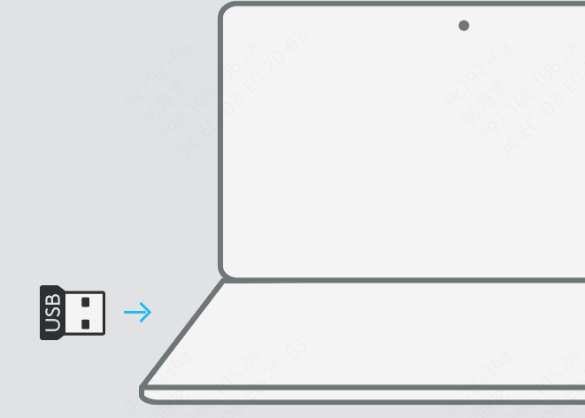
Replug the wireless USB receiver
Switch the receiver to a different USB port (preferably a rear motherboard port)
Fully charge the mouse or replace the battery
Temporarily disable other wireless devices nearby
If the lag persists, continue with the solutions below
Update or Reinstall Corsair Mouse Drivers (Highly Recommended)
Driver problems are one of the leading causes of wireless mouse lag.
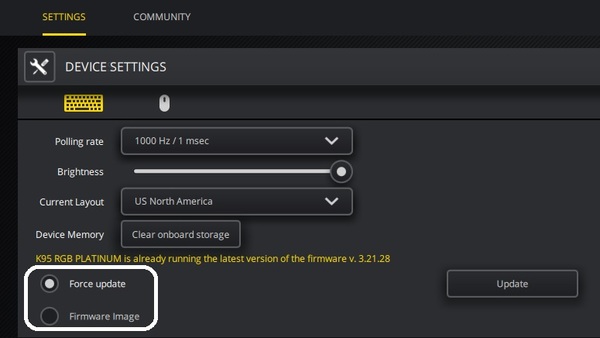
Update via Corsair iCUE
Open iCUE and check for mouse firmware updates
Install any available updates and restart your PC
Use Driver Talent X
Manually updating USB, chipset, and HID drivers can be time-consuming and error-prone. A driver management tool like Driver Talent X simplifies the process by automatically scanning your system for outdated, missing, or incompatible drivers.
With Driver Talent X, you can:
Update mouse, USB controller, and chipset drivers in one click
Fix driver conflicts that cause lag or input delay
Avoid installing incorrect drivers
Back up drivers before updating for safety
After updating drivers, restart your computer to ensure changes take effect.

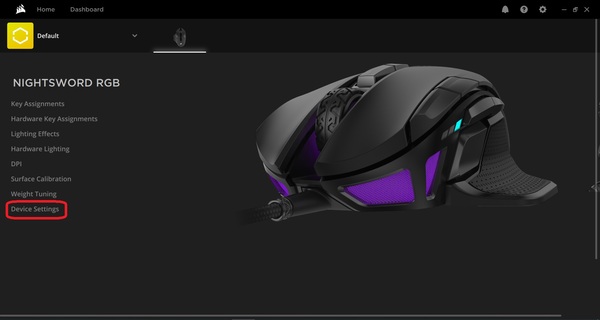
Optimize Corsair iCUE Settings
Incorrect iCUE settings can also impact wireless performance.
Update iCUE to the latest version
Reduce RGB lighting effects or disable unnecessary lighting profiles
Lower the polling rate temporarily to test stability
Delete old profiles and create a fresh one
Close iCUE and test mouse performance to check for software conflicts
Improve Wireless Connection Stability
Wireless signal quality plays a big role in performance.
Use a USB extension cable to place the receiver closer to the mouse
Keep the receiver away from USB 3.0 ports and metal surfaces
Avoid plugging the receiver into USB hubs or monitors
Reduce interference from Wi-Fi routers and Bluetooth devices
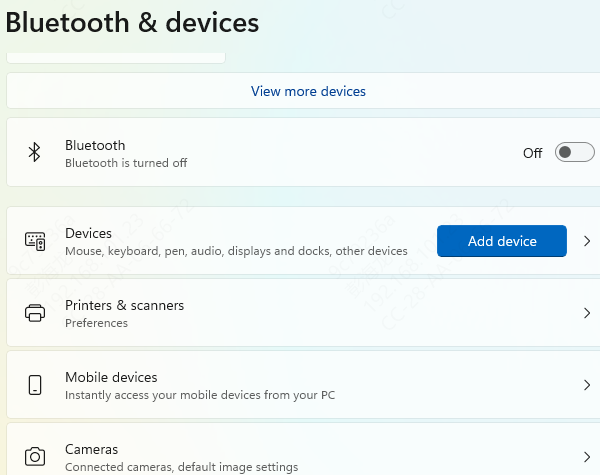
Adjust Windows Power and USB Settings
Windows power-saving features can interrupt wireless devices.
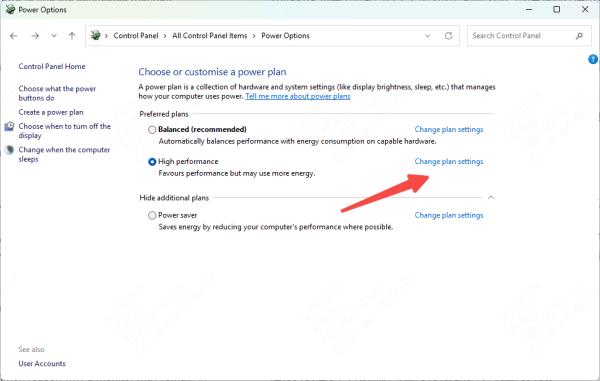
Disable USB Selective Suspend in Power Options
Set your power plan to High Performance
In Device Manager, turn off "Allow the computer to turn off this device to save power" for USB devices
Prevent the system from entering sleep mode during active use
Reduce System Load and Software Conflicts
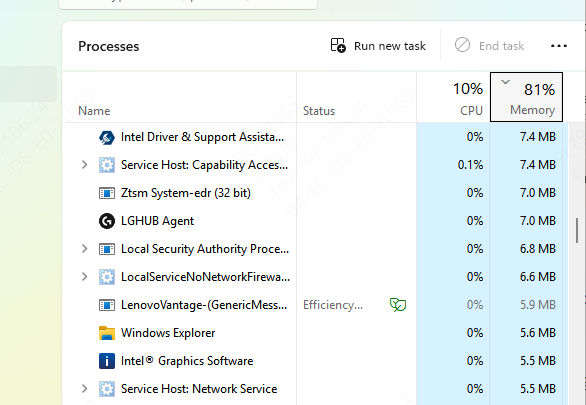
Heavy background activity can cause input lag.
Close unnecessary background applications
Check for conflicts with other peripheral or RGB software
Update Windows to the latest version
Temporarily disable antivirus software to test for interference
Reset or Test the Hardware
If software fixes don't work, check the hardware:
Reset the mouse to factory settings
Re-pair the wireless receiver
Test the mouse on another computer
Try a different USB receiver port or cable
If the mouse lags on multiple systems, the receiver or mouse hardware may be faulty.
.png "try-different-usb-port")
Prevent Corsair Wireless Mouse Lag Long-Term
To keep your Corsair wireless mouse performing smoothly: Keep mouse, USB, and chipset drivers up to date, Maintain a clean wireless environment, Avoid USB power-saving features, and Use tools like Driver Talent X to automatically manage drivers and prevent future issues With the right setup and regular maintenance, Corsair wireless mouse lag can be eliminated for good—ensuring precise, responsive control whether you're gaming or working.









