
It's really annoying when your Logitech microphone stops picking up sound, whether you're gaming, streaming, or attending a video call. Even when it's plugged in and your PC recognizes it, sometimes it just refuses to work. Usually, this happens because of driver issues, misconfigured settings, or small software glitches—but don't worry, most of the time it's fixable without buying a new mic. Here's a step-by-step guide to get your Logitech microphone back in action.
Make Sure the Mic is Properly Connected
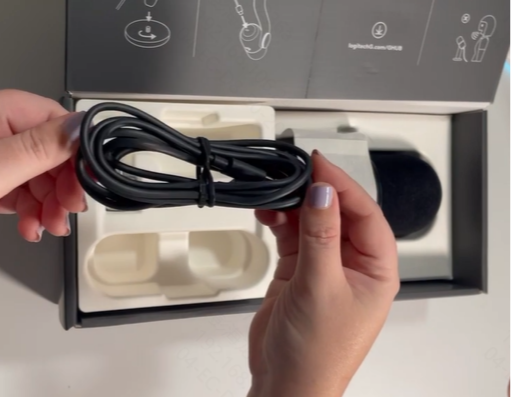
Before you dive into software fixes, let's double-check the basics:
Plug the microphone securely into the USB port or audio jack
Try a different port—sometimes a single USB port doesn't play nicely
Test the microphone on another device. If it works there, your PC setup is the likely culprit
Inspect cables for damage. Frayed wires can stop audio completely
Check Windows Input Settings
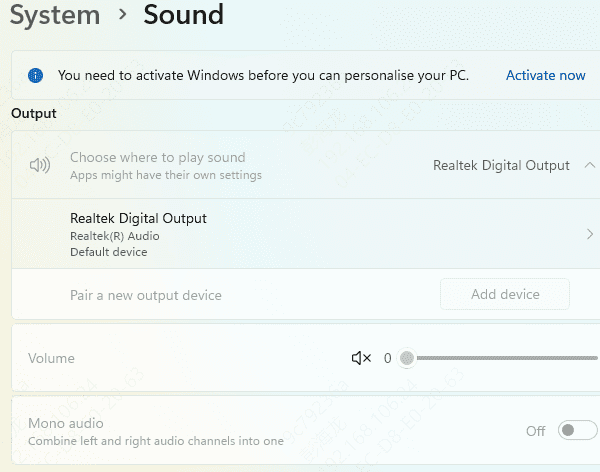
Windows sometimes doesn't automatically switch to your new microphone. Here's how to fix it:
Right-click the speaker icon in the taskbar and select Sound settings
Under Input, pick your Logitech microphone
Open Device properties and make sure the input volume isn't too low
Turn off or disable other microphones to prevent conflicts
Test your mic with Windows Voice Recorder or another app to see if it's picking up sound
Review Privacy and App Permissions
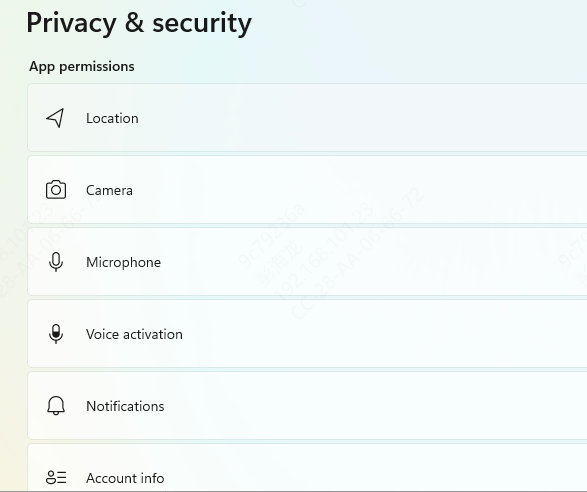
Even with the right settings, Windows can block apps from using your microphone:
Go to Settings → Privacy & Security → Microphone
Make sure Microphone access is turned On
Allow apps like Zoom, Teams, or Discord to access the mic
Restart the apps after changing permissions
This usually fixes cases where apps don't detect your microphone at all
Restart Windows Audio Services
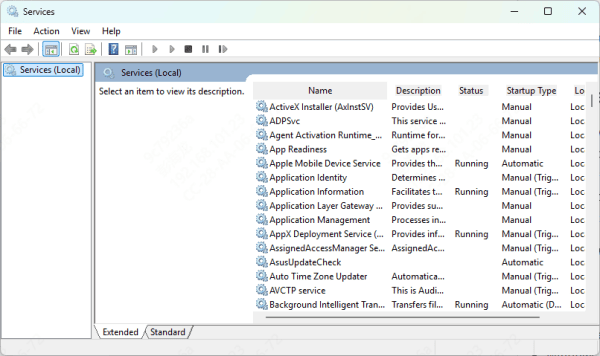
Sometimes the underlying audio services just stop working. Here's how to restart them:
Press Win + R, type services.msc, and press Enter
Locate Windows Audio and Windows Audio Endpoint Builder
Right-click each and select Restart
Make sure Startup Type is set to Automatic
After restarting, check if your microphone works
Update or Reinstall Drivers (Highly Recommended)
Outdated or corrupted drivers are often the real culprit behind a non-working microphone.
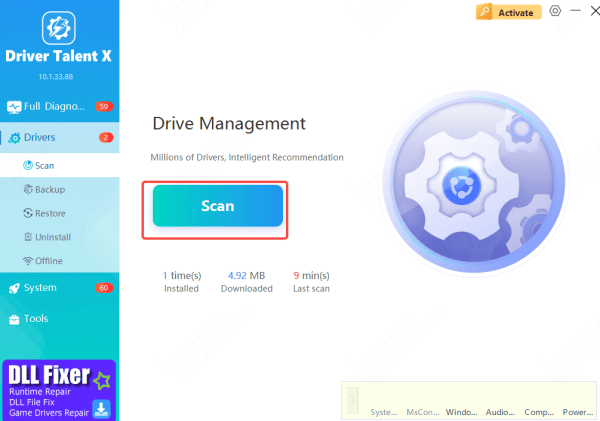
Automatic Update with Driver Talent X
Using Driver Talent X makes this much simpler:
Download and install Driver Talent X
Open it and go to Drivers → Scan
The tool will check for issues with your audio drivers, including: Sound card / audio drivers (Realtek or Intel HD Audio), and USB drivers (for USB microphones)
Click Repair Now or Update, and Driver Talent X will install the correct drivers automatically
Restart your PC, plug in your mic, and test it
Manual Update via Device Manager
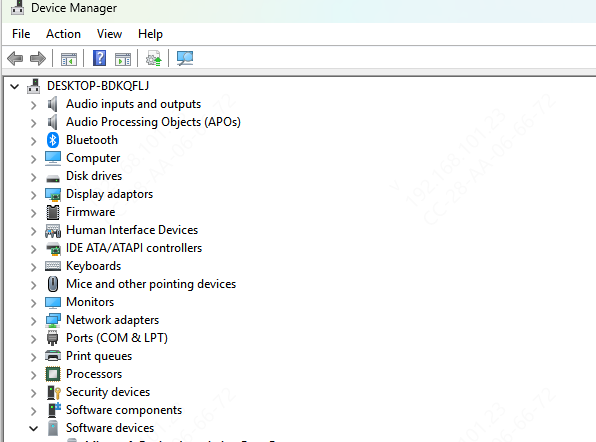
Open Device Manager (Win + X → Device Manager)
Expand Sound, video and game controllers
Right-click your audio device and select Update driver → Search automatically
Restart Windows after the update
Check Logitech Software
If you're using Logitech G HUB or Logitech Options, make sure it's up to date:
Open the software and see if your microphone is recognized
Check audio levels, gain, and profiles
If it's not showing up, try reinstalling the software
.png "logitech-g-hub-setting")
Test Different Applications
Sometimes the mic works in Windows but not in a specific app:
Open a few apps (Zoom, Teams, Discord, games)
Ensure the Logitech microphone is selected in each app's input settings
Adjust in-app volume or gain settings if needed
Advanced Troubleshooting
Disable Exclusive Mode: Go to Sound settings → Device properties → Advanced, uncheck Allow applications to take exclusive control
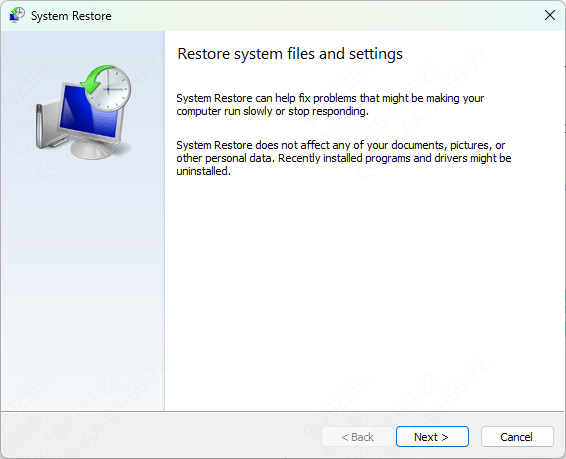
Roll back recent Windows updates that might have affected audio
Contact Logitech Support
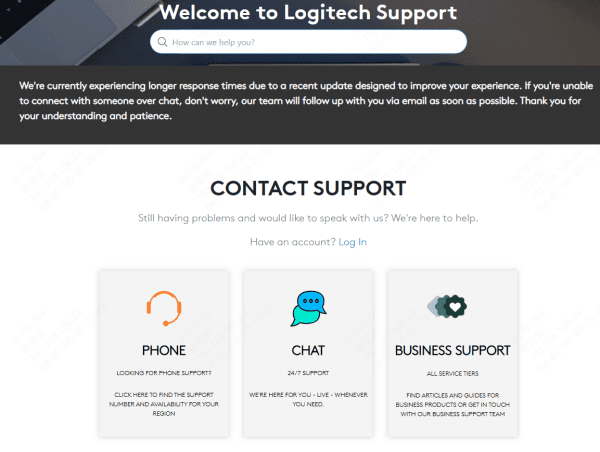
If your microphone fails on multiple devices, it might be a hardware problem:
Check warranty status
Contact Logitech support for repair or replacement
Conclusion
A Logitech microphone not working is often caused by driver issues, incorrect settings, or software conflicts. By checking connections, adjusting Windows and app settings, restarting audio services, and updating drivers—especially with Driver Talent X—you can usually get your microphone working again quickly. Keeping drivers and Logitech software up to date is the best way to avoid these problems in the future.









