
Keeping your Lenovo PC drivers updated is essential to ensure optimal performance, security, and compatibility with new software and hardware. Outdated or missing drivers can cause issues like system crashes, slow performance, or device malfunctions. This guide will take you through various methods to get the latest drivers for your Lenovo PC, helping you keep your system running at its best.
Method 1: Using Driver Update Software (Driver Talent X)
For an easier, automated way to ensure all your drivers are up to date, Driver Talent X can scan your system for outdated drivers and install the latest ones automatically.
Download and Install Driver Talent X
Click on the Download button on the official Driver Talent X website
After the download, run the setup file and follow the installation prompts
Run a Full System Scan
Open Driver Talent X
Click on the Scan button to start scanning for outdated, missing, or corrupted drivers
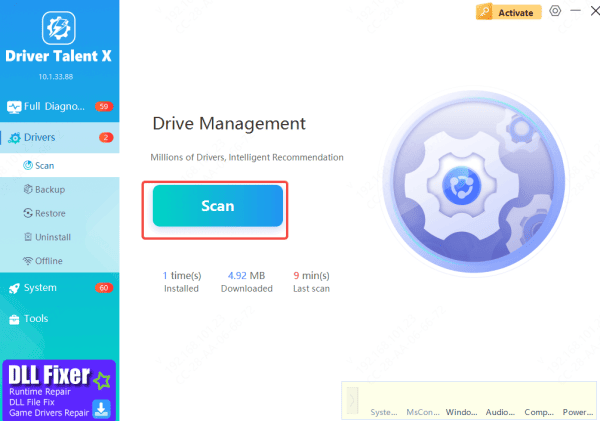
Update Drivers
After the scan is complete, the tool will show a list of drivers that need attention
Click Repair Now to download and install the latest drivers automatically
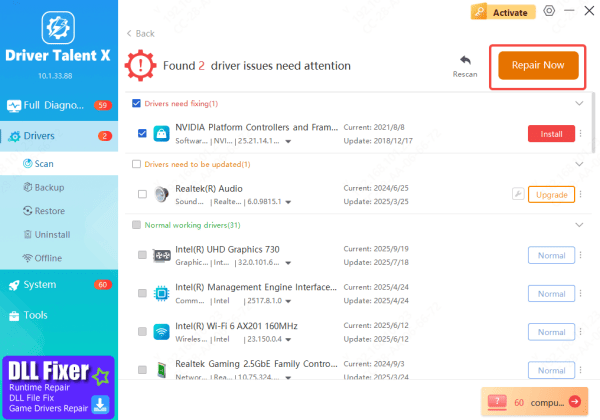
Restart Your PC
Once the updates are complete, restart your laptop to finalize the driver installation
Method 2: Using the Lenovo Support Website
If you prefer to manually download and install drivers, the official Lenovo Support website provides all the necessary resources to find and update drivers for your specific Lenovo PC model.
Go to the Lenovo Support Website: Open your browser and visit the Lenovo Support page
Identify Your Product: Enter your Lenovo PC's serial number, or select your product from the list
You can also use the Detect My Product option if you're unsure of your model
Find Drivers: Once your product is identified, navigate to the Drivers & Software section
Choose your operating system (e.g., Windows 11)
Download the Latest Drivers: Browse the available drivers and select the ones you want to update (e.g., audio drivers, graphics drivers). Click Download to get the latest versions
Install the Drivers: After downloading, run the installer and follow the on-screen instructions to install each driver
Restart your PC to complete the process
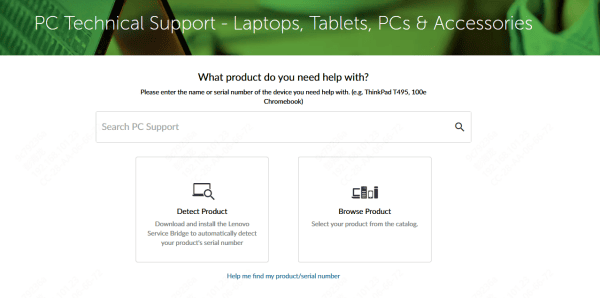
Method 3: Using Windows Update
Windows Update is another simple way to install drivers, especially for essential system components. While Windows may not offer all driver updates, it can handle critical updates for hardware like graphics, network adapters, and audio.
Open Windows Settings
Press Win + I to open the Settings menu
Go to Windows Update
In the left sidebar, click Windows Update
Check for Updates
Click on Check for Updates
If there are any available updates for your drivers, they will appear under Optional Updates
Install Available Updates
Click Download and Install to get the updates
Restart Your PC
Once the updates are installed, restart your PC to ensure everything is applied correctly
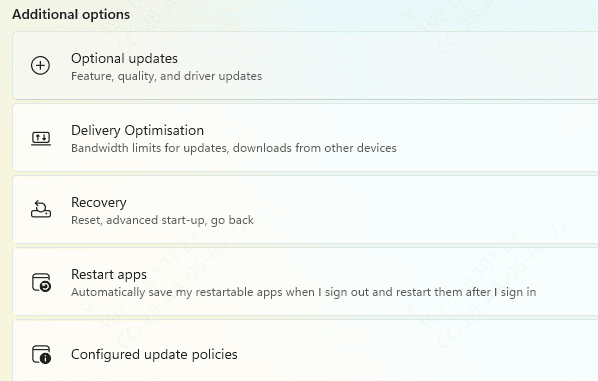
Method 4: Using Lenovo Vantage
Lenovo Vantage is a free app that allows you to manage your system's health, performance, and driver updates. It is the easiest and most convenient way to keep your drivers up to date.
Go to the Microsoft Store
Search for "Lenovo Vantage" and click Install
Launch Lenovo Vantage
After installation, open Lenovo Vantage from your Start Menu
Check for Driver Updates
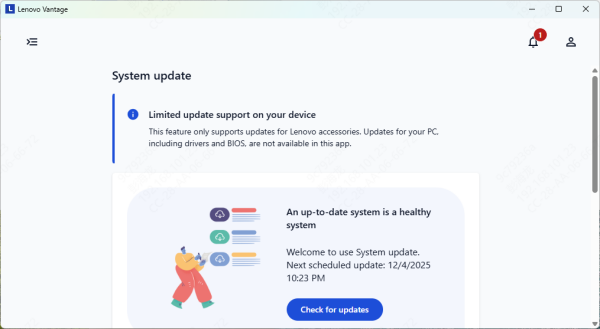
In Lenovo Vantage, go to the System Update tab
Click on Check for Updates
Lenovo Vantage will scan your system for any available updates, including drivers
Install Updates
Once the scan is complete, click Install to update all available drivers
You can also select specific drivers if you prefer not to update all at once
Restart Your PC
Important Drivers to Update on Lenovo PC
Some critical drivers you should prioritize include:
Graphics Drivers: Update NVIDIA, AMD, or Intel drivers for better video performance
Audio Drivers: Essential for high-quality sound and audio playback
Network Drivers (Wi-Fi & Ethernet): Ensure fast and reliable internet connection
Chipset and USB Drivers: These drivers control the basic communication between your motherboard and peripherals
BIOS/Firmware Updates: BIOS updates improve system stability, compatibility, and performance
Troubleshooting Driver Update Issues
Sometimes, after updating drivers, you may encounter issues like system crashes, device malfunctions, or slow performance. Here are some troubleshooting steps:
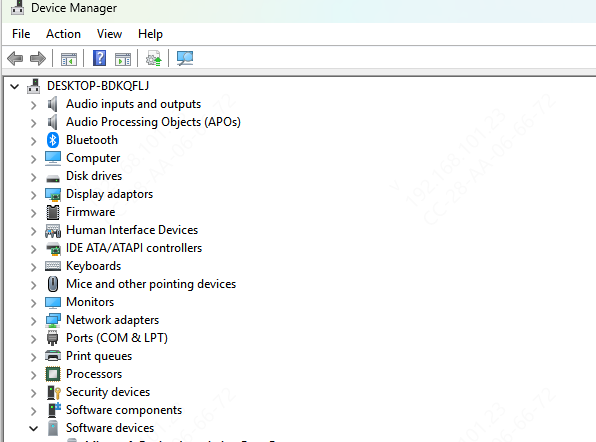
Roll Back Drivers: If a recent driver update caused problems, go to Device Manager, right-click the device, select Properties, and then Roll Back Driver
System Restore: If you experience serious issues, use System Restore to revert your PC to a previous working state
Check for Conflicts: Use Device Manager to check for any driver conflicts or error codes
Conclusion
Updating drivers on your Lenovo PC is crucial for ensuring your system performs optimally and remains compatible with the latest software and hardware. Whether you use Lenovo Vantage, the Lenovo support website, Windows Update, or automated tools like Driver Talent X, regularly checking for driver updates can prevent issues and enhance your PC experience.









