Encountering issues like sudden screen flickering, persistent input lag, freezing applications, or graphical glitches on Windows 11 often signals a problem with your graphics card driver (NVIDIA, AMD, or Intel). Here are some efficient ways to reset the graphics driver, clearing minor memory errors and restoring stability without interrupting your workflow.
However, repeated graphics issues are usually a symptom of deeper driver corruption or conflicts. This guide outlines the immediate fixes for restarting your driver and the essential steps to address the root cause of instability.
Part I: Driver Integrity and System Synchronization
If you frequently need to restart your graphics driver, the underlying issue is likely driver instability or conflicts with core system components. Fixing this foundation prevents recurring issues.
Automated Driver Update with Driver Talent X
Manually troubleshooting and updating the various display, chipset, and system drivers can be complex. A specialized utility streamlines this process by identifying and installing the correct, compatible driver versions, ensuring a stable foundation for your graphics card.
Download and Install:
Click the "Download" button to download the software package.
Install it on your Windows 11 PC.
Run Scan:
Launch the application and go to "Drivers" > "Scan", click "Scan".
The software will perform a deep analysis of your system, focusing specifically on your Graphics Processing Unit (GPU) and motherboard Chipset.
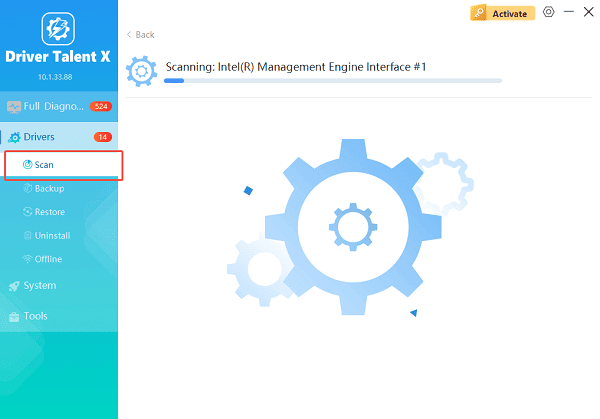
Execute Clean Update:
After the scan is complete, the software will display a list of all drivers that need attention. Select the necessary graphics drivers and click the "Upgrade" or "Repair Now" button.
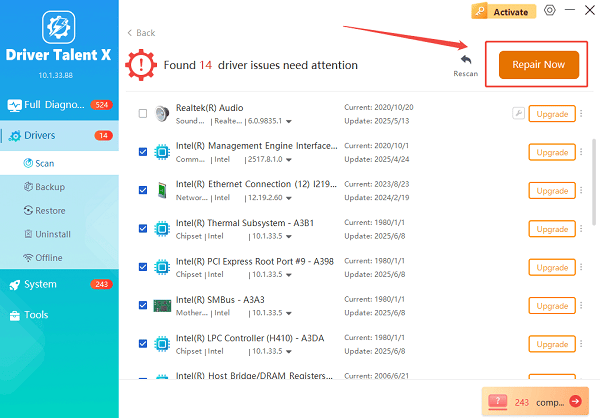
Driver Talent X will first perform a thorough cleanup of any conflicting older files, then reliably download and execute a completely clean installation of the latest certified drivers.
Restart:
Once the installation is finalized, restart your PC to fully integrate the stable driver and software.
Part II: Immediate Graphics Driver Reset Methods
These methods are designed to instantly restart the display driver without requiring a full system reboot, fixing temporary glitches.
Method 1: Use the Keyboard Shortcut
Windows 11 includes a dedicated key combination to quickly refresh the graphics driver stack.
Press the keys Windows Key + Ctrl + Shift + B simultaneously.
Your screen will briefly go black, and you will hear a beep.
The screen will return to normal almost immediately. This signals that the graphics driver has been restarted, clearing any temporary display buffers or errors.
Method 2: Reset via Device Manager
The Device Manager allows you to manually disable and re-enable the display adapter, forcing a driver reset.
Press Windows Key + X and select "Device Manager".
Expand the "Display adapters" category.
Right-click on your graphics card (NVIDIA, AMD, or Intel) and select "Disable device".
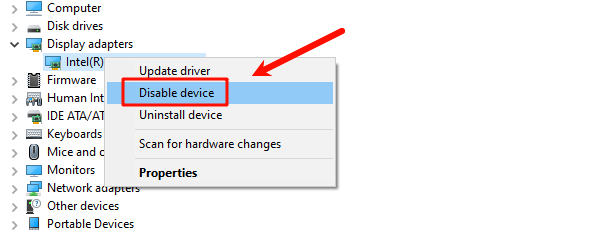
Your screen resolution may drop significantly or go black briefly.
Right-click the graphics card again and select "Enable device". The screen will flicker and return to its normal resolution.
Part III: Troubleshooting and Configuration Fixes
If the driver restart doesn't fix the issue, the problem lies deeper, possibly in application settings or Windows features.
Method 1: Reinstallation of the Application Causing Conflict
If the issues only occur when running a specific program or game, that application's settings may be causing the driver conflict.
Go to "Settings" > "Apps" > "Installed apps" (or "Apps & features").
Find the problematic application, click and select "Uninstall".
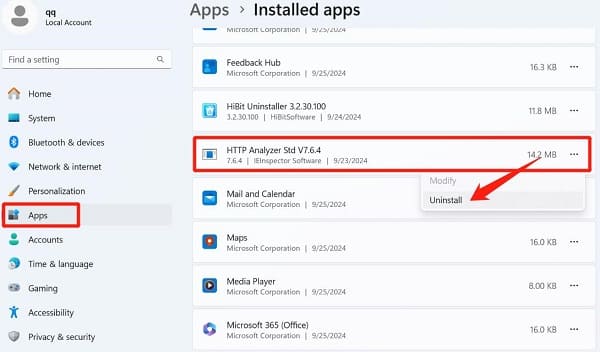
Restart your PC and reinstall the latest version of the application.
Method 2: Disable Hardware Acceleration
Hardware acceleration offloads graphics rendering to the GPU, but if the GPU driver is struggling, disabling this feature in specific applications (like web browsers or Office suites) can stop the freezing.
Identify App: Find the settings for the application experiencing the lag (e.g., in Chrome, Edge, or Discord).
Toggle Setting: Locate the "Use hardware acceleration when available" or similar setting and toggle it "Off".
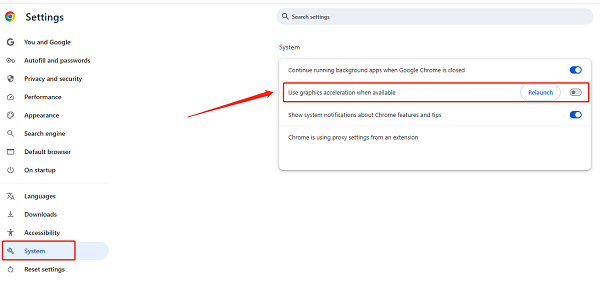
Restart App: Close and reopen the application.
Method 3: Check for Pending Windows Updates
Windows Updates often include necessary stability patches and security fixes that ensure driver compatibility with the operating system.
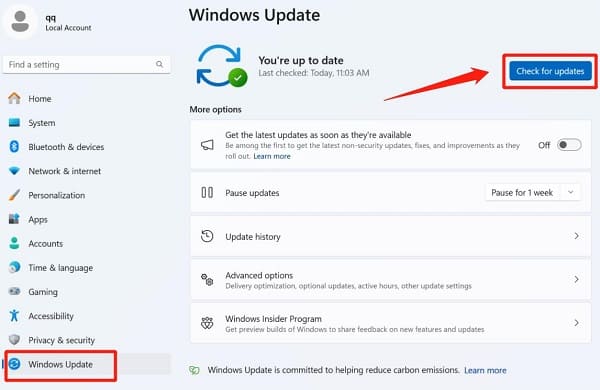
Press Windows Key + I to open Settings.
Go to "Update & Security" > "Windows Update".
Click "Check for updates" and install any pending updates, including Optional or Driver updates that may be listed.
Conclusion
Restarting your graphics driver on Windows 11 is an effective immediate fix for temporary display errors. However, to achieve lasting stability and peak performance, the underlying driver conflicts must be resolved. The most reliable strategy is to first ensure system-wide driver synchronization and stability with Driver Talent X.
By combining this foundational fix with the Windows Key + Ctrl + Shift + B shortcut for quick resets and troubleshooting conflicting applications, you guarantee a smooth, reliable, and glitch-free visual experience.
See also:
Epson L3250 Driver Download & Installation Guide for Windows 10/11
How to Update BIOS on MSI Motherboard – Step-by-Step Guide









