
NVIDIA graphics drivers play a critical role in gaming performance, display stability, and overall system responsiveness. However, corrupted installations, failed updates, or driver conflicts can lead to issues such as black screens, game crashes, FPS drops, or NVIDIA Control Panel not opening.
In such cases, completely uninstalling and reinstalling NVIDIA drivers is the most effective solution. Before performing a clean reinstall, it is strongly recommended to update and repair system drivers using Driver Talent X to prevent compatibility problems and ensure a smooth driver installation process.
Update System Drivers with Driver Talent X
Outdated or corrupted chipset, display, or system drivers can interfere with NVIDIA driver installation. Driver Talent X helps eliminate these conflicts by ensuring all essential drivers are up to date.
Download and Install:
Click the "Download" button to download the installer to your computer.
Run the setup file and follow the on-screen instructions to complete the installation.
Run Scan:
Launch the program and go to "Drivers" > "Scan", click "Scan".
Driver Talent X will detect outdated, missing, or corrupted drivers, including chipset, graphics, and system drivers.
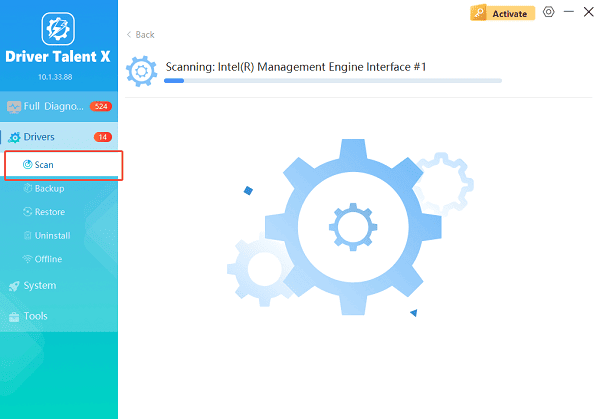
Update All Drivers:
After the scan is complete, the software will display a list of all drivers that need attention. Select the necessary drivers and click the "Upgrade" or "Repair Now" button.
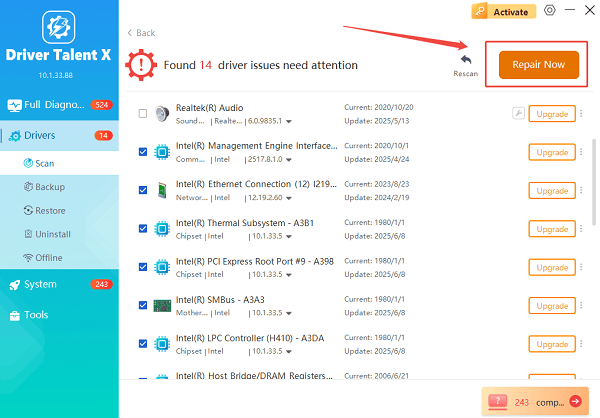
Driver Talent X will reliably download the latest driver and execute a clean installation, critical for performance enhancements and stability fixes.
Restart Your Computer:
Reboot the system to ensure all driver updates are fully applied.
Once your system drivers are updated, you can safely proceed with uninstalling and reinstalling NVIDIA drivers.
Method 1: Uninstall NVIDIA Drivers via Device Manager
This is the most basic and commonly used method.
Steps:
Press Windows + X and select Device Manager.
Expand "Display adapters", right-click NVIDIA Graphics Card and select "Uninstall device".
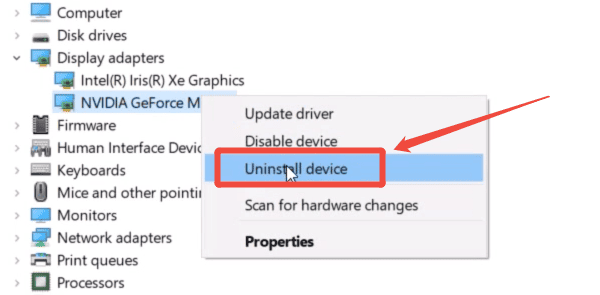
Check "Delete the driver software for this device" if available, click "Uninstall".
Restart your computer.
Windows will temporarily use a basic display driver after restart.
Method 2: Remove NVIDIA Drivers Using Control Panel
This method removes NVIDIA-related components more thoroughly.
Steps:
1). Press Windows + R, type "appwiz.cpl", and press Enter.
2). Locate all NVIDIA-related entries such as:
NVIDIA Graphics Driver
NVIDIA GeForce Experience
NVIDIA PhysX System Software
NVIDIA HD Audio Driver
3). Uninstall each NVIDIA component one by one.
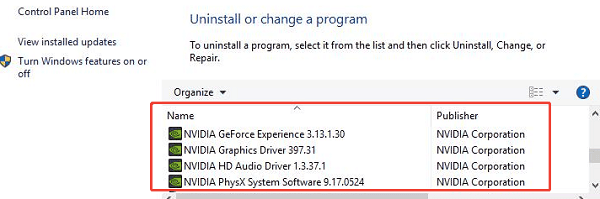
4). Restart your PC after all NVIDIA software is removed.
Method 3: Uninstall NVIDIA Drivers Using Safe Mode
This method is recommended for severe driver corruption.
Steps:
Press Windows + I and go to "System" > "Update & Security".
Select "Recovery", click "Restart now" under Advanced startup.
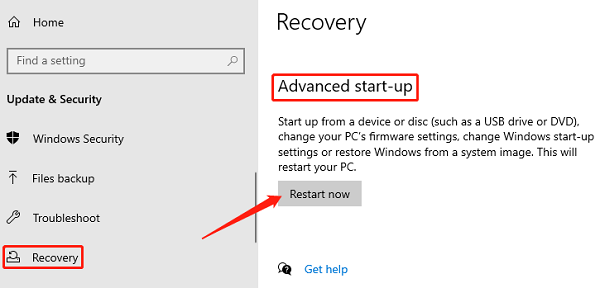
Choose Troubleshoot > Additional troubleshooters > Startup Settings.
Restart and press F4 to enter Safe Mode.
Open Device Manager and uninstall the NVIDIA graphics driver as described above.
Restart your computer normally.
How to Reinstall NVIDIA Drivers Properly
Method 1: Install the Latest NVIDIA Driver Manually
Go to the official NVIDIA driver download page.
Select your GPU model, operating system, and driver type.
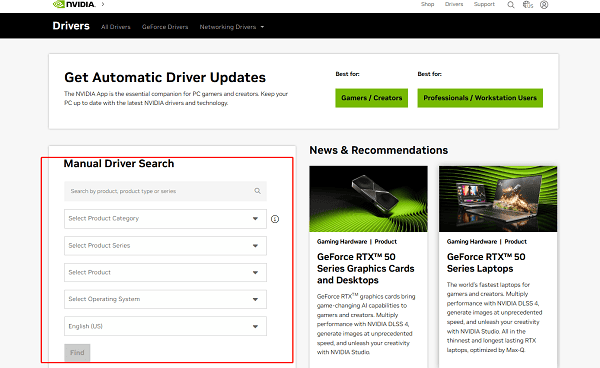
Download the latest Game Ready Driver or Studio Driver.
Run the installer and select Custom (Advanced) installation.
Check Perform a clean installation.
Complete the installation and restart your PC.
Method 2: Reinstall NVIDIA Drivers Using Driver Talent X
Driver Talent X provides a safer and faster alternative if manual installation fails.
Open Driver Talent X.
Go to "Drivers" > "Scan", click "Scan" to detect missing display drivers.
Locate the NVIDIA graphics driver in the results.
Click "Install" or "Upgrade".
Restart your system once installation is complete.
Additional Fixes If NVIDIA Driver Issues Persist
Solution 1: Disable Windows Automatic Driver Installation
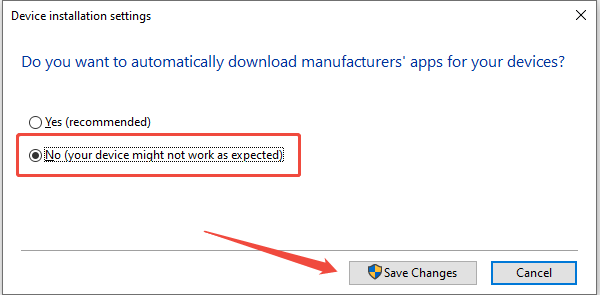
Press Windows + R, type "sysdm.cpl", and press Enter.
Go to the "Hardware" tab and click "Device Installation Settings".
Select "No" and save changes.
Solution 2: Check for Windows Updates
Open "Settings" > "Update & Security" > "Windows Update".
Click "Check for updates", install all available updates.
Restart the system.
Solution 3: Verify Power and GPU Seating (Desktop PCs)
Shut down the computer and unplug it.
Reseat the NVIDIA graphics card firmly in the PCIe slot.
Ensure all power cables are properly connected.
Conclusion
Uninstalling and reinstalling NVIDIA drivers properly is essential for resolving graphics-related issues such as crashes, black screens, and performance drops. By first updating system drivers using Driver Talent X, then performing a clean NVIDIA driver removal and reinstall, you can eliminate conflicts and restore stable GPU performance. Regular driver maintenance helps keep your Windows system running smoothly and ensures optimal gaming and display performance.
See also:
Solutions to Fix Monster Hunter Wilds Crashes
How to Fix Split Fiction Not Launching on Windows
[Fixed] Whoa! Cyberpunk 2077 Flatlined Error
Solutions for 'DirectX 12 Not Supported' Error on Windows 10









