
A locked or unresponsive keyboard on a Lenovo laptop can be frustrating, especially when you need to complete important work. Keyboard issues are usually caused by disabled drivers, outdated system components, or temporary software glitches rather than hardware failure.
Updating drivers ensures that your system components, including the keyboard, touchpad, and chipset, work correctly and prevents conflicts that could cause your keyboard to remain locked. This guide provides detailed steps to update drivers with Driver Talent X, followed by multiple methods to unlock a Lenovo laptop keyboard.
Update Drivers First with Driver Talent X
Updating drivers ensures maximum compatibility for all your system hardware. Driver Talent X automatically scans, downloads, and installs the latest drivers for your Windows laptop, which can resolve keyboard and other peripheral issues.
Steps to Update Drivers with Driver Talent X
Download and Install:
Click the "Download" button to download the software package.
Run the installer and follow the on-screen prompts. Choose the installation directory and complete the setup process.
Perform a Full System Scan:
Open the application from the desktop shortcut or Windows Start menu, go to "Drivers" > "Scan", click "Scan".
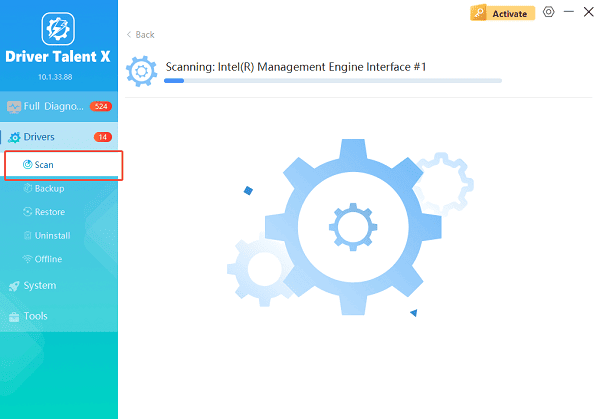
Driver Talent X will analyze all hardware drivers including keyboard drivers, chipset drivers, and USB controllers.
Update All Drivers:
After the scan is complete, the software will display a list of all drivers that need attention. Select "Repair Now" button to automatically download and install the recommended drivers.
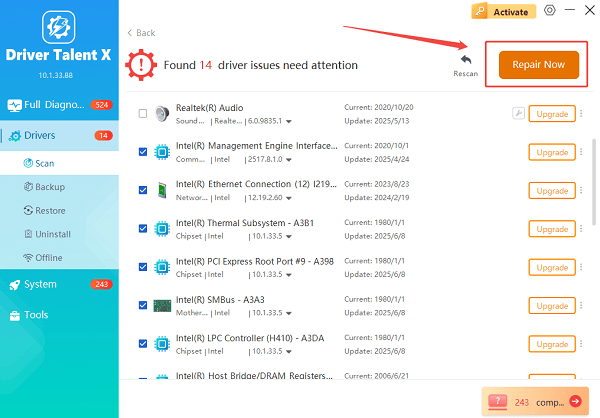
Driver Talent X will reliably download the correct, latest certified driver for your pc, and execute a completely clean installation automatically.
Restart Your Laptop:
Reboot the system to ensure all updates are applied correctly.
With all drivers updated, your Lenovo laptop is ready for keyboard troubleshooting and unlocking.
How to Unlock a Lenovo Laptop Keyboard
Once your drivers are up to date, use the following methods to unlock your keyboard:
Method 1: Check the Function Lock (Fn Lock) Key
Look for a key labeled Fn or Fn Lock on your Lenovo keyboard.
Press Fn + Esc or the dedicated Fn Lock key.
Test your keyboard to see if it is responsive.
Method 2: Enable the Keyboard in Device Manager
Press Windows + X and select "Device Manager".
Expand the "Keyboards" section.
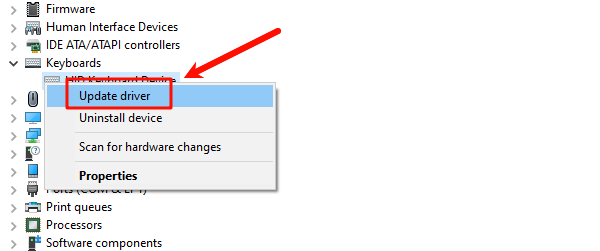
Right-click your keyboard device and select "Enable" if it is disabled.
If the device shows a warning icon, right-click and choose "Update driver".
Method 3: Restart Windows Explorer
Press Ctrl + Shift + Esc to open Task Manager.
Locate "Windows Explorer" under the Processes tab.
Right-click and select "Restart".
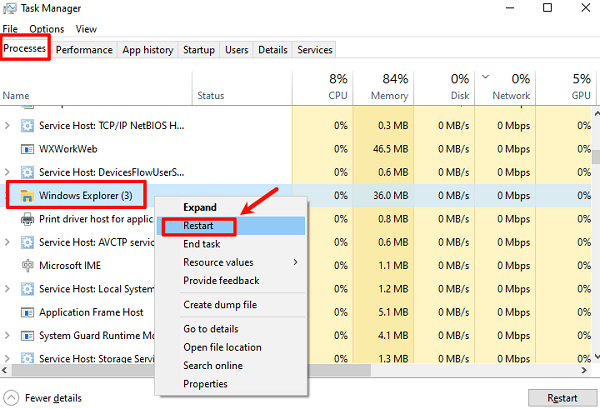
Check if the keyboard responds after restarting Explorer.
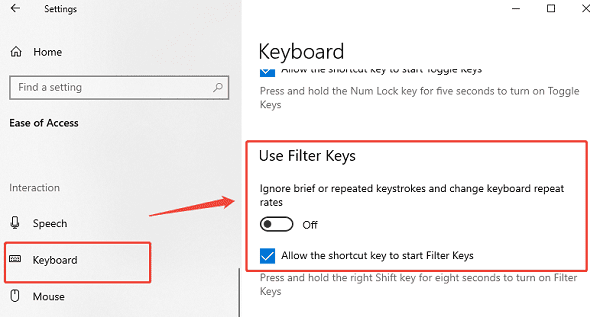
Method 4: Check for Filter Keys
Press Windows + I to open Settings.
Go to "Ease of Access" > "Keyboard".
Ensure "Filter Keys" is turned off, as this can disable or slow down key inputs.
Method 5: Use Lenovo Vantage Software
Download and install Lenovo Vantage from the Microsoft Store.
Open Lenovo Vantage and navigate to "Device" > "Input & Keyboard Settings".
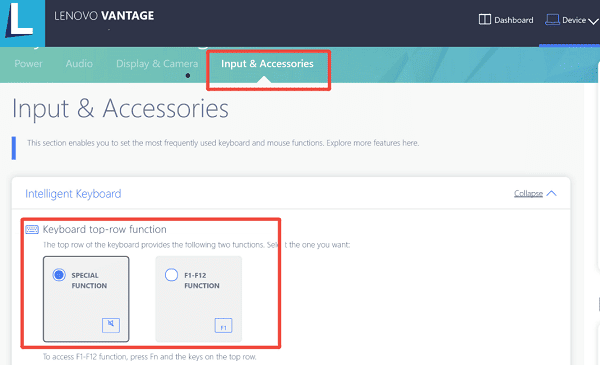
Check for any keyboard lock settings and disable them.
Test your keyboard functionality.
Troubleshooting Tips
Ensure your laptop is fully updated with Windows updates.
Unplug any external keyboards or USB devices that could cause conflicts.
If the keyboard still does not work, consider booting into Safe Mode to test driver conflicts.
If necessary, use Driver Talent X to repair any corrupted drivers.
Conclusion
Unlocking a Lenovo laptop keyboard is often a straightforward process when drivers are updated and system settings are correctly configured. By updating all drivers first using Driver Talent X and then following the methods outlined above, you can quickly restore keyboard functionality and prevent future issues. Regular driver maintenance ensures smooth operation for all hardware components on your Lenovo laptop.
See also:
Epson L3250 Driver Download & Installation Guide for Windows 10/11
How to Update BIOS on MSI Motherboard – Step-by-Step Guide









