
Maintaining the latest AMD Radeon Display Driver is crucial for optimal gaming performance, system stability, and access to new features like FSR and Frame Generation. Outdated or corrupted drivers are the primary cause of graphical errors, game crashes, and system instability on Windows 10 and 11 PCs equipped with an AMD GPU.
A successful update requires more than just running an installer; it demands a clean system environment free from conflicting older files. This comprehensive guide provides systematic solutions for updating your AMD display driver safely and correctly.
Part I: Driver Cleanup and System Stability
Before installing any new AMD driver, it is absolutely essential to remove all remnants of previous, potentially conflicting drivers (from either an older AMD card, or a previous NVIDIA/Intel installation). This prevents instability and installation failure.
Automated Driver Update with Driver Talent X
Manually cleaning the driver cache and registry entries is complex and carries the risk of damaging system files. A specialized utility automates this entire procedure, guaranteeing a clean uninstall before installing the correct, latest AMD driver version.
Download and Install:
Click the "Download" button to download the software package.
Install it on your Windows PC.
Run Scan:
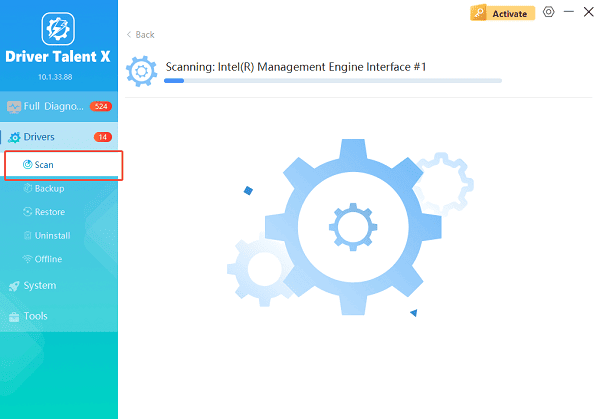
Launch the application and go to "Drivers" > "Scan", click "Scan".
The software will perform a deep analysis of your system, focusing specifically on your Graphics Processing Unit (GPU) and motherboard Chipset.
Execute Clean Installation:
After the scan is complete, the software will display a list of all drivers that need attention. Select the necessary AMD graphics drivers and click the "Upgrade" or "Repair Now" button.
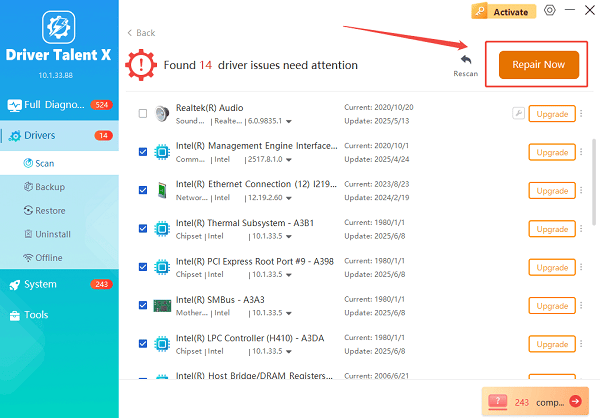
Driver Talent X will first perform a thorough cleanup of any problematic old files, then reliably download the correct, latest certified driver for your GPU, and execute a completely clean installation automatically.
Restart:
Once the installation process is finalized, restart your PC to fully integrate the new driver and software.
Part II: Official AMD Update Methods
These methods rely on official AMD tools, ideal for users who prefer manual control over the installation and features.
Method 1: Update Using AMD Software: Adrenalin Edition
If your driver is already installed but simply needs updating, the Adrenalin software provides the easiest route.
Open AMD Software: Right-click on your desktop and select "AMD Software: Adrenalin Edition" or open it via the Windows Search bar.
Check for Updates: In the top-left corner of the home screen, click the "Check for Updates" button (or navigate to the Settings Gear icon > System > Software & Driver).
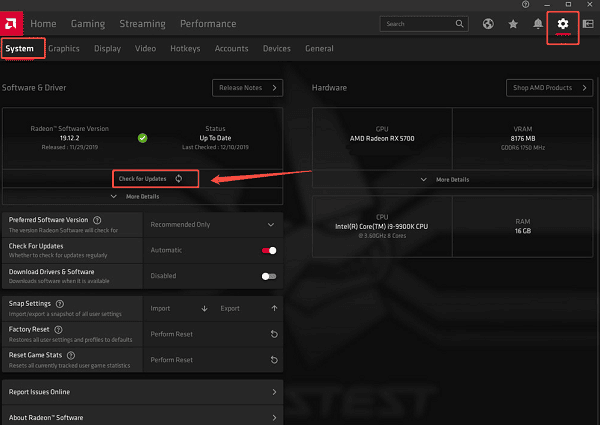
Install Recommended Driver: Select the latest recommended driver and click "Download".
Perform Factory Reset: When prompted, select the "Custom Install" option. During installation, always select the "Perform Factory Reset" option. This uses AMD's own cleaning utility to ensure a clean installation.
Complete the installation and restart your PC.
Method 2: Manual Download and DDU Cleanup
For highly persistent issues or if you want to perform the update in Safe Mode, the Display Driver Uninstaller (DDU) method is best.
Download DDU and Driver: Download the Display Driver Uninstaller (DDU) tool and the latest AMD driver package from the official AMD website.
Access Safe Mode: Boot Windows into Safe Mode (often done by going to "Settings" > "Update & Security" > "Recovery" > "Advanced startup" > "Restart now").
Run DDU: Run DDU, select "GPU" and "AMD", and choose the option "Clean and restart".
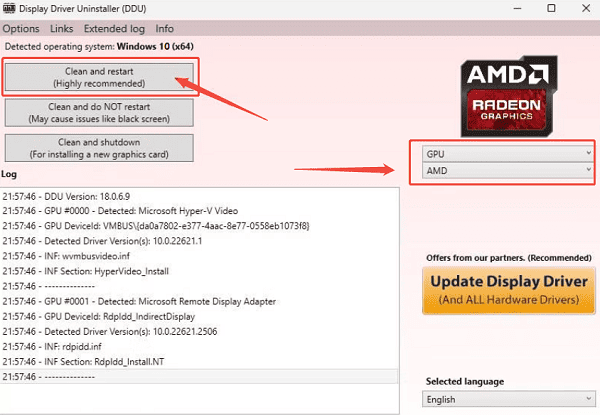
Install New Driver: After restarting (and returning to normal Windows mode), run the AMD driver installer you downloaded and select the "Perform Factory Reset" option during installation.
Part III: Troubleshooting Post-Installation Issues
These steps address conflicts that can arise after the driver appears to be successfully installed.
Method 1: Check Windows Update Settings
Windows Update sometimes interferes by automatically downloading an older, conflicting version of the AMD driver in the background.
Press Windows Key + I to open Settings.
Go to "Update & Security" > "Windows Update" > "Advanced options".
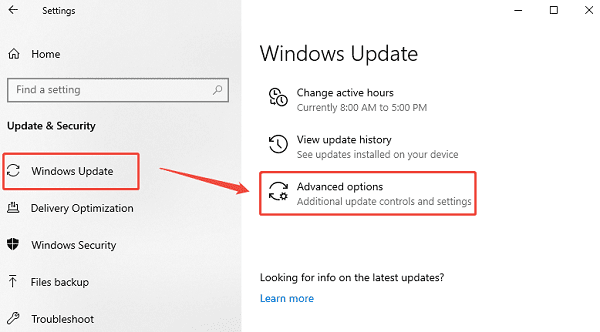
Click "Optional updates" > "Driver updates". If any AMD driver updates are listed here, do not install them through Windows Update, as they often lag behind the official Adrenalin release. Rely only on the official AMD or Method in Part I installation.
Method 2: Check Power Plan Settings
Incorrect power plan settings can cause the GPU to underperform or throttle, which can be mistaken for a driver issue.
Press Windows Key + R and type "powercfg.cpl".
Select the "High performance" or "Ultimate Performance" power plan.
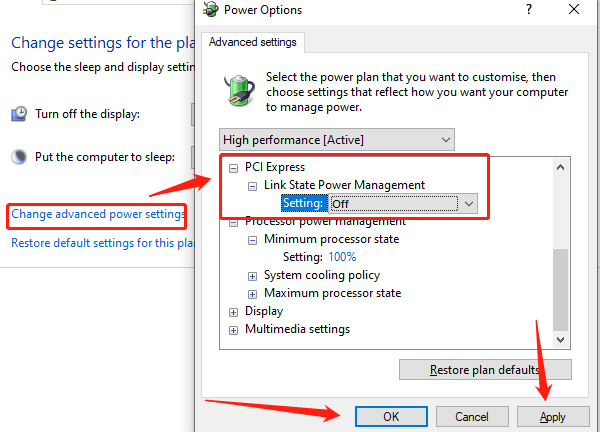
Click "Change plan settings" and then "Change advanced power settings".
Expand "PCI Express" and ensure "Link State Power Management" is set to "Off".
Conclusion
Successfully updating your AMD Display Driver is the single most important action for maintaining a reliable gaming PC. The most effective strategy is to first ensure a completely clean system foundation by using Driver Talent X to remove all driver remnants.
By combining this essential cleanup with the official AMD Software: Adrenalin Edition update process and verifying your Windows Power Plan settings, you guarantee a stable, conflict-free, and high-performance gaming environment.
See also:
Canon CanoScan LiDE 100 Not Recognized? Try These Fixes
How to Fix Knup Keyboard Connection Issues – Working Driver Solutions
Canon IR2520 UFRII LT Driver Not Recognized? Try These Fixes
Can't Print with HP LaserJet M1120 MFP? Complete Troubleshooting Guide









