
Keeping your AMD graphics driver up to date is essential for smooth gaming, stable performance, and proper display output. However, many users encounter problems such as installation failures, black screens, crashes, or performance drops during updates.
This guide explains the safest way to update AMD graphics drivers without errors, starting with the most reliable method, followed by multiple proven alternatives and troubleshooting solutions.
Update AMD Graphics Driver Safely Using Driver Talent X
Updating drivers manually often leads to version mismatches or incomplete installations. Driver Talent X automates the entire process, ensuring you install the correct AMD graphics driver for your system.
Download and Install:
Click the "Download" button to download the installer. Save the setup file to your computer.
Double-click the installer and follow the on-screen instructions to complete the installation process.
Scan Your System:
Open Driver Talent X from the desktop shortcut or the Windows Start menu, go to "Drivers" > "Scan", click "Scan".
Driver Talent X will scan for outdated, missing, or corrupted drivers, including AMD graphics drivers, chipset drivers, and system components.
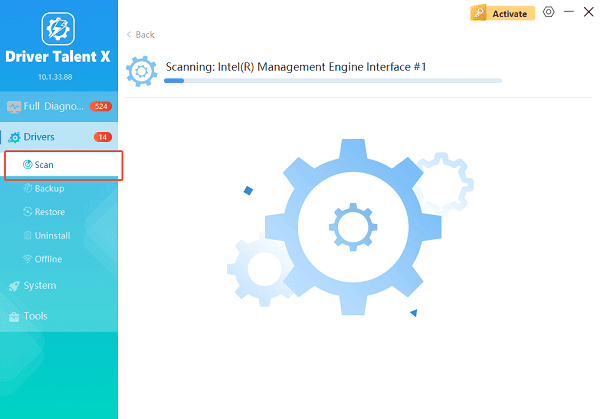
Update All Drivers:
Locate AMD-related drivers in the scan results, especially graphics adapters and chipset drivers. Click the necessary drivers and click the "Upgrade" or "Repair Now" button.
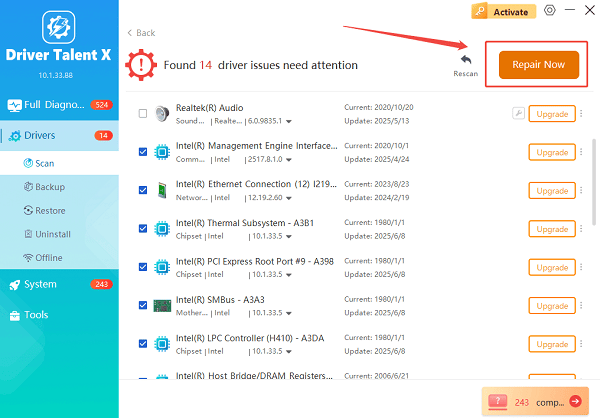
Driver Talent X will reliably download the latest drivers and execute a clean installation, critical for performance enhancements and stability fixes.
Restart Your Computer:
Wait for the installation to finish. Do not close the program during this process.
Restart your computer to apply the changes.
Driver Talent X also creates a driver backup automatically, allowing you to roll back if compatibility issues occur.
Why AMD Graphics Driver Updates Fail
Understanding the causes helps prevent future errors:
Incorrect driver version installed
Corrupted old driver files
Windows update conflicts
Incomplete driver removal
Antivirus or security software interference
System file corruption
Method 1: Update Drivers via AMD Adrenalin Software
AMD provides its own driver management tool, but it may fail in some cases.
Press Windows + R, type "dxdiag", and check your GPU model.
Download AMD Software: Adrenalin Edition from AMD's official website.
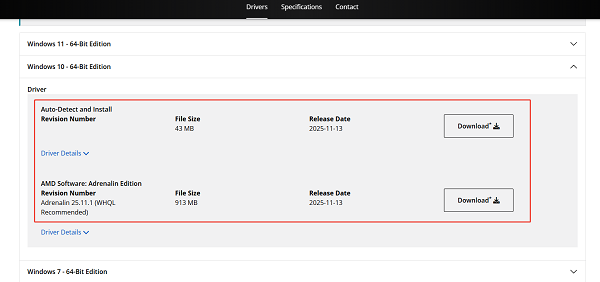
Run the installer and select Install.
Choose Factory Reset if you want a clean installation.
Restart your system when prompted.
If the update fails or crashes, proceed to the next methods.
Method 2: Update Driver Using Device Manager
This method works best for basic driver updates.
Right-click the Start button and select Device Manager.
Expand "Display adapters", right-click your AMD graphics card and select "Update driver".
Choose "Search automatically for drivers".
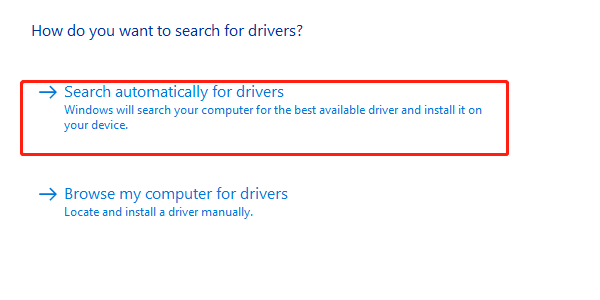
Follow the on-screen instructions and restart your PC.
Device Manager may not always find the latest driver, but it can resolve compatibility issues.
Method 3: Clean Reinstall AMD Graphics Driver
A clean reinstall removes corrupted files that block updates.
Download Display Driver Uninstaller (DDU).
Boot Windows into Safe Mode.
Launch DDU and select "Clean and restart (Highly recommended)".
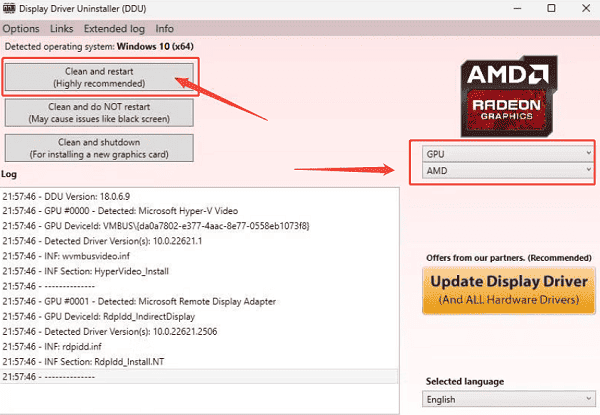
After reboot, use Driver Talent X or AMD Adrenalin to reinstall the driver.
This method is highly effective for persistent errors.
Method 4: Fix Windows System Issues
Driver updates can fail if Windows system files are damaged.
Open Command Prompt as administrator.
Run the command: sfc /scannow
Wait for the scan to complete.
Restart your PC and try updating the AMD driver again.
Method 5: Disable Antivirus Temporarily During Installation
Some security tools block driver installation files.
Temporarily disable your antivirus or Windows Defender.
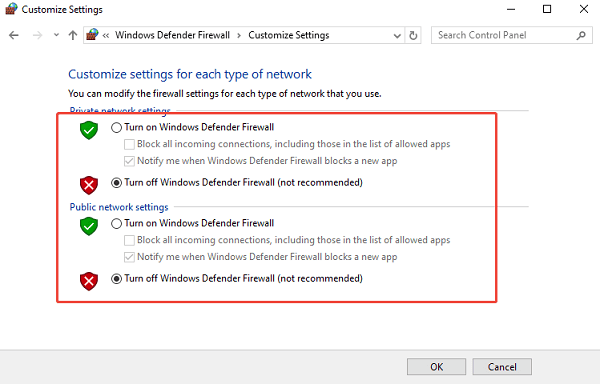
Update the AMD graphics driver using Driver Talent X or AMD Adrenalin.
Re-enable your antivirus after the update completes.
Best Practices to Avoid AMD Driver Update Errors
Always create a system restore point before updating drivers.
Avoid installing beta driver versions unless necessary.
Keep Windows fully updated.
Use trusted tools like Driver Talent X for automatic driver management.
Restart your system after every driver update.
Conclusion
Updating AMD graphics drivers without errors requires the right approach. Using Driver Talent X first ensures accurate driver matching, automatic backups, and a smooth installation process. If problems persist, combining clean uninstall methods, system repairs, and manual updates can fully resolve driver-related issues. Following these steps will help maintain optimal performance and long-term system stability on Windows.
See also:
Mandragora: Whispers of the Witch Tree Overview
Overview of Tempest Rising on Steam
[Fixed] Red Dead Redemption 2 ERR_GFX_STATE Graphics Error
Ways to Fix The Elder Scrolls IV: Oblivion Remastered Startup Crash









