
Keeping your AMD video drivers up to date is essential for system stability, gaming performance, and compatibility with the latest Windows updates. Outdated or corrupted AMD graphics drivers can cause screen flickering, crashes, black screens, low FPS, or driver installation failures.
To update AMD video drivers safely and avoid common errors, it is recommended to start with a reliable automated driver update solution before trying manual methods.
Update AMD Video Drivers with Driver Talent X
Using a professional driver updater significantly reduces the risk of installing incorrect or incompatible AMD drivers. Driver Talent X automatically detects your graphics card model and Windows version, ensuring safe and accurate updates.
Download and Install:
Click the "Download" button to download the installer. Save the setup file to your computer.
Double-click the installer and follow the on-screen instructions to complete the installation process.
Scan Your System:
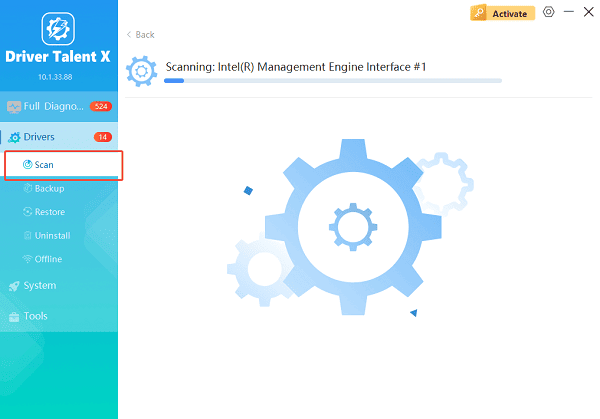
Open Driver Talent X from the desktop shortcut or the Windows Start menu, go to "Drivers" > "Scan", click "Scan".
Driver Talent X will scan for outdated, missing, or corrupted drivers, including AMD video drivers, chipset drivers, and system components.
Update All Drivers:
Locate AMD-related drivers in the scan results, especially graphics adapters and chipset drivers. Click the necessary drivers and click the "Upgrade" or "Repair Now" button.
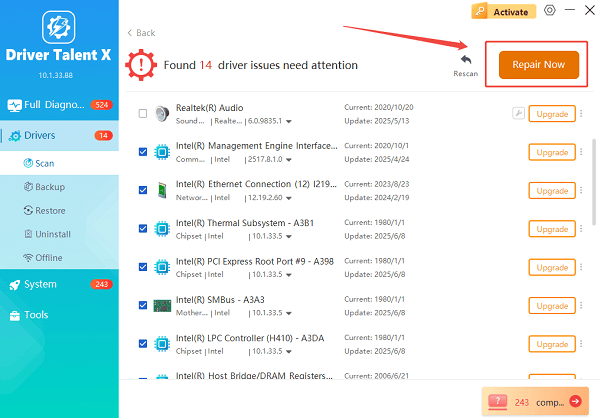
Driver Talent X will reliably download the latest drivers and execute a clean installation, critical for performance enhancements and stability fixes.
Restart Your Computer:
Follow the on-screen prompts and allow the installation to finish without interruption.
Reboot your system to apply the updated AMD video driver properly.
This method is the safest option for most users and helps prevent installation failures or performance issues.
Why Updating AMD Video Drivers Is Important
AMD video drivers control how your graphics card communicates with Windows and applications. Updating them can:
Improve gaming and rendering performance
Fix display bugs and screen artifacts
Enhance system stability
Resolve compatibility issues with Windows updates
Add support for new games and software
Method 1: Update AMD Drivers via AMD Official Website
If you prefer manual installation, you can download drivers directly from AMD.
Steps to Update AMD Drivers Manually:
Identify your AMD graphics card model: Open Device Manager, expand Display adapters, and note your AMD GPU model.
Visit the AMD driver support page: Select your graphics card series and Windows version.
Download the latest recommended driver: Choose the stable release instead of optional or beta drivers.
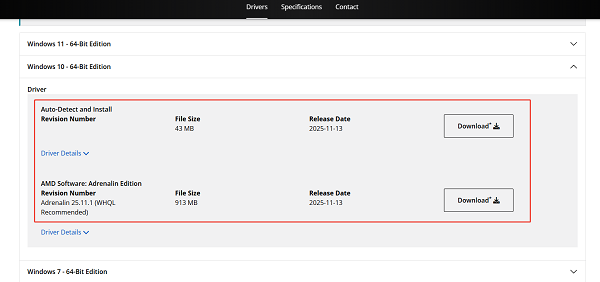
Run the installer: Double-click the downloaded file and follow the setup instructions.
Restart your PC: Reboot after installation completes.
Manual installation requires careful selection of the correct driver to avoid compatibility issues.
Method 2: Update AMD Driver Using Device Manager
Device Manager can update drivers automatically, but it may not always find the latest version.
Steps to Use Device Manager:
Right-click the Start button and select Device Manager.
Expand "Display adapters", right-click your AMD graphics card and select "Update driver".
Choose "Search automatically for drivers".
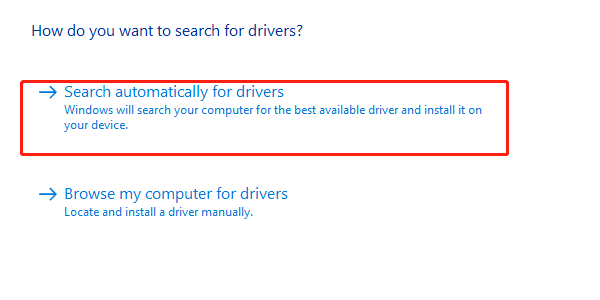
Follow the prompts and restart if required.
This method is simple but less reliable for getting the newest AMD drivers.
Method 3: Clean Reinstall AMD Video Drivers
If updating fails or causes issues, a clean reinstall can help.
Steps for a Clean Reinstall:
Open Device Manager.
Right-click the AMD graphics card and select "Uninstall device".
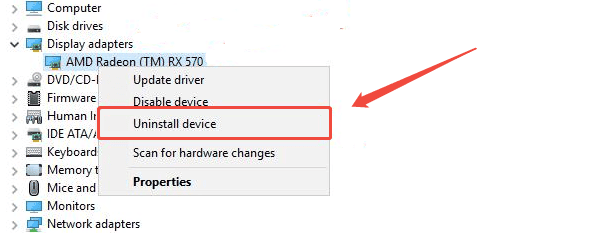
Check the option to delete the driver software if available.
Restart your computer.
Install the latest AMD driver using Driver Talent X or the AMD installer.
This method removes corrupted files that may cause crashes or black screens.
Method 4: Prevent AMD Driver Update Errors
To ensure a safe update process, follow these best practices:
Close all running applications before installing drivers.
Temporarily disable third-party antivirus software or Windows Defender Firewall during installation.
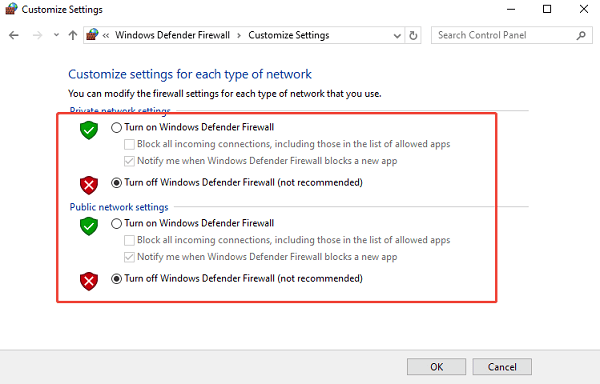
Avoid interrupting the update process.
Use stable power supply and avoid forced shutdowns.
Always restart after driver updates.
Common Issues After Updating AMD Video Drivers
If problems occur after updating, try these fixes:
Roll back the driver in Device Manager.
Reinstall the driver using Driver Talent X.
Check Windows display settings and resolution.
Update chipset and system drivers.
Ensure Windows is fully updated.
Conclusion
Updating AMD video drivers on Windows safely is critical for performance, stability, and compatibility. Using Driver Talent X at the beginning of the process provides the most reliable and risk-free way to install the correct AMD driver version.
If needed, manual updates, Device Manager, or clean reinstall methods offer additional solutions. By following these detailed steps, you can keep your AMD graphics drivers updated without errors or system instability.
See also:
How to Fix CoD Vanguard Not Launching on PC
How to Resolve Crashing Issues in Warframe









