
Keeping your AMD graphics driver updated is crucial for optimal gaming performance, stability, and access to the latest features in the AMD Software: Adrenalin Edition. However, the update process can sometimes be hindered by common issues such as installation failures, black screens, or conflicts with old driver files.
A successful update requires not only installing the new driver but also performing a thorough cleanup of the old installation files. This guide provides a systematic, step-by-step approach to updating your AMD driver safely and correctly, and how to troubleshoot the most common problems.
Part I: Updating Your AMD Driver
The foundation of a successful update is ensuring a clean environment free of driver conflicts.
Method 1: Automated Driver Update with Driver Talent X
Residual files from previous driver versions are the single biggest cause of new driver installation failures. A specialized utility automates the entire process, guaranteeing a clean uninstall before installing the correct, latest driver.
Download and Install:
Click the "Download" button to download the software package.
Install it on your Windows PC.
Run Scan:
Launch the application and go to "Drivers" > "Scan", click "Scan".
The software will perform a deep analysis of your system, focusing specifically on your AMD Graphics Processing Unit (GPU) and motherboard Chipset.

Execute Clean Installation:
After the scan is complete, the software will display a list of all drivers that need attention. Select the necessary AMD graphics drivers and click the "Upgrade" or "Repair Now" button.
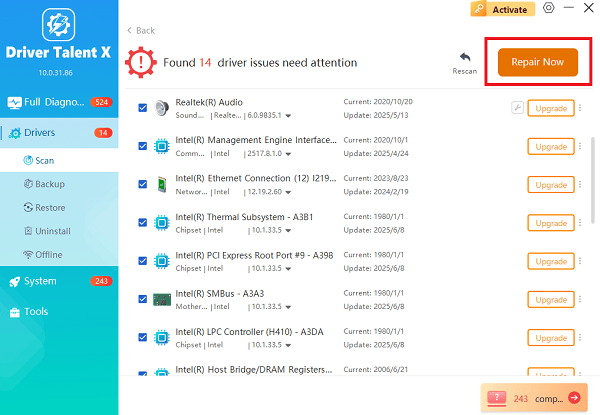
Driver Talent X will first perform a thorough uninstall and cleanup of any problematic old files, then reliably download the correct, latest certified driver, and execute a completely clean installation automatically.
Restart:
Once the installation process is finalized, restart your PC to fully integrate the new driver and software.
Method 2: Update via AMD Software: Adrenalin Edition
If you prefer using AMD's official tool, always use the "Factory Reset" option to ensure a clean installation.
Open Adrenalin: Right-click on your desktop and select "AMD Software: Adrenalin Edition".
Check for Updates: Navigate to the "System" > "Software & Driver" tab, click "Check for Updates".

Download: When a new driver is found, click "Download".
Install Option: During the installation, choose "Custom Install" and select the "Perform Factory Reset" option. This acts as a manual clean install, removing older driver remnants.
Complete the installation and restart your PC.
Part II: Common Update Issues and Solutions
If the update process fails, one of these conflicts is likely to blame.
Issue 1: Installation Fails or Stops Responding
Cause: Interference from antivirus software or corrupted temporary files.
Solution 1: Disable Security Software and Run as Administrator
Disable Antivirus: Temporarily disable any third-party antivirus program or firewall you are running.
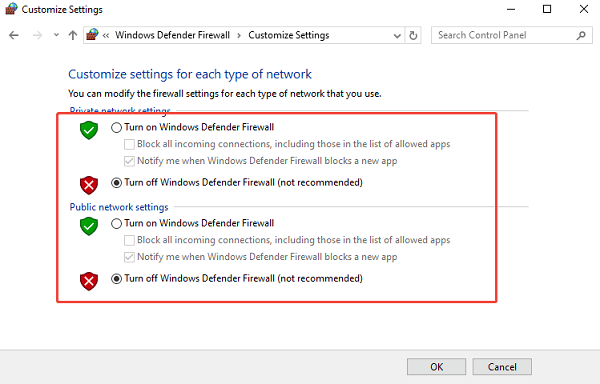
Run as Admin: Locate the downloaded AMD installer file, right-click, and select "Run as administrator".
Re-enable: Crucially, re-enable your security software immediately after the installation is successful.
Issue 2: Black Screen During or After Installation
Cause: The system fails to restore the display mode after the driver is temporarily uninstalled during the update process.
Solution 2: Force Reinstall in Safe Mode
Boot into Safe Mode: Reboot your PC into Safe Mode with Networking (search online for your Windows version instructions).
Uninstall Driver: Press Windows Key + X and select Device Manager. Expand "Display adapters", right-click the AMD graphics card, and select "Uninstall device". Check the box to remove the driver software.
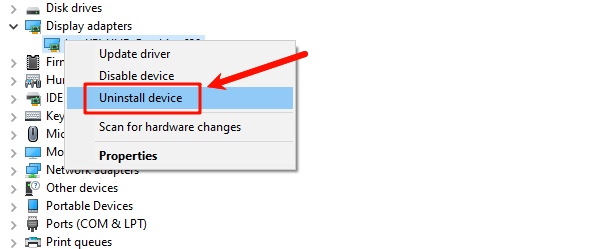
Restart into Normal Mode: Restart the PC. It should boot using the basic Windows driver, restoring the display. Immediately proceed with a clean installation (Method 1 or 2).
Issue 3: Update Causes System Instability or Crashes
Cause: The new driver conflicts with core Windows system files or an underlying corruption exists in the operating system.
Solution 3: Run the System File Checker (SFC Scan)
Open Command Prompt as Administrator (Win + R > type "cmd" > right-click and choose "Run as administrator").
Type the command: sfc /scannow
Press Enter and wait for the scan to reach 100%. If the tool fixes errors, restart your PC and attempt the AMD driver update again (using a clean install method).
Conclusion
Updating your AMD graphics driver correctly requires meticulous cleanup to prevent conflicts. The most reliable method is to first ensure system stability and execute a true clean install by usingDriver Talent X.
By always prioritizing clean installation, temporarily disabling security software during the update, and using Safe Mode for troubleshooting, you can systematically fix common failure points and guarantee a stable, high-performance driver installation.
See also:
Elden Ring: Nightreign Highlights and System Requirements Overview
[Fixed] 'xinput1_3.dll Was Not Found' Error on Windows









