
The HP DeskJet 2700e series is a popular all-in-one printer for home use, but many users report issues such as the printer not printing, printing blank pages, going offline, or failing after setup.
In most cases, the problem is caused by incorrect driver installation, incomplete setup, ink cartridge errors, or connection issues. This guide provides step-by-step solutions to fix HP DeskJet 2700e not printing problems, starting with the most effective driver update method.
Update HP Printer Drivers with Driver Talent X
Outdated or corrupted printer drivers are the most common reason why the HP DeskJet 2700e fails to print. Driver Talent X can automatically detect and install the correct HP printer driver for your Windows system.
Download and Install:
Click the "Download" button to download the software package.
Install it on the PC you will use for the setup.
Run Scan:
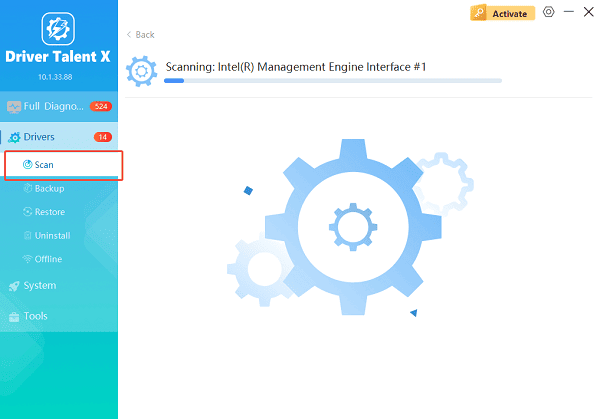
Launch Driver Talent X and go to "Drivers" > "Scan", click "Scan".
The software will perform a deep analysis of your system, focusing on network and peripheral components.
Execute Update:
After the scan is complete, the software will display a list of all drivers that need attention. Select the necessary drivers and click the "Upgrade" or "Repair Now" button.
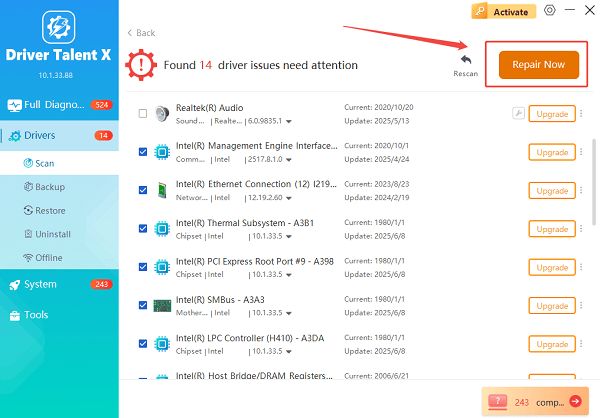
Driver Talent X will download the latest, certified versions specific to your hardware, ensuring optimal network stability for the setup process.
Restart your computer:
Do not disconnect the printer during the update process.
Reboot the system to ensure the new driver takes effect.
After restarting, print a test page to confirm the issue is resolved.
Common Reasons HP DeskJet 2700e Is Not Printing
Printer driver missing or outdated
Printer setup not completed correctly
Empty, improperly installed, or incompatible ink cartridges
Printer set to offline mode
Wi-Fi connection issues
Print queue stuck or corrupted
Fix 1: Check Printer Status and Set It Online
If the printer is online but not responding, Windows may have set it to offline.
Open Control Panel.
Go to Devices and Printers.
Right-click HP DeskJet 2700e and select "See what's printing".
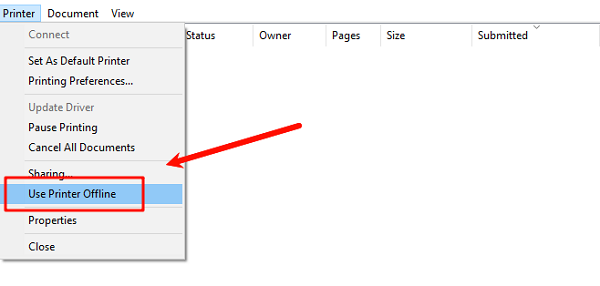
Click Printer from the top menu.
Uncheck "Use Printer Offline".
Cancel any stuck print jobs.
Close the window and try printing again.
Fix 2: Complete HP DeskJet 2700e Setup Properly
The DeskJet 2700e requires full software setup before printing.
Ensure the printer is powered on.
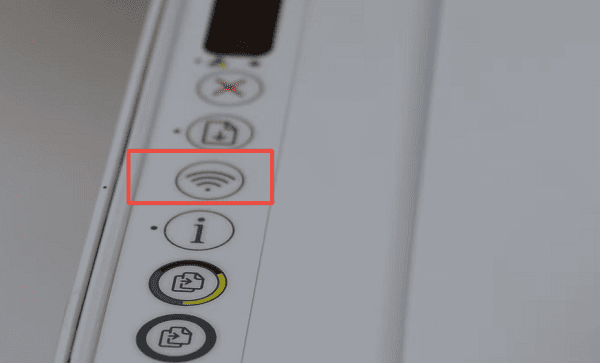
Confirm the blue Wi-Fi light is solid or blinking during setup.
Install the full HP printer software, not just the basic driver.
Follow on-screen instructions to complete wireless or USB setup.
Wait until setup confirms the printer is ready.
Incomplete setup often causes printing failures even if the printer appears installed.
Fix 3: Check Ink Cartridges and Resolve Ink Errors
Ink problems can stop printing entirely, even when ink appears available.
Open the printer cover.
Remove both ink cartridges.
Reinsert them firmly until they click into place.
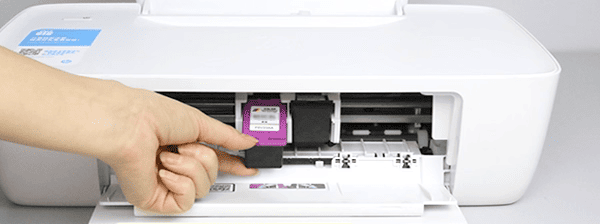
Make sure you are using compatible HP ink cartridges.
Check that protective tape has been removed.
Close the cover and wait for the printer to initialize.
If the printer prints blank pages, replace low or empty cartridges and run a print head cleaning from printer settings.
Fix 4: Restart Print Spooler Service
A stuck print spooler can prevent documents from printing.
Press Windows + R, type "services.msc" and press Enter.
Locate "Print Spooler", right-click and select "Restart".
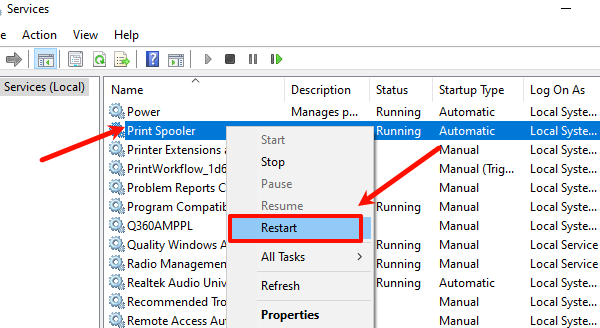
Close the Services window and try printing again.
Fix 5: Reinstall the HP DeskJet 2700e Printer
If the printer was installed incorrectly, reinstalling it can help.
Open Control Panel.
Go to Devices and Printers.
Right-click HP DeskJet 2700e and select "Remove device".
Restart your computer.
Reconnect the printer.
Install the driver again using Driver Talent X or HP setup software.
Fix 6: Check Wi-Fi and Network Connection
Wireless connection issues can cause printing delays or failures.
Ensure your printer and computer are on the same Wi-Fi network.
Restart your router.
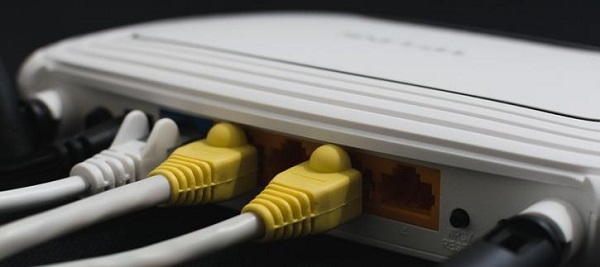
Move the printer closer to the router.
Reconnect the printer to Wi-Fi if needed.
Print a network test page from printer settings.
Practices to Prevent HP DeskJet 2700e Printing Issues
Keep printer drivers updated using Driver Talent X.
Avoid interrupting driver or software installation.
Use original or compatible ink cartridges.
Restart the printer periodically.
Complete setup fully before printing.
Conclusion
If your HP DeskJet 2700e is not printing, the issue is usually related to drivers, setup errors, or ink problems. Updating the printer driver with Driver Talent X is the fastest and most reliable fix, as it ensures compatibility with your Windows system. Combined with proper setup, ink checks, and connection troubleshooting, these solutions can restore your printer to normal operation and prevent future printing issues.
See also:
How to Fix CoD Vanguard Not Launching on PC
How to Resolve Crashing Issues in Warframe









