
The HP EliteBook 840 G8 is a reliable business machine, but like any computer, it can encounter critical issues related to the Basic Input/Output System (BIOS) or boot sequence.
Problems like the laptop failing to power on, being stuck on the HP logo, or continuously rebooting often stem from firmware corruption or outdated system drivers. A systematic approach, starting with ensuring core system drivers are stable, is key to resolving these frustrating errors and restoring full functionality.
Method 1: Driver Update with Driver Talent X
The operating system's ability to communicate with core hardware—like the chipset, solid state drive (SSD), and motherboard controller—is dependent on up-to-date drivers. Before attempting complex BIOS or hardware fixes, ensuring your Windows drivers are optimized can prevent boot conflicts.
Download and Install:
Click the "Download" button to download the software package.
Install it on your working HP EliteBook 840 G8 or another PC if the EliteBook is currently non-bootable (for use after the EliteBook is fixed).
Initiate System Scan:
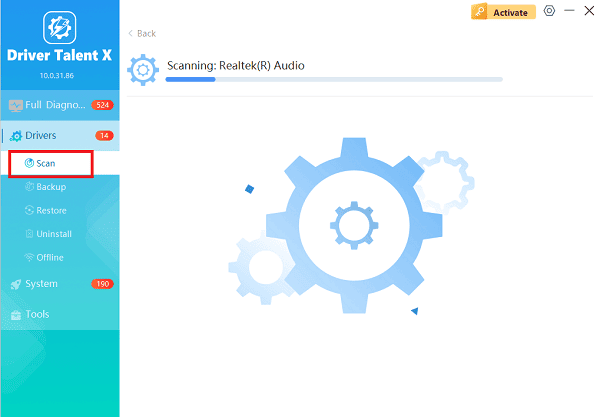
Launch the application and go to "Drivers" > "Scan", click "Scan".
The utility will perform a deep analysis of all hardware drivers.
One-Click Update:
After the scan is complete, the software will display a list of all drivers that need attention. Select all recommended drivers and click the "Upgrade" or "Repair Now" button.
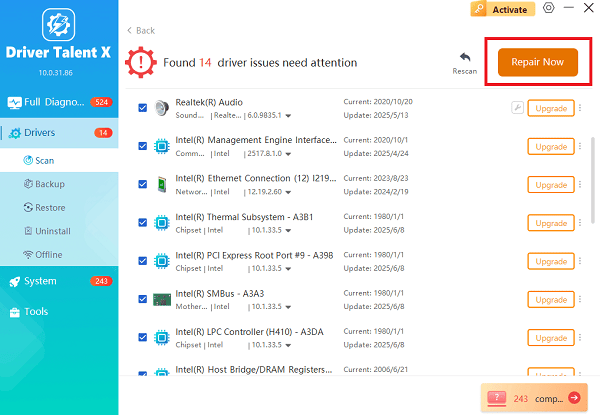
Driver Talent X will automatically download and install the latest, fully compatible drivers for your hardware.
Restart Your Laptop:
Perform a system restart to ensure all new drivers are fully integrated.
A stable, up-to-date operating system is less likely to trigger BIOS errors in the future.
Method 2: BIOS and Firmware Recovery Procedures
If your laptop is failing to boot into the operating system or BIOS settings, the issue is likely at the firmware level. HP provides several built-in recovery options.
Solution 1: The Hard Reset
This procedure clears all residual electrical charge from the system and can resolve various no-boot or black screen issues.
Power Down: Turn off the EliteBook 840 G8 completely.
Disconnect Power: Unplug the AC adapter and disconnect all external devices (USB drives, docks, external monitors, etc.).
Perform Power Drain: Press and hold the Power Button for at least 15 to 20 seconds. This action drains any residual power from the motherboard components.
Re-connect and Test: Re-connect the AC adapter (do not re-connect external devices yet). Turn on the laptop and check if it boots normally.
Solution 2: Using the HP BIOS Key Combination
HP laptops have a special key sequence designed to force a BIOS recovery, which attempts to restore the firmware from a backup partition.
Power Down: Turn off the laptop completely.
Use Key Combination: Press and hold the Windows Key and the letter B key simultaneously.
Power On: While still holding the Windows and B keys, press and release the Power Button (hold the other keys for an additional 2 to 3 seconds).
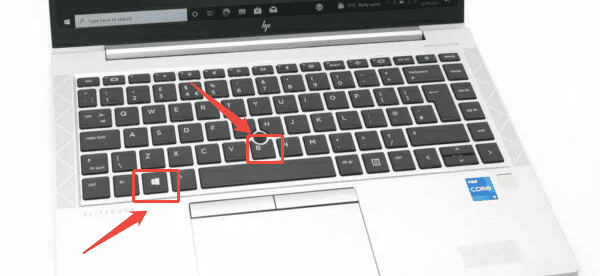
Wait for Recovery: The screen may remain black for up to 40 seconds. Listen for any beeping sounds. The HP BIOS Update screen should eventually appear, allowing the system to perform an automatic BIOS recovery.
Method 3: Resetting BIOS Configuration
If your EliteBook boots, but you face problems like boot loops, incorrect device order, or compatibility issues, the current BIOS settings may be corrupted or incorrectly configured. Resetting to factory defaults is a safe and effective step.
Detailed Steps for Resetting BIOS Defaults:
Access BIOS Setup: Restart the laptop. As it powers on, repeatedly press the F10 key until the BIOS Setup Utility screen appears.
Navigate to Exit: Use the navigation keys (up, down, left, right) to move to the Exit menu tab.
Load Defaults: Select the option that reads "Load Setup Defaults" or "Load Factory Defaults". A confirmation prompt will appear. Select "Yes".
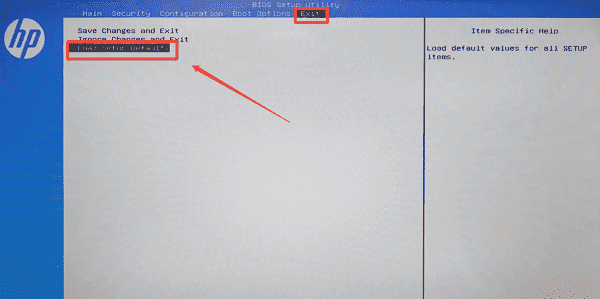
Save Changes: Select the option "Save Changes and Exit".
Confirm and Restart: Select Yes again to confirm the changes. The laptop will restart with the factory default BIOS settings, often resolving boot order or hardware conflicts that were causing the problem.
Conclusion
Resolving BIOS and boot problems on your HP EliteBook 840 G8 requires a tiered approach. By first ensuring operating system stability with updated drivers by using Driver Talent X, you minimize software-related conflicts.
When the issue is deeper, performing a Hard Reset or utilizing the built-in BIOS Key Combination provides essential recovery options. Finally, correcting corrupted settings by restoring factory defaults directly within the BIOScan solve common configuration errors.
See also:
Mandragora: Whispers of the Witch Tree Overview
Overview of Tempest Rising on Steam
[Fixed] Red Dead Redemption 2 ERR_GFX_STATE Graphics Error
Ways to Fix The Elder Scrolls IV: Oblivion Remastered Startup Crash









