
Corsair iCUE is a powerful software tool designed to manage Corsair keyboards, mice, and RGB devices. However, many users encounter a frustrating issue where iCUE fails to install or detect a new keyboard driver. If your Corsair keyboard works in Windows but doesn't appear in iCUE—or the driver installation gets stuck—this guide will help you fix it quickly. Let's walk through the common causes and proven solutions step by step.
Common Symptoms of the Problem
You may be facing this issue if:
The keyboard doesn't appear in Corsair iCUE
Driver installation fails or freezes
iCUE shows "Device Not Detected"
Keyboard works normally outside iCUE
Error messages appear during setup
These signs usually indicate a software or driver conflict rather than hardware failure
.png "icue-not-detected-device")
Quick Checks Before Troubleshooting
Before applying advanced fixes, try these simple
Restart your PC
Plug the keyboard into a different USB port
Try USB 2.0 instead of USB 3.0
Disconnect other RGB devices temporarily
Check Device Manager for driver warnings
If the issue persists, continue below
.png "try-different-port")
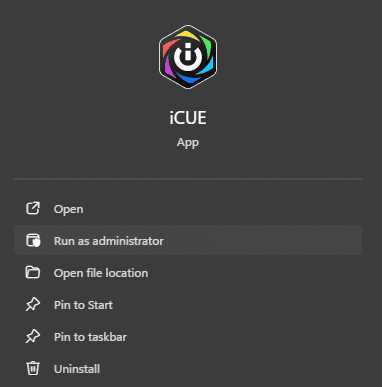
Method 1: Run Corsair iCUE as Administrator
Sometimes iCUE can't install drivers without admin rights
Right-click the iCUE shortcut
Select Run as administrator
Reconnect your keyboard
Check if the device appears
This solves permission-related driver issues in many cases
Method 2: Fully Reinstall Corsair iCUE
A clean reinstall often fixes corrupted installations
Uninstall iCUE from Apps & Features
Delete leftover folders from:
C:\Program Files\Corsair
C:\Users\YourName\AppData\Local\Corsair
Restart your PC
Download and install the latest iCUE version
Reconnect your keyboard
This ensures a fresh driver environment
.png "download-icue")
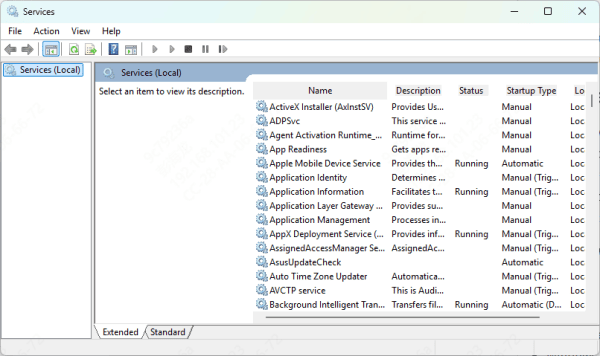
Method 3: Restart Corsair Background Services
iCUE relies on background services to install drivers
Press Windows + R → type services.msc
Restart:
Corsair Service
Corsair LLA Service
Relaunch iCUE
If these services are stopped, devices won't appear
Method 4: Reinstall the Keyboard Driver
Windows may have installed a faulty driver automatically
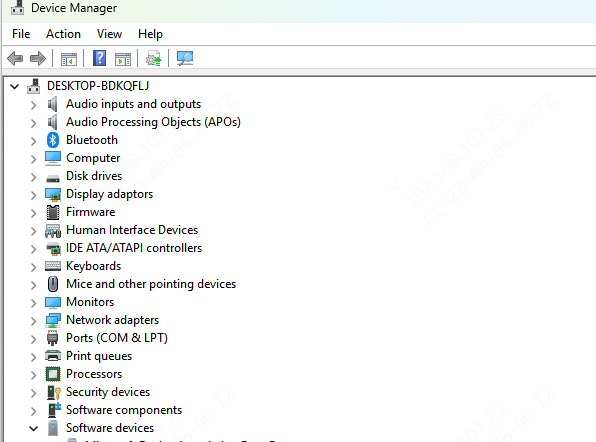
Open Device Manager
Expand Keyboards or Human Interface Devices
Right-click your Corsair keyboard → Uninstall device
Restart your PC
Plug the keyboard back in
Windows will reinstall a clean driver automatically
Method 5: Update USB and System Drivers (Recommended)
Outdated USB drivers are one of the most common reasons iCUE fails to detect keyboards. Instead of manually searching for drivers, you can use Driver Talent X to handle everything automatically.
Download and install Driver Talent X
Launch the software and click Scan
Review detected outdated drivers
Click Update or Repair Now
Restart your PC
This method solves driver-related issues in most cases.

Method 6: Disable Conflicting Software
Some RGB tools conflict with Corsair iCUE, including:
ASUS Aura Sync
MSI Mystic Light
Razer Synapse
SteelSeries GG
What to do
Close or uninstall other RGB software
Restart your PC
Relaunch iCUE
Only one RGB controller should run at a time
Method 7: Update Windows
An outdated Windows version can block driver installation
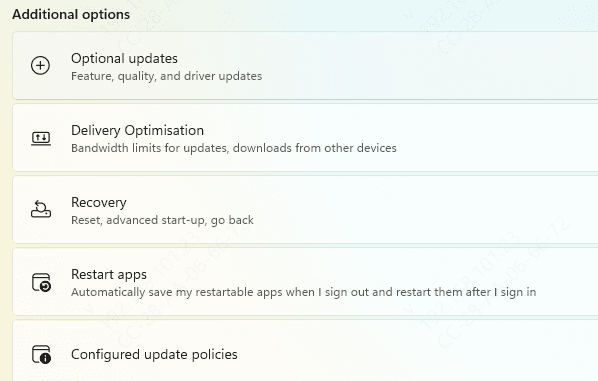
Go to Settings → Windows Update
Install all available updates
Restart your PC
Optional updates often include critical USB driver patches
Why Corsair iCUE Fails to Install Keyboard Drivers
Corrupted or outdated iCUE installation
Leftover drivers from older Corsair devices
Outdated USB or chipset drivers
Windows permission issues
Conflicts with other RGB software
Antivirus blocking driver installation

Final Thoughts
Corsair iCUE failing to install keyboard drivers is usually caused by outdated drivers, corrupted installations, or software conflicts. In most cases, the issue can be fixed with a clean reinstall, service restart, or USB driver update.









