
When your webcam isn't working properly on your Dell laptop, one of the first things you should check is whether the webcam driver is installed or up to date. A webcam driver ensures that your operating system can communicate with the hardware, and an outdated or missing driver can lead to issues like poor video quality or the webcam not being recognized at all. This guide will walk you through the process of installing or updating the webcam driver on your Dell laptop, as well as troubleshooting tips to fix common issues.
Manually Downloading from Dell Support Website
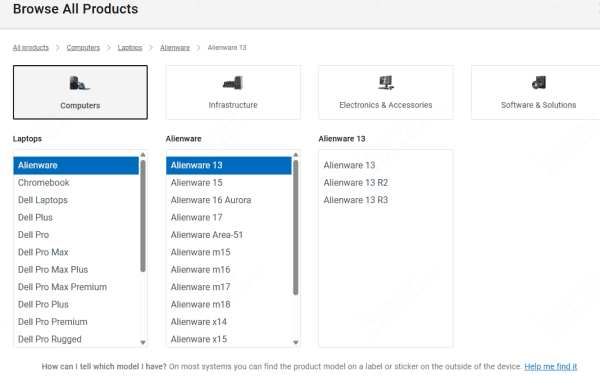
Visit the Dell Support website
Enter your Dell Service Tag (found on your laptop) or select your laptop model
Navigate to the "Drivers & Downloads" section
Look under the "Camera" or "Imaging" category for the Webcam Driver
Click on Download and follow the on-screen instructions to install the driver
Once installed, restart your laptop for the driver to take effect
By downloading directly from Dell's official site, you can be sure that you are installing the correct driver for your laptop model
Use Driver Talent X (Autpmated Method)
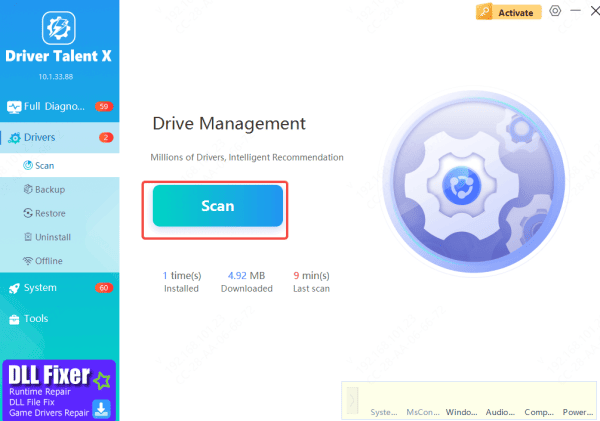
For a more automated approach, you can use Driver Talent X, which will scan your Dell laptop for outdated or missing drivers, including the webcam driver. This tool ensures that you're installing the correct driver version and resolves compatibility issues.
Download and install Driver Talent X from the official website
Open the software and go to Drivers → Scan
Let it scan for outdated or missing drivers, including the webcam driver
Once the scan is complete, locate the webcam driver and click Repair Now or Update
After the update, restart your laptop to apply the changes and restore webcam functionality
Using Device Manager (Windows Built-in Tool)
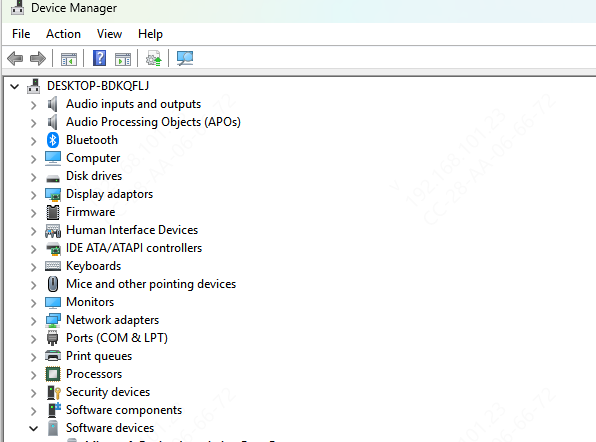
Windows has a built-in tool called Device Manager that allows you to update drivers directly from your operating system without downloading any extra software.
Press Windows + X and select Device Manager from the menu
Expand the Imaging Devices category
Right-click on your webcam device and select Update driver
Choose Search automatically for updated driver software
Let Windows find and install the latest webcam driver
Restart your laptop to complete the installation
This method is quick and easy, and Windows will automatically detect the best driver for your webcam
Troubleshooting Webcam Not Found or Missing in Device Manager
If your webcam is missing from Device Manager, it could be due to several reasons, including incorrect installation or hardware issues. Here's what you can do:
Check Device Manager: If the webcam is not listed under Imaging Devices, try unplugging and reconnecting it. If it's a built-in webcam, ensure it's not disabled in BIOS settings
Reinstall the Webcam Driver: Right-click on the Imaging Devices section in Device Manager, select Uninstall device, and restart your laptop. After rebooting, Windows should automatically reinstall the driver
Test USB Ports: If you're using an external webcam, try connecting it to a different USB port. Preferably, use a USB 3.0 port for better performance, as these provide more power and faster data transfer
Webcam Not Functioning Properly After Update
If the webcam is recognized but not working properly after the update, follow these steps:
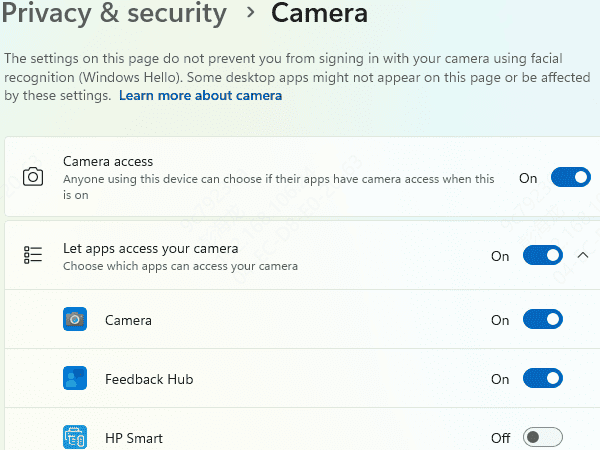
Check Privacy Settings: In Windows 10 or 11, make sure apps have permission to use the camera. Go to Settings > Privacy > Camera, and ensure "Allow apps to access your camera" is turned on
Enable Webcam in BIOS: On some Dell laptops, the webcam might be disabled in the BIOS. To check, restart your laptop, press F2 (or the BIOS access key for your model), and make sure the webcam is enabled in the settings
Conclusion
Having an up-to-date webcam driver is crucial for a seamless video conferencing and recording experience. Whether you use Dell SupportAssist, manually download drivers from Dell's website, or update through Device Manager, keeping your webcam driver updated ensures that your system runs smoothly. If problems persist even after updating your drivers, don't hesitate to contact Dell Support for further assistance. By following the steps and best practices outlined in this guide, you can make sure that your Dell laptop's webcam is always working at its best.









