
Intel driver update failures are a common problem on Windows systems and can affect graphics performance, network connectivity, audio output, Bluetooth, and overall system stability. Users often encounter errors such as installation stuck at a certain percentage, update failed messages, or drivers not installing after a Windows update. To resolve Intel driver update failures safely and efficiently, it is best to start with a reliable automated solution before attempting manual fixes.
Update Intel Drivers with Driver Talent X
Using a professional driver updater helps prevent compatibility issues, wrong driver installations, and incomplete updates. Driver Talent X automatically detects your Intel hardware and installs the correct drivers for your Windows version.
Download and Install:
Click the "Download" button to download the installer to your computer.
Run the installer, follow the on-screen instructions, choose the installation path, and complete the setup.
Scan for Driver Issues:
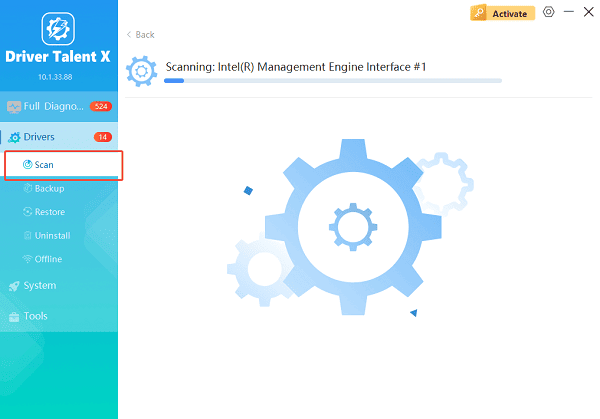
Open Driver Talent X from the desktop shortcut or Start menu and go to "Drivers" > "Scan", click "Scan".
Driver Talent X will detect outdated, missing, corrupted, or incompatible drivers, including Intel graphics, chipset, WiFi, Bluetooth, and audio drivers.
Update All Drivers:
After the scan is complete, the software will display a list of all drivers that need attention. Select the necessary drivers and click the "Upgrade" or "Repair Now" button.
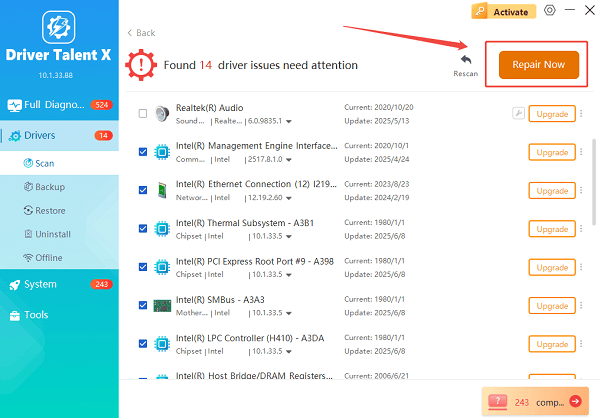
Driver Talent X will download and install the most stable and compatible Intel drivers.
Restart Your Computer:
Allow the installation process to complete without interruption.
Reboot your system to apply the updated Intel drivers properly.
This method resolves most Intel driver update failures and minimizes the risk of further errors.
Common Causes of Intel Driver Update Failed Errors
Understanding why Intel drivers fail to update helps in choosing the right solution.
Corrupted or incomplete previous driver installations
Incompatible driver versions for the current Windows build
Windows Update conflicts
Outdated chipset or system drivers
Insufficient permissions during installation
Antivirus or firewall interference
Fix 1: Update Intel Drivers via Intel Official Website
If automated tools are not an option, you can manually install Intel drivers.
Steps to Update Intel Drivers Manually:
Identify your Intel hardware: Open Device Manager and note the exact model of your Intel device.
Download drivers from Intel: Visit the Intel driver support page and search for your device model.
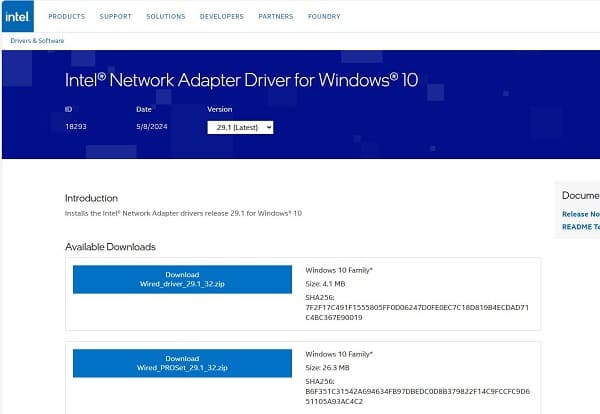
Select the correct Windows version: Make sure the driver matches your Windows 10 or Windows 11 build.
Run the installer as administrator: Right-click the installer and choose Run as administrator.
Restart your PC: Reboot to complete the installation.
Manual installation requires accuracy to avoid compatibility issues.
Fix 2: Use Device Manager to Update Intel Drivers
Device Manager can attempt automatic driver updates, though it may not always provide the latest version.
Steps Using Device Manager:
Right-click the Start menu and open Device Manager.
Expand the category for the Intel device.
Right-click the Intel device and select "Update driver".
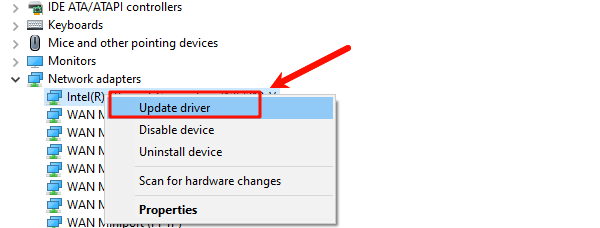
Choose "Search automatically for drivers".
Restart your computer if prompted.
Fix 3: Clean Reinstall Intel Drivers
If updates repeatedly fail, performing a clean reinstall can resolve corrupted driver files.
Steps to Clean Reinstall Intel Drivers:
Open Device Manager.
Right-click the Intel device and select "Uninstall device".
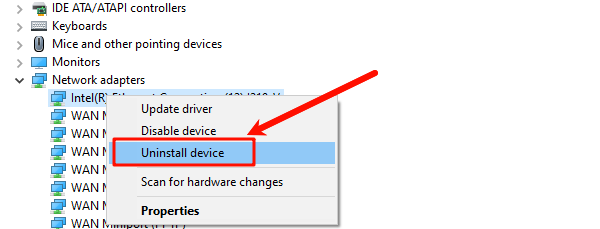
Check the option to delete the driver software if available.
Restart your computer.
Reinstall the driver using Driver Talent X or Intel's installer.
Fix 4: Resolve Windows Update Conflicts
Windows updates can interfere with Intel driver installations.
Ensure Windows is fully updated
Temporarily pause Windows updates during driver installation
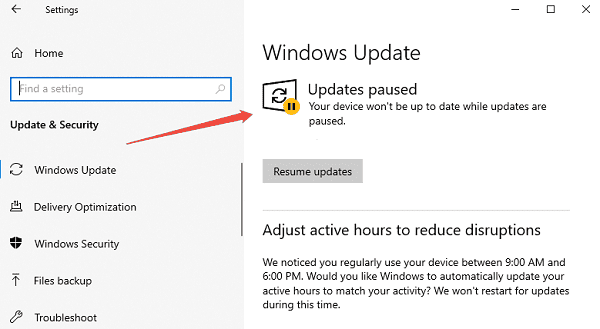
Disable third-party antivirus software temporarily
Close all background applications before installing drivers
Fix 5: Update Chipset and BIOS Drivers
Outdated chipset or BIOS versions can prevent Intel drivers from installing properly.
Update chipset drivers first using Driver Talent X.
Check the motherboard or laptop manufacturer's support page for BIOS updates.
Follow official BIOS update instructions carefully.
How to Prevent Intel Driver Update Failures
Always install drivers that match your hardware and Windows version
Avoid installing beta or optional drivers unless necessary
Keep chipset and system drivers up to date
Restart your system after every driver update
Use a trusted driver updater like Driver Talent X
Conclusion
Intel driver update failures can disrupt performance and system functionality, but they are usually easy to fix with the right approach. Starting with Driver Talent X provides the safest and most efficient solution by automatically installing compatible Intel drivers.
If needed, manual installation, Device Manager updates, clean reinstalls, and system-level fixes offer additional ways to resolve the issue. By following these detailed steps, you can successfully fix Intel driver update failures and keep your Windows system running smoothly.
See also:
How to Fix CoD Vanguard Not Launching on PC
How to Resolve Crashing Issues in Warframe









