
When the keyboard driver is missing, outdated, or corrupted, you may experience issues such as keys not responding, delayed input, or the keyboard not working at all. This guide explains how to properly install and fix keyboard drivers on Windows 10, starting with the most efficient solution using Driver Talent X, followed by several proven manual methods.
Update Keyboard Drivers Using Driver Talent X
Using a professional driver update tool is the fastest and safest way to fix keyboard driver problems, especially when Windows cannot correctly identify or reinstall the driver.
Download and Install:
Click the "Download" button to download the software package.
Run the installer, follow the setup wizard, and complete the installation.
Perform a Full System Scan:
Open the software from your desktop or Start menu, go to "Drivers" > "Scan", click "Scan".
Driver Talent X will analyze your system and identify outdated, missing, or corrupted drivers, including keyboard drivers.
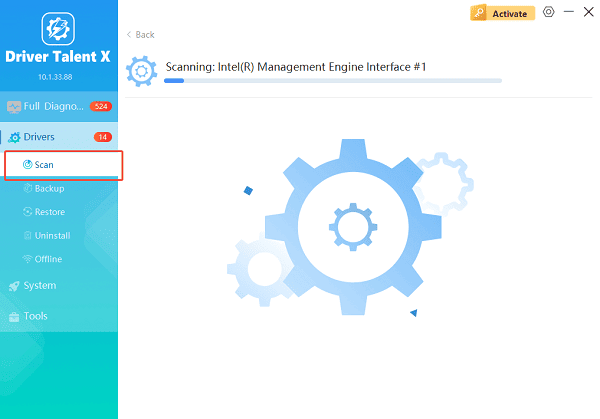
Update All Drivers:
After the scan is complete, the software will display a list of all drivers that need attention. Select "Repair Now" button to automatically download and install the recommended drivers.
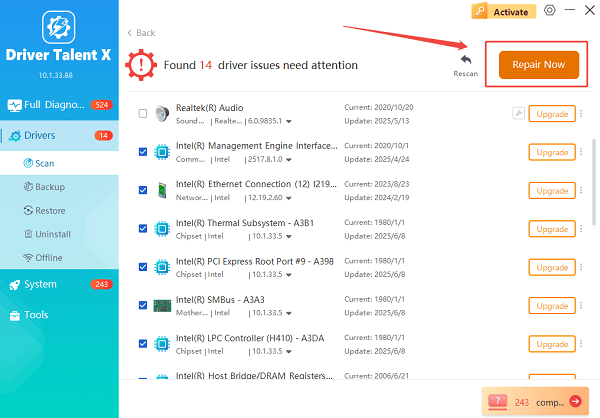
Driver Talent X will reliably download the correct, latest certified driver for your pc, and execute a completely clean installation automatically.
Restart Your Computer:
Reboot the system to ensure the new keyboard driver is fully applied.
This method minimizes compatibility risks and avoids incorrect driver installations.
Method 1: Install Keyboard Driver via Device Manager
If you prefer to use built-in Windows tools, Device Manager allows you to reinstall the keyboard driver manually.
Steps to Reinstall the Keyboard Driver:
Press Windows + X and choose Device Manager.
Expand the "Keyboards" section, right-click your keyboard device and select "Uninstall device".
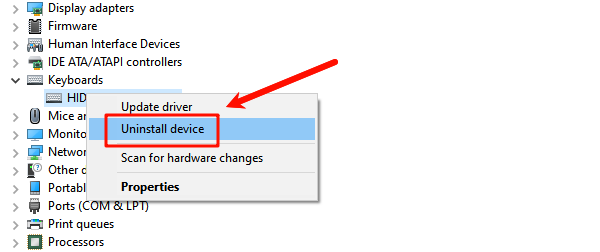
Confirm the uninstallation.
Restart your computer.
After rebooting, Windows 10 will automatically reinstall the default keyboard driver.
Method 2: Update Keyboard Driver Using Windows Update
Windows Update often includes stable keyboard driver updates provided by Microsoft or hardware manufacturers.
How to Check for Keyboard Driver Updates:
Open Settings and go to Update & Security.
Select "Windows Update", Click "Check for updates".
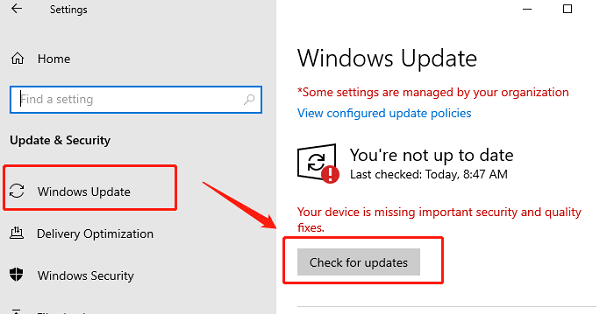
Install any available driver updates.
Restart your PC after the update completes.
This method works best for standard keyboards and laptops.
Method 3: Download Keyboard Driver from Manufacturer Website
For laptops and branded keyboards, manufacturer-specific drivers may be required.
Manual Installation Steps:
Identify your device model: Check your laptop model or keyboard brand.
Visit the official support website: Examples include Dell, HP, Lenovo, ASUS, Logitech, or Microsoft.
Download the keyboard driver for Windows 10: Make sure to select the correct system version and architecture.
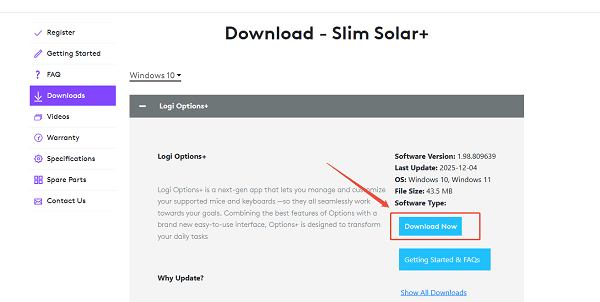
Run the installer and follow on-screen instructions.
Restart your computer.
This method ensures full functionality, including special keys and shortcuts.
Method 4: Check Keyboard Settings and Accessibility Options
Sometimes the issue is not the driver but incorrect system settings.
What to Check:
Disable Filter Keys in Settings > Ease of Access > Keyboard.
Ensure the correct keyboard layout is selected.
Try a different USB port or reconnect the keyboard.
Test the keyboard on another computer to rule out hardware failure.
Common Causes of Keyboard Driver Problems
Outdated or corrupted keyboard drivers
Incomplete Windows updates
System file corruption
Conflicting third-party software
Hardware connection issues
Identifying the cause helps prevent future keyboard issues.
Conclusion
Installing or fixing a keyboard driver on Windows 10 is essential for stable and responsive input. Using Driver Talent X provides the most efficient solution by automatically detecting, downloading, and installing the correct keyboard driver. If needed, Device Manager, Windows Update, manufacturer downloads, and system setting checks offer reliable alternative solutions.
See also:
How to Fix CoD Vanguard Not Launching on PC
How to Resolve Crashing Issues in Warframe









