
An outdated keyboard driver on Windows 11 can cause delayed input, unresponsive keys, missing function shortcuts, or complete keyboard failure. Since drivers act as the communication bridge between hardware and the operating system, keeping them updated is essential for stability and performance. Below are the most effective ways to fix outdated keyboard drivers, starting with the fastest and most reliable solution.
Method 1: Update Keyboard Driver with Driver Talent X
Using Driver Talent X is the most efficient way to detect and update outdated keyboard drivers without compatibility risks.
Download and Install:
Click the "Download" button to download the software package.
Run the installer, follow the setup wizard, and complete the installation.
Perform a Full System Scan:
Open the software from your desktop or Start menu, go to "Drivers" > "Scan", click "Scan".
Driver Talent X will analyze your system and identify outdated, missing, or corrupted drivers, including keyboard drivers.
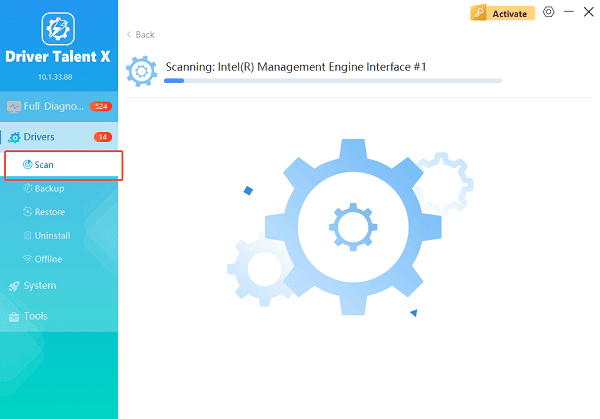
Update All Drivers:
After the scan is complete, the software will display a list of all drivers that need attention. Select "Repair Now" button to automatically download and install the recommended drivers.
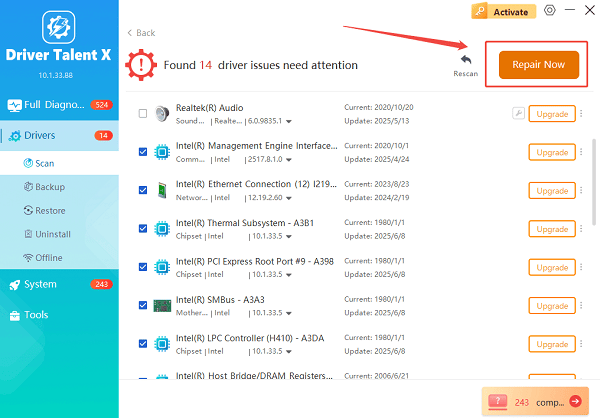
Driver Talent X will reliably download the correct, latest certified driver for your pc, and execute a completely clean installation automatically.
Restart Your Computer:
Reboot Windows 11 to ensure the updated driver is fully applied.
This method minimizes errors and ensures optimal driver compatibility.
Method 2: Update Keyboard Driver via Device Manager
If you prefer a built-in Windows solution, Device Manager can be used, though it may not always find the latest driver.
Steps:
Press Windows + X and select Device Manager.
Expand "Keyboards", right-click your keyboard device and choose "Update driver".
Select "Search automatically for drivers".
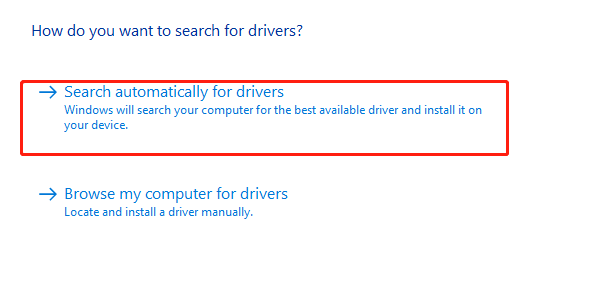
Follow the on-screen instructions and restart your PC.
If Windows reports that the best driver is already installed, the driver may still be outdated.
Method 3: Reinstall the Keyboard Driver
Reinstalling the driver can resolve corruption issues caused by system updates or software conflicts.
Steps:
Open Device Manager.
Expand "Keyboards", right-click the keyboard device and select "Uninstall device", confirm the uninstallation.
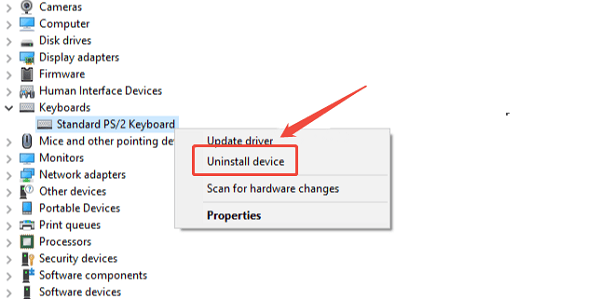
Restart your computer.
Windows will automatically reinstall the default keyboard driver.
Method 4: Check Windows Update for Driver Fixes
Microsoft sometimes distributes driver updates through Windows Update.
Steps:
Press Windows + I to open Settings.
Go to Windows Update.
Click "Check for updates".
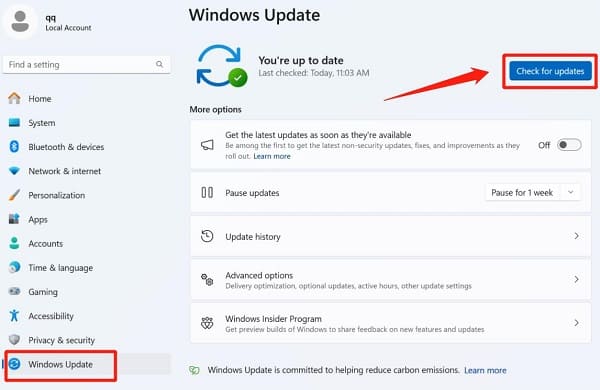
Install any available updates and restart the system.
Method 5: Adjust Keyboard Settings and System Compatibility
Outdated drivers may conflict with incorrect settings.
Go to Settings > Accessibility > Keyboard.
Disable "Filter Keys" and "Sticky Keys".
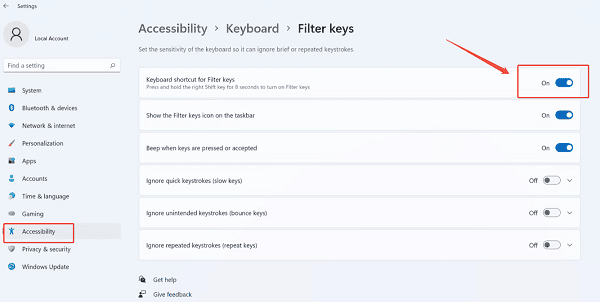
Ensure the correct keyboard layout is selected under Time & Language > Language & Region.
Common Causes of Outdated Keyboard Drivers
Windows 11 major updates
Missing OEM driver updates
System restore or rollback
Corrupted system files
Incomplete driver installations
Prevent Keyboard Driver Issues in the Future
Use Driver Talent X regularly to monitor driver updates
Avoid installing drivers from unknown sources
Create restore points before major updates
Keep Windows 11 fully updated
Conclusion
Fixing an outdated keyboard driver on Windows 11 is essential for smooth and reliable input performance. Updating the driver using Driver Talent X is the fastest and safest solution, while manual methods such as Device Manager, driver reinstallation, and Windows Update offer additional options. Regular driver maintenance helps prevent keyboard issues and ensures long-term system stability.
See also:
Mandragora: Whispers of the Witch Tree Overview
Overview of Tempest Rising on Steam
[Fixed] Red Dead Redemption 2 ERR_GFX_STATE Graphics Error
Ways to Fix The Elder Scrolls IV: Oblivion Remastered Startup Crash









