
Experiencing keyboard issues such as input lag, delayed response, intermittent detection failures, or keys not working is a critical disruption to both work and gaming. These problems are most often rooted in outdated, corrupted, or conflicting Human Interface Device (HID) drivers, or interference from system-level settings like power management.
A clean, stable keyboard driver is the foundation for low-latency, reliable input. This guide provides systematic, step-by-step solutions for updating your keyboard drivers and eliminating these frustrating input problems, starting with the most efficient method for system synchronization.
Part I: Driver Integrity and System Synchronization
A responsive keyboard relies on clean drivers for the keyboard itself, the USB/Bluetooth receiver, and the core system chipset. Conflicts in these areas directly cause lag and detection failures.
Automated Driver Update with Driver Talent X
Manually troubleshooting and updating the various HID, USB Controller, and Chipset drivers can be complex and tedious, especially when dealing with proprietary hardware. A specialized utility automates this process, guaranteeing that all necessary components are perfectly synchronized, often resolving deep-seated input issues immediately.
Preparation:
Use an external mouse or the on-screen keyboard (if needed) for navigation.
Download and install the Driver Talent X application onto your Windows PC.
Run Scan:
Launch the application and go to "Drivers" > "Scan", click "Scan".
The software will perform a deep analysis of your system, focusing on peripheral and controller drivers.
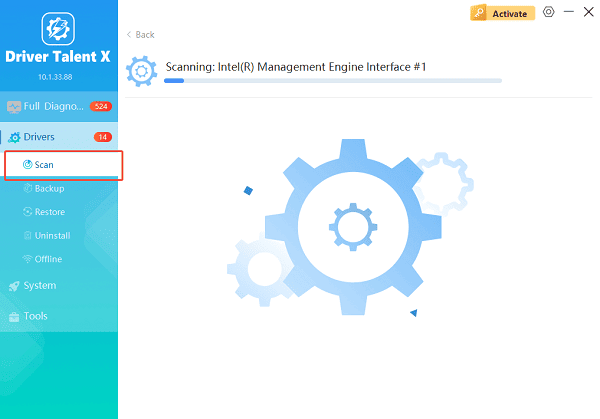
Execute Update:
After the scan is complete, the software will display a list of all drivers that need attention. Select the necessary drivers and click the "Repair Now" button.
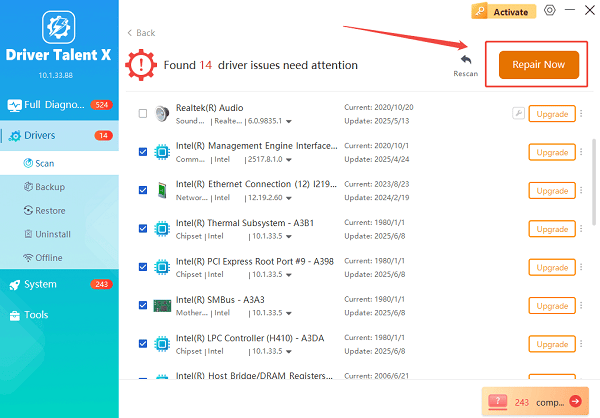
Driver Talent X will download the latest, certified versions specific to your keyboard and Windows version, crucial for minimizing latency.
Finalize:
After the installation is complete, restart your computer and test the keyboard's responsiveness.
Part II: Safe Driver Reinstallation and Power Checks
These steps address direct driver conflicts and common power-saving settings that interrupt input devices.
Method 1: Clean Reinstallation via Device Manager
This is the standard and safest way to force Windows to remove the current problematic driver and load a fresh, clean version.
Press Windows Key + X and select "Device Manager".
Expand the "Keyboards" category.
Right-click on your keyboard entry (e.g., "HID Keyboard Device").
Select "Uninstall device".
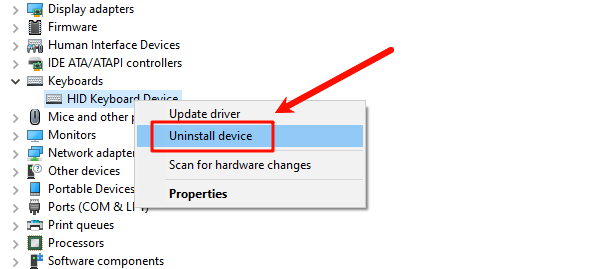
Do NOT check the box that says "Delete the driver software for this device".
In the Device Manager menu, click "Action" > "Scan for hardware changes". Windows will automatically detect the device and load a fresh driver copy.
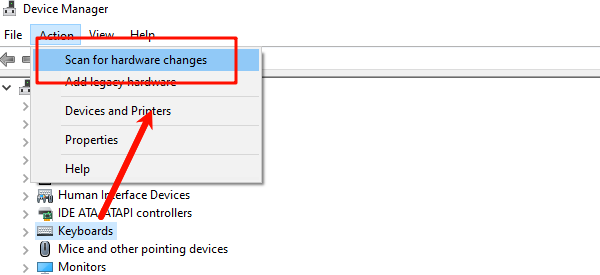
Restart the PC to finalize the reinstallation.
Method 2: Disable Power Saving for USB Ports
Windows often puts USB ports (and any connected devices) to sleep to save power, which frequently causes intermittent detection failures or lag upon waking.
Press Windows Key + X and select "Device Manager".
Expand the "Universal Serial Bus controllers" category.
Right-click on any "USB Root Hub" entry and select "Properties".
Go to the "Power Management" tab.
Uncheck the box that says "Allow the computer to turn off this device to save power".
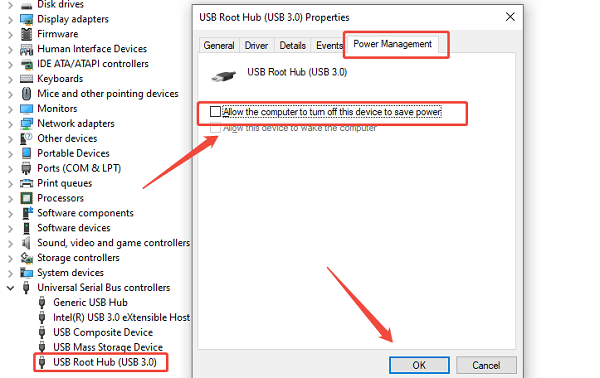
Click "OK". Repeat this process for all USB Root Hub entries.
Part III: Windows Settings and Configuration Fixes
These solutions address system settings that can throttle or block keyboard input.
Method 1: Check and Disable Filter Keys
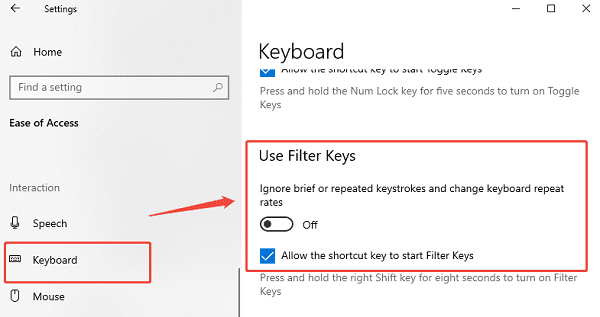
The Windows accessibility feature known as Filter Keys is designed to ignore quick or repeated keystrokes. If enabled accidentally, it makes the keyboard feel severely lagged or unresponsive.
Press Windows Key + I to open Settings.
Navigate to "Accessibility" > "Keyboard" (or "Ease of Access" on older Windows versions).
Ensure the "Filter Keys" toggle switch is set to "Off".
Method 2: Adjust Keyboard Repeat Delay and Rate
While not fixing the driver, adjusting these settings can improve the perceived responsiveness of the keyboard.
Press Windows Key + R and type "control keyboard". Press Enter.
In the Keyboard Properties window, adjust the "Repeat Delay" slider toward Short (less delay before repetition starts).
Adjust the "Repeat Rate" slider toward Fast (faster repetition speed).
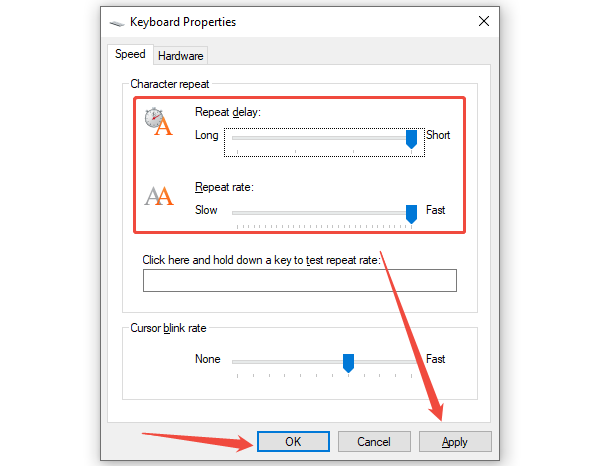
Click "OK" and test the typing responsiveness.
Conclusion
Keyboard input lag and detection issues are highly fixable problems rooted in driver and configuration conflicts. The most reliable method is to first ensure driver stability and synchronization across your entire system with Driver Talent X.
By combining this foundational fix with a clean reinstallation via Device Manager, disabling USB Power Saving, and checking core Accessibility settings, you can systematically eliminate common conflicts and restore smooth, high-speed input.
See also:
Epson L3250 Driver Download & Installation Guide for Windows 10/11
How to Update BIOS on MSI Motherboard – Step-by-Step Guide









