
External GPU (eGPU) setups can greatly improve gaming, video editing, and 3D rendering performance on a laptop. However, issues such as the eGPU not being detected, frequent disconnections, black screen, low performance, or driver errors are common.
This guide explains the main causes and provides detailed solutions to fix an external laptop graphics card that is not working. Before applying hardware-level troubleshooting, make sure all related graphics, USB, Thunderbolt, and chipset drivers on your laptop are updated. Incorrect or outdated drivers are the most common source of eGPU problems.
Update Drivers Using Driver Talent X
Driver conflicts can prevent your external graphics card from being detected by Windows. Using Driver Talent X ensures you install the correct drivers for the GPU, Thunderbolt controller, USB ports, and system chipset.
Download and Install:
Click the "Download" button to download the software package.
Run the setup file and follow the on-screen instructions to complete installation.
Scan Your Computer:
Launch the software and go to "Drivers" > "Scan", click "Scan".
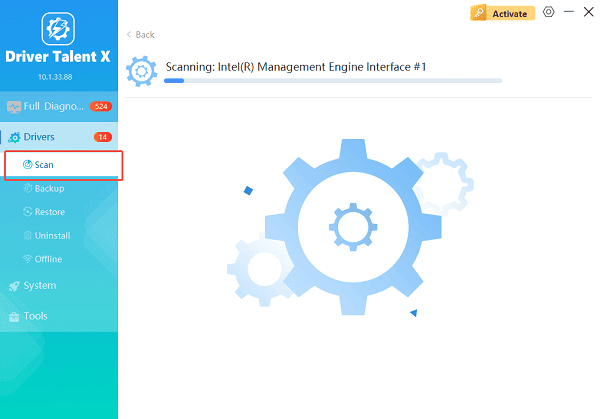
The software will automatically detect your graphics card drivers and check whether the driver is outdated, missing, or corrupted.
Update Windows Drivers:
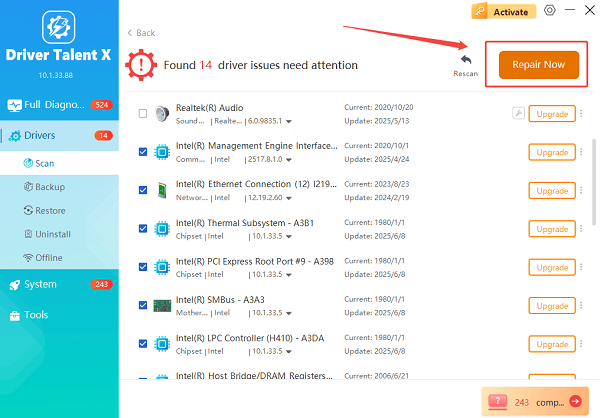
After scanning, locate the NVIDIA display driver in the list. You will see the current version and the recommended latest version.
Click the "Upgrade" or "Repair Now" button to download and install the official driver automatically. Wait for Driver Talent X to download and install the correct versions.
Restart Your Computer:
Restart your laptop to apply the updates.
Reconnect the external GPU and verify whether Windows detects it.
Updating drivers before making hardware changes helps avoid unnecessary troubleshooting and prevents Windows from loading incorrect GPU drivers.
Common Causes of External GPU Not Working
Outdated or incompatible GPU drivers
Faulty or unsupported Thunderbolt/USB-C cable
BIOS or Thunderbolt settings incorrectly configured
Disabled PCI Express resource allocation
Incompatible enclosure firmware
Power supply issues
Windows GPU detection errors
Damaged ports on the laptop or eGPU enclosure
Below are effective solutions you can apply one by one.
Fix 1: Check Your Cable and Connection Port
An external GPU requires a high-quality, certified cable.
Steps to check connections:
Ensure the cable is Thunderbolt 3 or Thunderbolt 4 certified.
Connect the eGPU directly to the laptop without adapters or hubs.
Make sure the cable is plugged into a Thunderbolt-capable port (not just USB-C).
Plug the cable firmly into the eGPU enclosure until the latch clicks.
Restart the laptop and reattach the eGPU cable after Windows loads.
If the cable is damaged or low-quality, the eGPU may not appear at all.
Fix 2: Enable Thunderbolt Support in BIOS
Some laptops disable external GPU support by default.
Steps:
1. Restart the laptop and press the BIOS key (usually F2, F10, Delete, or Esc).
2. Navigate to: Security > System Configuration > Thunderbolt Configuration
3. Enable the following:
Thunderbolt Support
Thunderbolt Boot
PCIe Resource Allocation
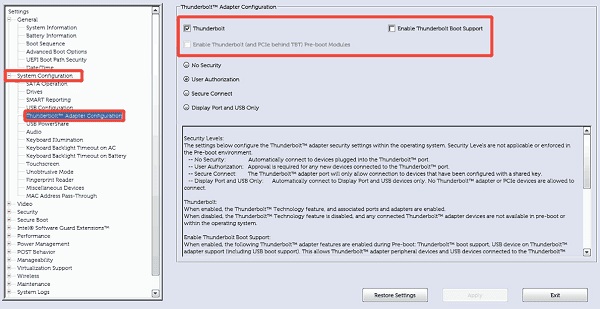
4. Save changes and exit BIOS.
5. Reconnect the external GPU.
If Thunderbolt security is set to "No PCIe Tunneling", the GPU will not load.
Fix 3: Install or Reinstall the Official GPU Driver
For NVIDIA or AMD eGPUs, manually reinstalling drivers often resolves detection issues.
Steps:
Disconnect the external GPU.
Download the correct driver for your GPU from NVIDIA or AMD's website.
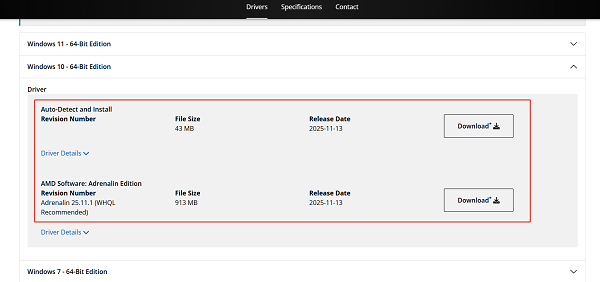
Uninstall the current GPU driver using Device Manager.
Restart the laptop.
Install the freshly downloaded driver.
Connect the external GPU and allow Windows to detect it.
If the driver was previously corrupted, this method restores stable functionality.
Fix 4: Update the eGPU Enclosure Firmware
Some eGPU docks require firmware updates for compatibility.
Steps:
Visit the enclosure manufacturer's support site.
Search for firmware or driver updates for your specific model.
Download and install updates on your laptop.
Restart your eGPU once the update is complete.
Firmware issues can cause random disconnections or prevent the GPU from initializing.
Fix 5: Check Device Manager for GPU Errors
You can verify whether Windows detects the external GPU.
Steps:
1. Open Device Manager, expand "Display Adapters".
2. Look for:
Code 43
Code 31
Unknown Device
3. Right-click and select "Uninstall device".
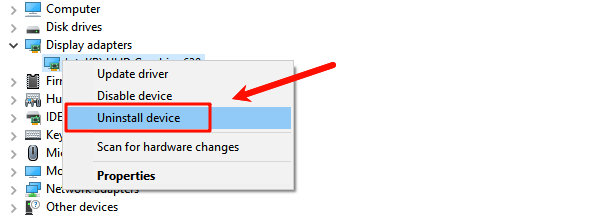
4. Disconnect the eGPU.
5. Restart the laptop and reconnect it.
Device Manager errors often relate to incorrect drivers or unstable connections.
Fix 6: Ensure the Power Supply Is Working
External GPUs require substantial power.
Steps:
Make sure the enclosure is connected to its original power adapter.
Check whether the enclosure's power LED is on.
Ensure the PSU wattage meets the GPU's requirement.
Re-seat the GPU inside the enclosure to ensure proper contact.
A weak or faulty PSU can cause detection failure.
Fix 7: Disable Internal GPU Switching Issues
Hybrid GPU systems may override the external GPU.
Steps:
Open NVIDIA Control Panel or AMD Radeon Settings.
Navigate to "Switchable Graphics" or "Preferred GPU".
Set the external GPU as the "High Performance" device.
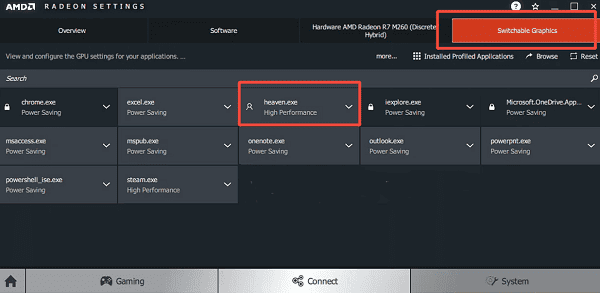
This ensures apps route to the external GPU instead of the integrated one.
Fix 8: Perform a Full Windows Reset of GPU Drivers
Resetting GPU-related system files can resolve persistent issues.
Steps:
1. Press Windows + Ctrl + Shift + B to refresh GPU drivers.
2. If this fails, perform a System File Check:
Open Command Prompt as administrator.
Run: sfc /scannow
3. Restart your laptop.
This clears corrupted graphics system components.
Final Thoughts
External GPU issues are usually caused by driver conflicts, faulty cables, or incorrect system settings. Always start by updating all related drivers using Driver Talent X, then verify the connection, BIOS settings, and GPU configuration. If the hardware is intact and drivers are correctly installed, your eGPU should function smoothly and significantly boost your laptop's performance.
See also:
How to Fix AMD FreeSync Not Working Issue
How to Fix Bluetooth Not Working Issues









