
Upgrading a graphics card on a laptop is very different from upgrading one on a desktop. Most laptops do not allow a physical GPU replacement because the GPU chip is soldered to the motherboard.
However, there are still several ways to improve graphics performance, including updating drivers, optimizing system settings, and using an external GPU (eGPU). This guide walks you through each method step by step, starting with the most important action: updating your graphics drivers.
Update Your Laptop Graphics Drivers First (Recommended)
Before considering any hardware-level upgrade, ensure your graphics drivers are fully updated. New drivers optimize performance, fix stability issues, and unlock features for both integrated and dedicated GPUs.
Update Graphics Drivers with Driver Talent X
Download and Install:
Click the "Download" button to download the software package.
Run the installation file and follow the on-screen instructions until the setup is complete.
Scan your system:
Start the program from your Desktop or Start Men, go to "Drivers" > "Scan", click "Scan".
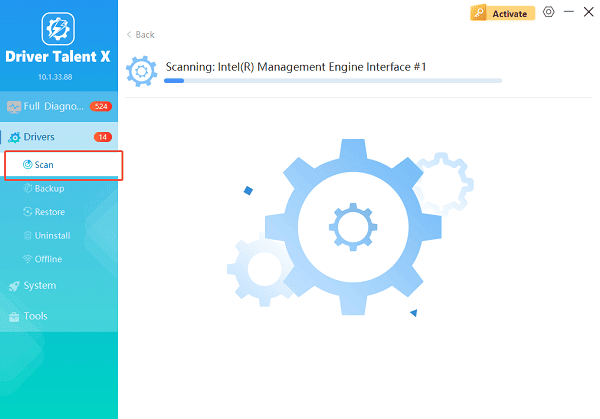
Driver Talent X will detect outdated, missing, or corrupted graphics drivers for NVIDIA, AMD, or Intel GPUs.
Update the graphics driver:
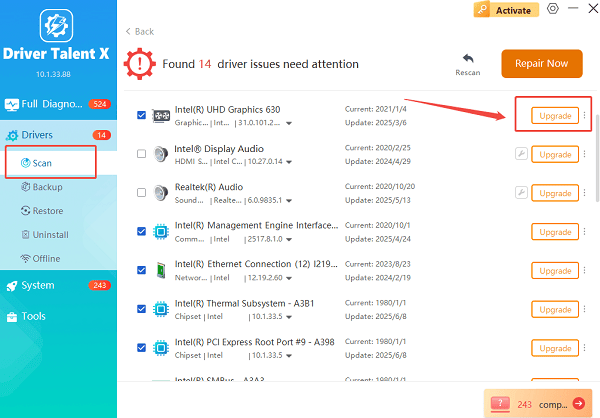
When the scan completes, locate your graphics driver in the results list. You will see information such as version number and status.
Select the "Upgrade" button next to your GPU driver. Driver Talent X will automatically download and install the current driver without requiring manual configuration.
Restart your laptop:
A reboot is necessary to apply the driver changes and ensure the GPU runs with the new optimizations.
This is the fastest and safest way to enhance graphics performance without risky hardware modifications.
Can You Upgrade the Graphics Card on a Laptop?
For most laptops, the answer is no. The GPU is typically soldered to the motherboard. However, certain gaming laptops support GPU modules, and some models allow performance upgrades using an external GPU. Below are all possible upgrade paths.
Method 1: Upgrade Using an External GPU (eGPU)
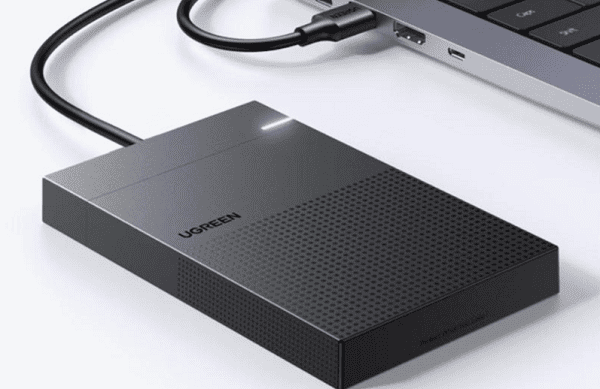
If your laptop has a Thunderbolt 3, Thunderbolt 4, or USB4 port, you can use an external graphics card enclosure. This is the closest you can get to a true GPU upgrade on a laptop.
Requirements:
Thunderbolt 3/4 or USB4 port
eGPU enclosure
Desktop graphics card (NVIDIA or AMD)
External power adapter (usually included with the enclosure)
Steps:
Turn off your laptop completely.
Insert your desktop GPU into the eGPU enclosure and secure it.
Connect the enclosure to its power supply.
Plug the enclosure into your laptop using the Thunderbolt cable.
Power on the laptop.
Install the graphics driver for the GPU you inserted.
Restart the system to enable the eGPU.
This method significantly boosts gaming and video-editing performance.
Method 2: Upgrade to a Modular Laptop GPU (MXM/Proprietary)
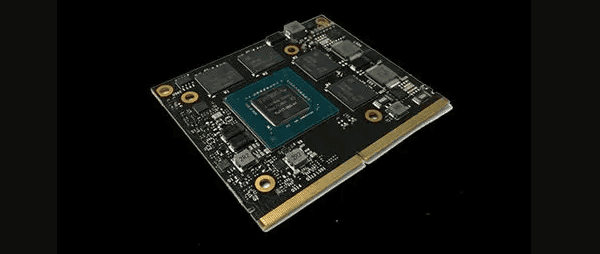
Some workstation or high-end gaming laptops use detachable GPU modules, such as MXM cards. This option is available only for specific brands and models.
Steps:
Check your laptop's service guide to confirm MXM GPU support.
Identify compatible MXM cards; not all cards fit all laptops.
Purchase a module that your motherboard and cooling system can handle.
Disassemble the laptop following the manufacturer's instructions.
Replace the old module with the new GPU.
Reapply thermal paste and reinstall the heatsink.
Install the required graphics drivers.
Test the system for temperature and stability.
Note: This method requires advanced technical skills and voids warranty on many devices.
Method 3: Upgrade Integrated Graphics Performance
If your laptop uses integrated Intel or AMD graphics, you cannot change the hardware. You can, however, improve performance through optimization.
Steps:
Update drivers using Driver Talent X or your manufacturer's software.
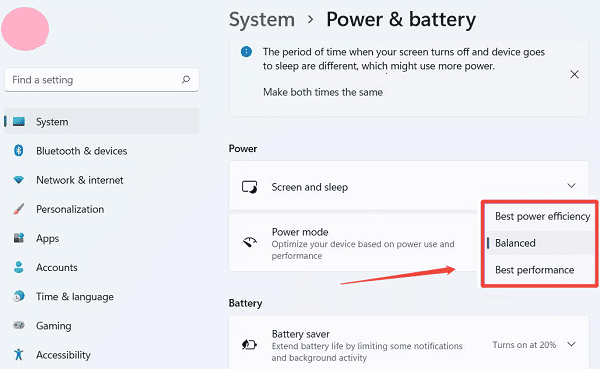
Adjust power settings
Go to "Settings", select "System".
Open "Power & Battery", Switch to "Best Performance".
Increase dedicated VRAM in BIOS (if supported)
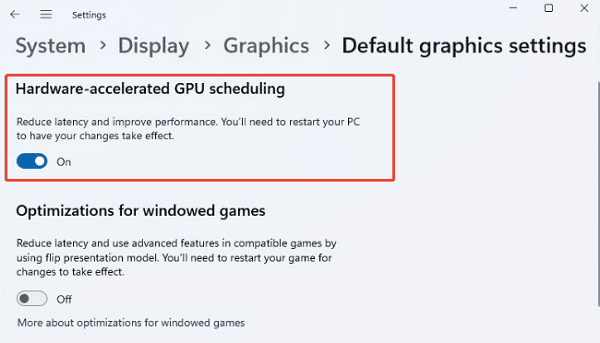
Enable Hardware-Accelerated GPU Scheduling
Open Settings, select "System".
Go to "Display" > "Graphics" > "Default graphics settings".
Enable "Hardware-accelerated GPU Scheduling".
Close background applications that consume resources.
This method enhances gaming and rendering performance without any physical upgrade.
Method 4: Improve Performance Using Game Optimization
Sometimes the simplest adjustments make the biggest difference.
Steps:
Update all drivers (GPU, chipset, and firmware).
Clean dust from vents and fans.
Use a cooling pad to lower GPU temperatures.
Enable gaming mode in your laptop's system management software.
Lower in-game settings such as shadows and anti-aliasing.
Run games at a scaled resolution for smoother performance.
Final Thoughts
Most laptops do not support traditional GPU upgrades, but you still have multiple ways to boost performance. Begin with a full driver update using Driver Talent X, then consider system optimizations, eGPU solutions, or modular GPU upgrades if supported. These methods help you squeeze more capability out of your laptop and extend its useful life without needing a full system replacement.
See also:
Epson L3250 Driver Download & Installation Guide for Windows 10/11
How to Update BIOS on MSI Motherboard – Step-by-Step Guide









