
If your Lenovo desktop powers on but the screen remains black. This is a common issue that can be alarming—fans may spin, indicator lights turn on, but nothing appears on the monitor. The problem can be caused by display connection issues, graphics driver corruption, incorrect input settings, hardware faults, or BIOS-related errors. This guide walks you through all proven solutions step by step to help you identify and fix the issue.
Step 1: Check Monitor and Cable Connections
Many black screen problems are caused by simple display connection issues
Make sure the monitor is powered on and the power LED is lit
Check that the video cable (HDMI, DisplayPort, DVI, or VGA) is firmly connected at both ends
Try a different cable if possible
Plug the monitor into another device to confirm it works
If your Lenovo desktop has both motherboard and GPU video ports, connect the cable to the graphics card port, not the motherboard (if a dedicated GPU is installed)
.png "check-cable-connection")
Step 2: Select the Correct Monitor Input Source
Monitors often fail to auto-detect the correct input
Use the monitor's physical buttons
Open the Input Source or Input Select menu
Manually choose HDMI, DisplayPort, or VGA (matching your cable)
.png "check-input-source")
Step 3: Test with an External or Different Monitor
Connect your Lenovo desktop to a different monitor or TV
If the display works, the original monitor may be faulty
If the screen is still black, continue troubleshooting the desktop
.png "use-another-monitor")
Step 4: Power Reset the Lenovo Desktop
A power reset can clear residual electrical issues
Shut down the desktop
Unplug the power cable
Hold the power button for 15–20 seconds
Reconnect the power cable
Turn the desktop back on
Step 6 :Boot into Safe Mode (If Possible)
If Windows is loading incorrectly, Safe Mode can help
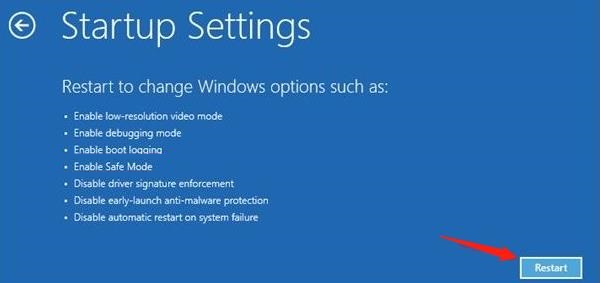
Turn the desktop on and off 2–3 times during startup to trigger Windows Recovery
Go to Advanced options → Troubleshoot → Startup Settings → Restart
Select Safe Mode
If the display works in Safe Mode, the problem is likely caused by a driver or software issue
Step 7: Reseat RAM and Internal Components
Loose internal components can prevent video output
Power off and unplug the desktop
Open the case
Remove and reinsert RAM modules firmly
If multiple RAM sticks are installed, try booting with only one
Reseat the graphics card if applicable
Close the case and power on
Step 8: Update Graphics Drivers
Corrupted or incompatible graphics drivers are a major cause of black screen issues
Download and Install
Click the "Download" button to get the installation package
Run the installer and set up the software on a working PC, or boot into Safe Mode with Networking if your primary screen is black
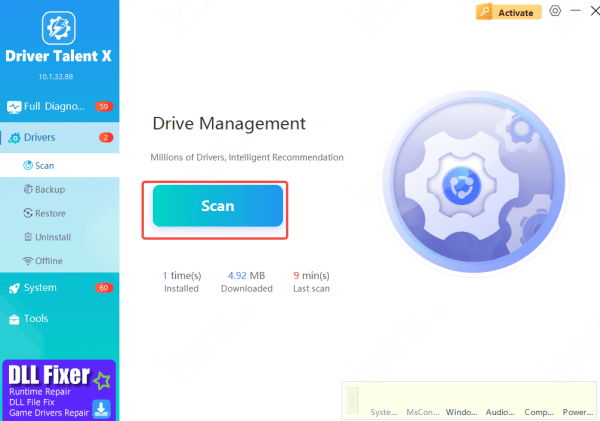
Scan Your System
Once the installation is complete, open Driver Talent X
Go to the "Drivers" section and click on "Scan"
The software will scan all hardware components, including your GPU, chipset, and display adapters
Update the Drivers
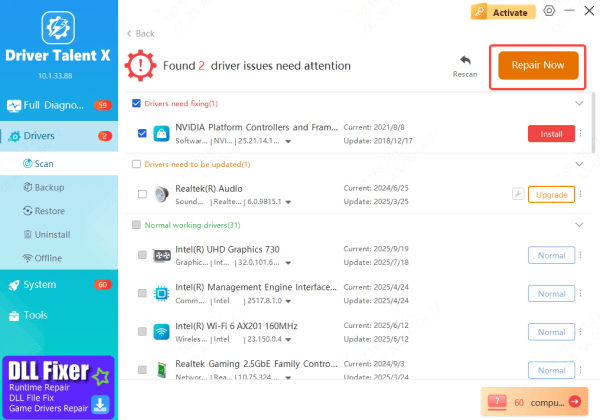
After the scan finishes, Driver Talent X will display a list of outdated or faulty drivers
Select the necessary drivers, especially those related to graphics, and click "Upgrade" or "Repair Now"
The software will clean up old conflicting files and download the latest, certified drivers
Restart Your Computer
After the drivers are installed, restart your computer
Check if the screen displays normally after reboot
Driver Talent X ensures that the latest drivers are installed cleanly, which can often resolve driver corruption and eliminate the black screen issue.
Step 9: Reset or Update BIOS
Incorrect BIOS settings can disable video output
Restart the desktop
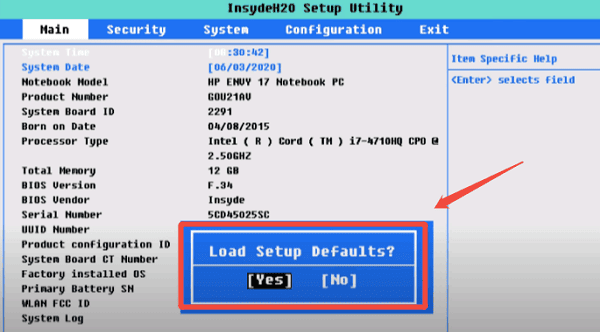
Press F1, F2, or Del repeatedly to enter BIOS
Load Default Settings or Optimized Defaults
Save changes and reboot
If your system allows it and you can access Lenovo Support, updating the BIOS may also resolve compatibility issues
Step 10: Check for Hardware Failure
If none of the above solutions work, the issue may be hardware-related.
Possible faulty components include:
Graphics card
Power supply unit (PSU)
Motherboard
RAM
At this stage, professional diagnosis or Lenovo service support is recommended
Common Causes of a Black Screen on Lenovo Desktop
Loose or faulty monitor cables
Incorrect monitor input source
Graphics card or GPU driver issues
RAM or internal hardware connection problems
BIOS or firmware misconfiguration
Windows startup or system file corruption
Power supply or motherboard failure
Conclusion
When your Lenovo desktop turns on but shows a black screen, the cause can range from simple cable issues to driver corruption or hardware failure. By methodically checking your display setup, resetting power, reseating internal components, updating drivers, and reviewing BIOS settings, you can resolve most black screen problems without replacing your computer. If the issue persists after all troubleshooting steps, it may indicate a hardware fault that requires professional repair.









