If your Lenovo docking station suddenly stops working on Windows 11—whether it's not detecting monitors, USB ports aren't responding, or the Ethernet connection fails—the issue is often linked to incompatible, missing, or corrupted drivers. This guide explains the common causes and provides step-by-step fixes to restore full docking station functionality.
Why Your Lenovo Docking Station Driver Isn't Working on Windows 11
Several factors can cause docking station connectivity failures:
Outdated or Corrupted Drivers
Windows 11 Update Conflicts
Firmware Out of Date
Faulty Cable or Inadequate Power Delivery
Restart Your Laptop and Docking Station
A simple reset often resolves driver conflicts.
Shut down your laptop completely
Unplug the docking station from power and disconnect all cables
Wait 30 seconds
Plug everything back in and reconnect your laptop
Check the USB-C or Thunderbolt Port
Not all Lenovo laptops support full docking features on every USB-C port
Verify that your USB-C port supports: Power Delivery, DisplayPort Alt Mode, Thunderbolt (if required for your dock model)
Look for icons next to the port: Lightning icon = Thunderbolt, D-shaped symbol = DisplayPort, Battery icon = Charging only (no display output)
.png "check-port")
Update Drivers
Driver issues are the most common reason docking stations fail on Windows 11. Manually updating every driver is time-consuming. Using Driver Talent X helps ensure the entire system—including USB-C and display components—is fully compatible with Windows 11.
Download and Install Driver Talent X
Click the Download button to get the installer
Run the setup and follow on-screen instructions to install it on your Windows 11 laptop
Run a Full Driver Scan
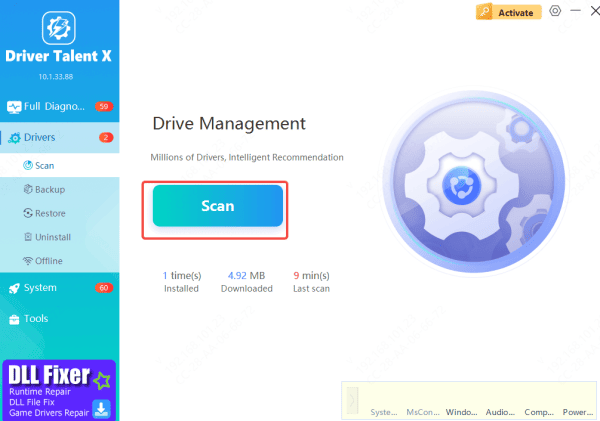
Open the software and go to Drivers
Click Scan
The tool will analyze all driver components related to docking output, including graphics, USB controllers, and Thunderbolt drivers
Apply Driver Updates
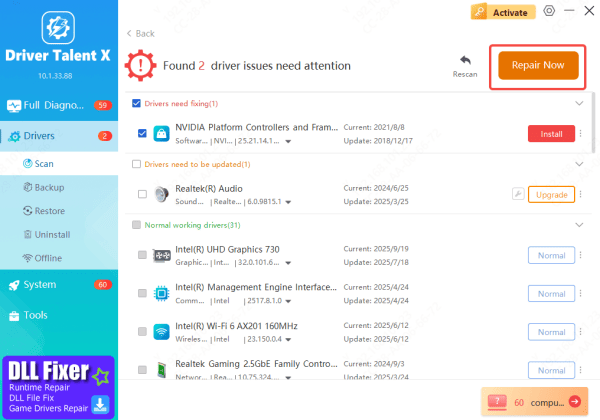
After the scan, you'll see all outdated or problematic drivers
Select all display-output and USB-C–related drivers
Click Repair Now or Update to install the latest Lenovo-compatible versions
Restart Your Laptop
Reboot your system so the new drivers load correctly
Install Latest Lenovo Docking Firmware
Lenovo docks have firmware updates separate from drivers.
Go to Lenovo Support → Drivers & Software → Docking Station Model
Extract the downloaded firmware package from Lenovo Support
Run the update executable provided in the package
Follow the on-screen prompts to complete the firmware installation
After the update, restart both the docking station and the laptop to ensure changes take effect
.png "select-product")
Adjust Windows 11 Display Settings
Sometimes the dock is functioning, but Windows isn't detecting displays properly.
Check display detection:
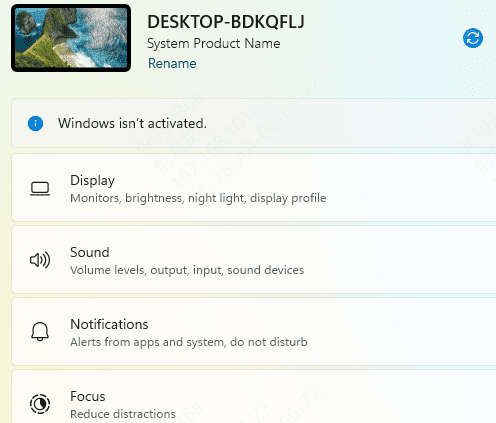
Right-click desktop → Display settings
Scroll down → Multiple Displays
Click Detect
Ensure monitors are set to Extend or Duplicate
Check refresh rates (important for 4K monitors):
Go to: Advanced display settings → Choose display → Refresh rate
Replace USB-C Cable or Check Power Adapter
If the cable is not Thunderbolt-rated or is damaged, the dock will fail.
Make sure:
The USB-C cable supports 40Gbps (for Thunderbolt 3/4)
The dock power adapter is properly connected
Your laptop is receiving enough wattage
Conclusion
A Lenovo docking station not working on Windows 11 is usually caused by outdated drivers, incompatible ports, firmware issues, or Windows updates. By following the steps in this guide—especially the complete driver update using Driver Talent X—you can restore full docking functionality, ensure stable multi-monitor output, and eliminate USB and Ethernet connection issues. f the dock still fails after applying all fixes, the hardware itself may need servicing or replacement.









