
Lenovo docking stations, including USB-C, Thunderbolt, and Hybrid models, are essential tools for expanding your laptop's connectivity. They allow you to connect multiple monitors, USB devices, Ethernet, and even power your laptop through a single cable. However, outdated firmware can cause issues such as monitor detection failures, unstable USB connections, charging problems, and general docking instability. Updating the firmware ensures your docking station works reliably and delivers optimal performance. This guide walks you through every step to update your Lenovo docking station firmware safely.
Prepare for Firmware Update
Connect your laptop and docking station to a stable power source to prevent interruptions
Close all unnecessary applications to avoid conflicts
Backup any important data as a precaution in case of unexpected issues
For better stability, use a wired connection instead of relying on Wi-Fi during the update
.png "connect-to-laptop")
Update Firmware Using Lenovo Dock Manager
If you haven't already, install Lenovo Dock Manager from the official site
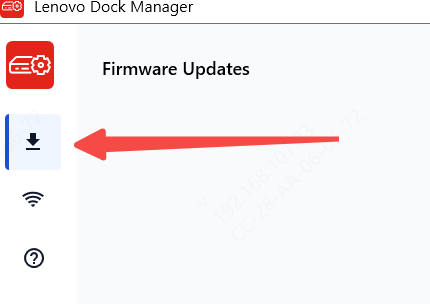
Open Dock Manager and navigate to the Firmware Update section
Click Check for Updates to see if your dock firmware is outdated
Follow the on-screen instructions to begin the update
Do not disconnect the dock or turn off the laptop during the process
Wait until the update finishes and the dock restarts automatically
Update Firmware Manually
If Dock Manager fails or is unavailable
Extract the downloaded firmware package from Lenovo Support
Run the update executable provided in the package
Follow the on-screen prompts to complete the firmware installation
After the update, restart both the docking station and the laptop to ensure changes take effect
.png "download-firmware")
Verify Firmware Update
Open Lenovo Dock Manager or check device properties
Confirm that the firmware version matches the latest release you downloaded
Test the dock's functionality
Check monitor detection
Verify USB ports and peripherals
Test Ethernet connectivity
Keep Your Lenovo Drivers Up to Date
To ensure your Lenovo firmware operates without issues, it's essential to maintain updated drivers for key system components, such as USB ports, Thunderbolt controllers, graphics, and network adapters. Outdated or missing drivers can lead to unstable connections, display problems, or docking failures. Keeping drivers current helps maintain smooth performance and prevents interruptions.
Install Driver Talent X
Click the Download button to obtain the installation file
After downloading, open the setup and follow the instructions to install Driver Talent X on your system
Scan Your System
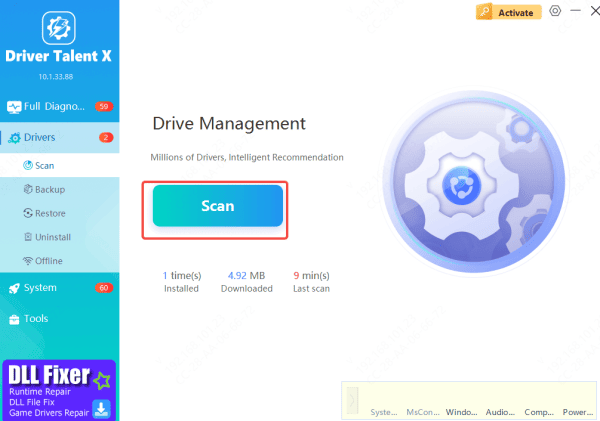
Launch Driver Talent X and navigate to the Drivers section
Click Scan to let the software analyze your system and identify any outdated, missing, or corrupted drivers that may affect firmware functionality
Update All Necessary Drivers
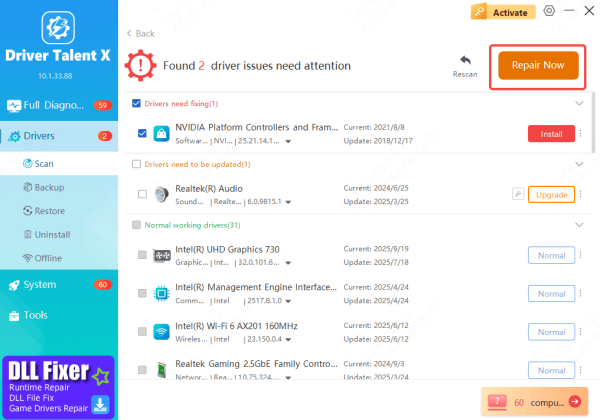
Once the scan is complete, select Upgrade or Repair Now
Driver Talent X will automatically download and install the latest versions of all critical drivers, including USB, Thunderbolt, graphics, and network drivers, ensuring your firmware performs optimally
Restart Your Laptop
After all updates are applied, reboot your computer
Restarting allows Windows to fully load the updated drivers, guaranteeing stable connections and proper operation of your system
Troubleshooting Firmware Update Issues
If you encounter problems during or after the update
Dock not detected: Reconnect the dock and try a different USB-C/Thunderbolt port
Update failed: Restart your laptop and dock, then retry the firmware update
Firmware rollback: If the dock behaves unexpectedly, some models allow rolling back to the previous firmware version via Lenovo Dock Manager
Conclusion
Keeping your Lenovo docking station firmware up to date is essential for maintaining reliable performance and preventing common issues such as monitor detection failures, unstable USB connections, charging problems, and general docking instability. Regular maintenance, including checking for firmware updates, updating drivers, and using certified cables and power adapters, will help maximize the lifespan and stability of your Lenovo docking station.









