
Keeping your Lenovo device running smoothly requires updated drivers. Whether you are using a ThinkPad, IdeaPad, Legion laptop, or a Lenovo desktop, outdated drivers can cause instability, poor performance, and hardware malfunctions. Driver Talent X helps detect and install the correct drivers, especially when upgrading to Windows 10 or Windows 11, where compatibility issues are common.
Method 1: Automated Driver Update with Driver Talent X
Handling driver updates on your own can be complicated, especially when dealing with input device failures. Driver Talent X simplifies the entire process by automatically detecting driver issues and installing the correct versions that match your Lenovo device and current Windows build.
Download Driver Talent X
Click the "Download" option to obtain the installer.
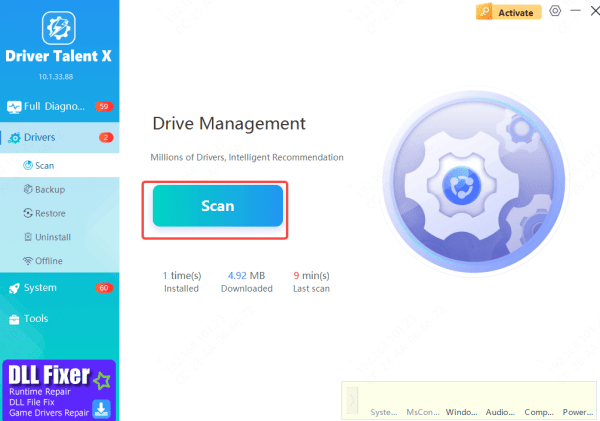
Start a Scan
Open Driver Talent X, enter the "Drivers" section, and select "Scan."
The tool will thoroughly inspect your computer and evaluate the condition of every installed driver.
Apply Updates
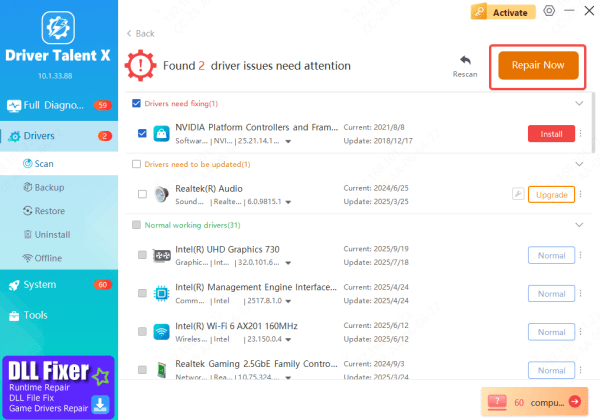
Once the scan finishes, Driver Talent X will present all drivers that require updates or repairs.
Select the items you want to fix and choose "Repair Now." The software will retrieve the newest certified drivers.
Restart the Computer
After the repairs are completed, reboot your PC. The newly installed drivers will load during startup.
Method 2: Update through Lenovo Vantage
Lenovo Vantage comes preinstalled on many Lenovo laptops. It updates drivers, BIOS, and firmware while offering hardware controls and battery optimization options.
Method 3: Manual Driver Download from Lenovo Support
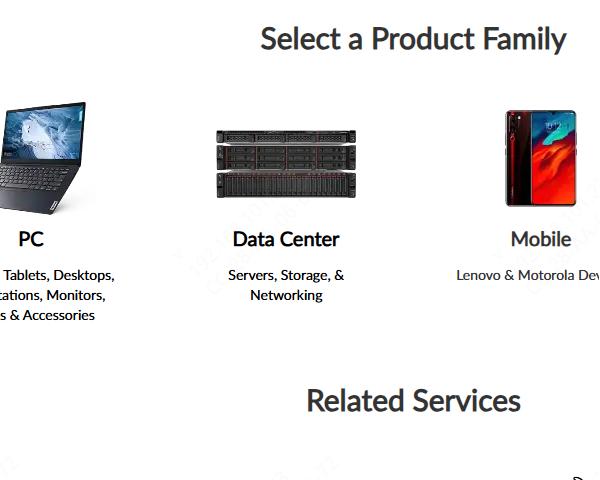
The Lenovo Support website is ideal for users who want to download individual drivers manually. It supports every Lenovo series and allows precise selection by model name and Windows version.
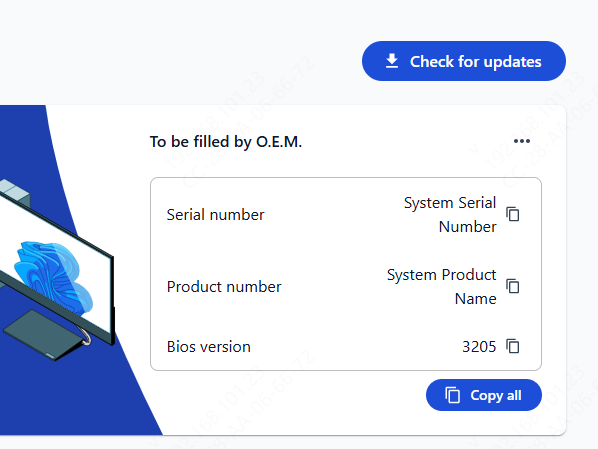
To manually download drivers, locate your Lenovo model number on the device label, Lenovo Vantage, or through system information. Visit the Lenovo Support website, search for your model, choose your operating system, and download essential drivers such as chipset, display, audio, Wi-Fi, Bluetooth, touchpad, BIOS, or graphics drivers. Install each driver one by one and restart when required.
Method 4: Manual Driver Update via Device Manager
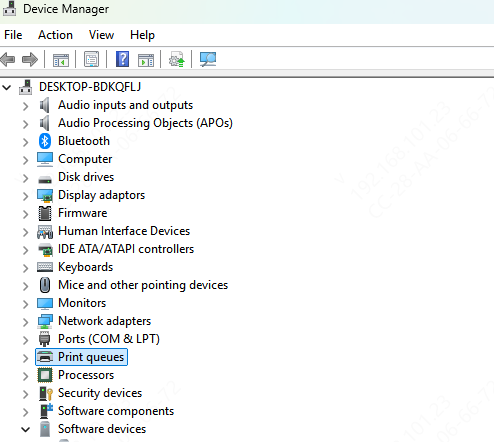
Windows Device Manager provides another way to install or update drivers manually. This method is useful when only a specific hardware component is malfunctioning.
Open Device Manager, locate the device category (such as Keyboards, Display adapters, or Network adapters), and right-click the target device
Select "Update driver." Choose "Search automatically for drivers" to let Windows attempt to find a compatible version
Although not as comprehensive as Lenovo's tools or Driver Talent X, Device Manager works well for quick, single-component updates.
Method 5: Update through Windows Update
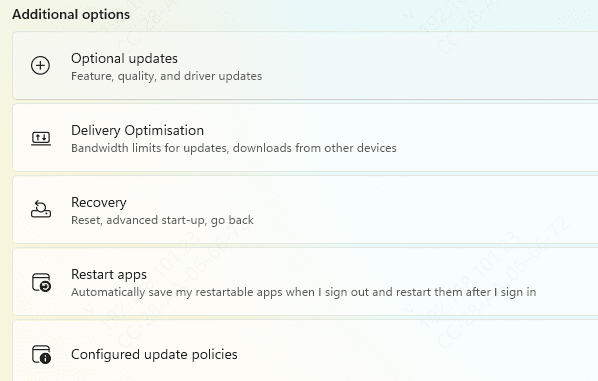
Windows Update can also supply essential Lenovo drivers, especially for common components like graphics, audio, and network adapters.
Go to Settings > Windows Update and check for updates. Microsoft often releases hardware-certified drivers through this channel, ensuring basic compatibility with the latest Windows builds. While Windows Update does not always deliver the newest Lenovo-specific versions, it provides a reliable fallback option when other update methods fail or when you need a fast, automatic driver refresh.
Conclusion
Keeping your Lenovo device updated is essential for ensuring stable performance, strong hardware compatibility, and smooth operation on both Windows 10 and Windows 11. Whether you choose the convenience of Driver Talent X for automated driver updates, manually download drivers from Lenovo Support, or use built-in tools like Device Manager and Windows Update, each method plays a valuable role in keeping your system running optimally. Regularly updating your drivers helps prevent hardware problems, improves system responsiveness, and ensures your Lenovo device continues to perform at its best.









