
Keeping Lenovo drivers up to date is essential for system stability, hardware compatibility, security patches, and optimal performance on Windows 10/11. Outdated or missing drivers can cause problems such as WiFi not working, display issues, keyboard or touchpad failures, audio problems, and system crashes.
This guide explains the safest and most effective ways to download and update Lenovo drivers, starting with the fastest automated solution, followed by manual and built-in Windows methods.
Update Lenovo Drivers Automatically with Driver Talent X
For most Windows users, the easiest and most reliable way to download and update Lenovo drivers is by using Driver Talent X. It automatically detects your Lenovo model, scans for outdated or missing drivers, and installs the correct versions without manual searching.
Download and Install:
Click the "Download" button to download the latest installer. Save the file to your Lenovo laptop or desktop.
Double-click the installer and follow the on-screen instructions. Choose the installation directory and complete the setup process.
Start a System Scan:
Open the program from the desktop shortcut or Windows Start menu, go to "Drivers" > "Scan", click "Scan".
Driver Talent X will detect outdated, missing, or corrupted drivers, including GPU, CPU chipset, audio, LAN, WiFi, and Bluetooth drivers.
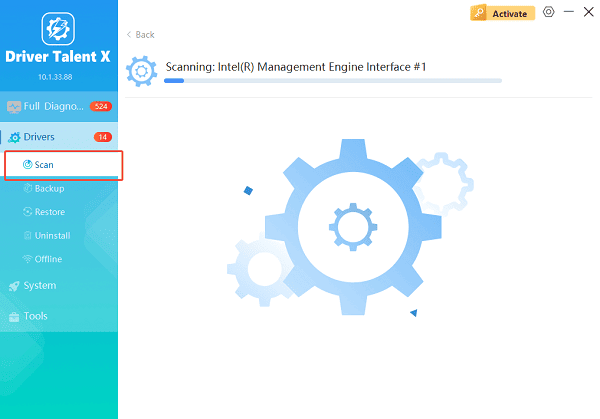
Update All Drivers:
Review the scan results, focusing on critical drivers such as chipset, graphics, network, audio, and Bluetooth.
Select the "Upgrade" or "Repair Now" button to automatically download and install all recommended versions.
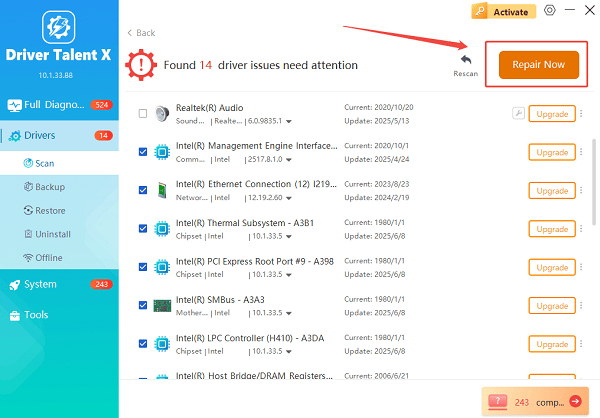
Restart the Laptop:
Allow the installation process to finish without interrupting the system.
Restart your computer to apply all driver changes properly.
Driver Talent X supports Lenovo graphics drivers, chipset drivers, network drivers, audio drivers, Bluetooth drivers, USB drivers, and printer drivers. This method reduces the risk of installing incorrect drivers and saves significant time.
Download Lenovo Drivers Manually from the Official Website
Advanced users may prefer to download drivers manually from Lenovo's official support page. This method gives more control but requires accurate model identification.
Steps to Download Lenovo Drivers Manually:
Press Windows + R, type "msinfo32", and press Enter to check your Lenovo model name.
Visit Lenovo's official support website.
Enter your exact Lenovo product model or serial number.
Select your Windows version, such as Windows 10 64-bit or Windows 11.
Expand driver categories such as Display, BIOS, Audio, Network, and Chipset.
Download the latest driver versions available.
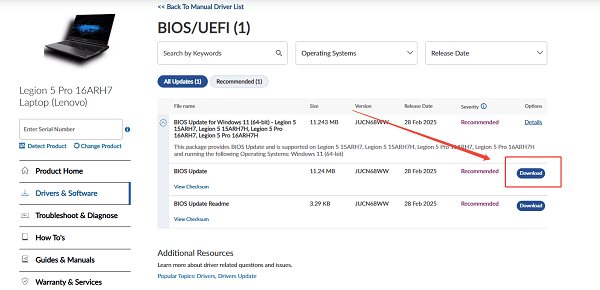
Double-click the downloaded file and follow the on-screen installation instructions.
Restart the system after installation.
Manual driver downloads are useful when troubleshooting specific hardware issues or installing a particular driver version recommended by Lenovo.
Update Lenovo Drivers Using Windows Device Manager
Windows includes a built-in tool that can update drivers, although it may not always find the latest Lenovo-optimized versions.
How to Update Drivers via Device Manager:
Right-click the Start menu and select Device Manager.
Locate the device category you want to update, such as Display adapters or Network adapters.
Right-click the specific device and choose "Update driver".
Select "Search automatically for drivers".
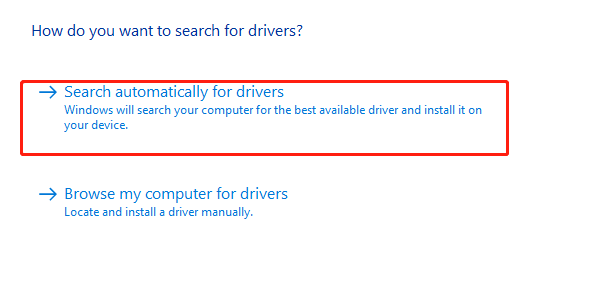
Wait while Windows searches and installs available updates.
Restart your computer if prompted.
This method is suitable for quick fixes but may not resolve complex compatibility or performance issues.
Use Lenovo Vantage for Official Driver Updates
Lenovo Vantage is Lenovo's official system management tool designed to maintain drivers and system health.
Steps to Update Drivers with Lenovo Vantage:
Open Lenovo Vantage from the Start menu.
Navigate to the System Update section.
Click "Check for Updates".
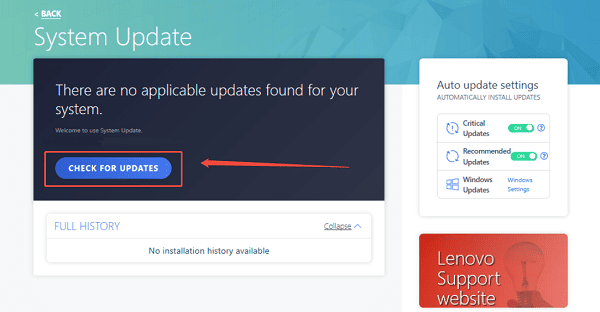
Review the list of available driver and firmware updates.
Install all recommended updates.
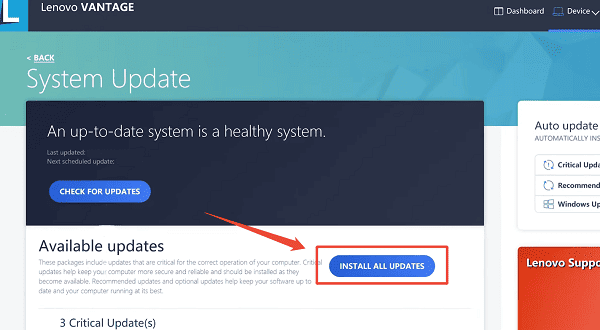
Restart the system once updates are completed.
Lenovo Vantage ensures official driver compatibility but may update fewer drivers compared to Driver Talent X.
Common Lenovo Driver Issues and Solutions
Graphics Driver Problems: Update Intel, NVIDIA, or AMD graphics drivers using Driver Talent X or Lenovo support to fix screen flickering, black screens, or poor performance.
WiFi or Bluetooth Not Working: Reinstall or update network drivers, reset network settings, and ensure airplane mode is disabled.
Keyboard or Touchpad Not Responding: Update Lenovo Hotkey Features Integration and input device drivers, and check BIOS settings.
Audio Not Working: Update Realtek or Dolby audio drivers and confirm the correct playback device is selected in Windows Sound settings.
USB or External Devices Not Detected: Update chipset and USB controller drivers and disable USB power management options.
Best Practices for Lenovo Driver Updates
Always create a system restore point before updating drivers.
Avoid installing drivers from unofficial third-party websites.
Restart the system after driver installation.
Keep Windows updated to ensure compatibility with new drivers.
Use Driver Talent X for regular maintenance to prevent driver-related failures.
Conclusion
Updating Lenovo drivers is a critical step for maintaining system performance, security, and hardware compatibility on Windows. While manual downloads and built-in tools can help, using Driver Talent X provides the fastest, safest, and most comprehensive solution for Lenovo driver downloads and updates. By following the methods in this guide, Windows users can avoid common driver issues and ensure their Lenovo devices run smoothly and reliably.
See also:
Mandragora: Whispers of the Witch Tree Overview
Overview of Tempest Rising on Steam
[Fixed] Red Dead Redemption 2 ERR_GFX_STATE Graphics Error
Ways to Fix The Elder Scrolls IV: Oblivion Remastered Startup Crash









