
When Lenovo drivers stop working on Windows, you may encounter problems such as missing devices, unstable performance, hardware not responding, or frequent system errors. Driver issues are commonly caused by outdated versions, corrupted installations, failed Windows updates, or incorrect driver matches.
This guide explains the most effective ways to fix Lenovo driver problems on Windows, starting with the fastest and most reliable solution using Driver Talent X.
Update Lenovo Drivers Using Driver Talent X
Updating Lenovo drivers manually can be time-consuming and risky if the wrong version is installed. Driver Talent X automatically identifies your Lenovo hardware and installs compatible drivers for your Windows system.
Download and Install:
Click the "Download" button to download the latest installer. Save the file to your Lenovo laptop or desktop.
Double-click the installer and follow the on-screen instructions. Choose the installation directory and complete the setup process.
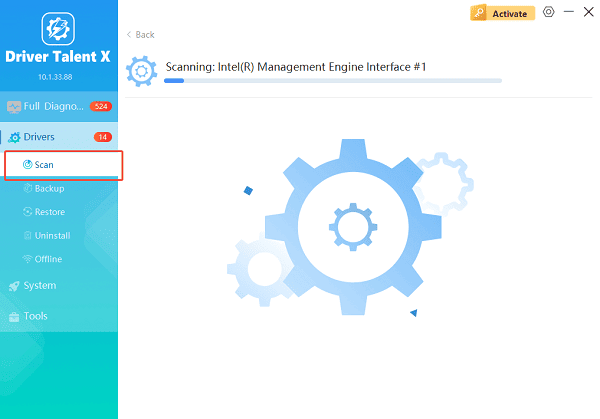
Start a System Scan:
Open the program from the desktop shortcut or Windows Start menu, go to "Drivers" > "Scan", click "Scan".
Driver Talent X will detect outdated, missing, or corrupted drivers, including chipset, graphics, audio, network, keyboard, touchpad, and camera drivers.
Update All Drivers:
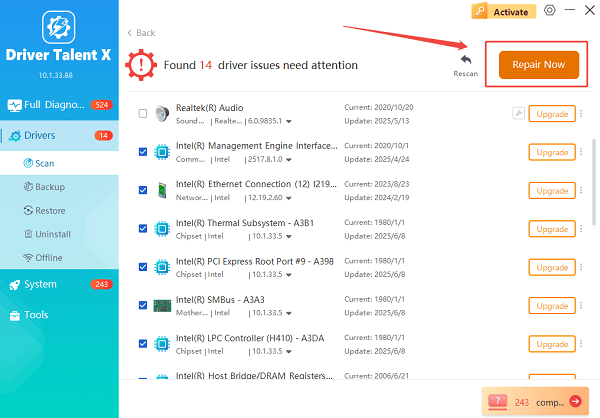
Review the scan results, focusing on critical drivers such as chipset, graphics, network, audio, and Bluetooth.
Select the "Upgrade" or "Repair Now" button to automatically download and install all recommended versions.
Restart the Laptop:
Reboot the system to ensure all updated Lenovo drivers are properly applied.
This method significantly reduces compatibility issues and ensures stable driver installation.
Common Causes of Lenovo Drivers Not Working
Understanding the root cause can help prevent future driver failures.
Outdated Lenovo drivers after a Windows update
Corrupted driver files or incomplete installations
Installing incorrect drivers for the device model
Disabled devices in Device Manager
Conflicts between generic Windows drivers and Lenovo-specific drivers
Method 1: Reinstall Lenovo Drivers via Device Manager
If a Lenovo driver fails to load or shows an error, reinstalling it through Device Manager can resolve the issue.
How to Reinstall Lenovo Drivers:
Press Windows + X and select "Device Manager".
Locate the device with a warning icon, right-click the device and choose "Uninstall device".
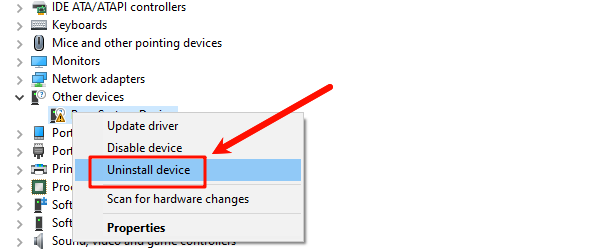
Check "Delete the driver software for this device" if available.
Restart your computer.
Windows will attempt to reinstall the appropriate Lenovo driver automatically.
Method 2: Update Lenovo Drivers Using Windows Update
Windows Update may provide stable driver versions tested by Microsoft.
Steps to Check for Driver Updates:
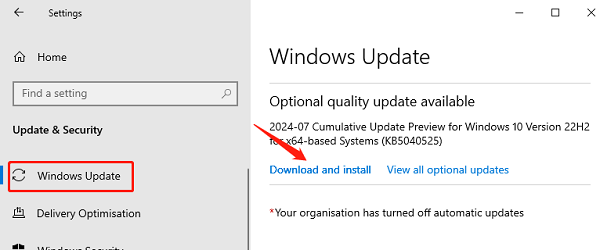
Open Settings and go to "Update & Security".
Select Windows Update, click "Check for updates".
Install any available driver updates.
Restart your PC.
This method works well for essential drivers such as chipset, network, and display adapters.
Method 3: Download Drivers from the Official Support Website
For best compatibility, Lenovo provides model-specific drivers on its official website.
Manual Driver Installation Steps:
Identify your Lenovo device model.
Visit Lenovo Support and search for your model.
Select your Windows version.
Download the required drivers.
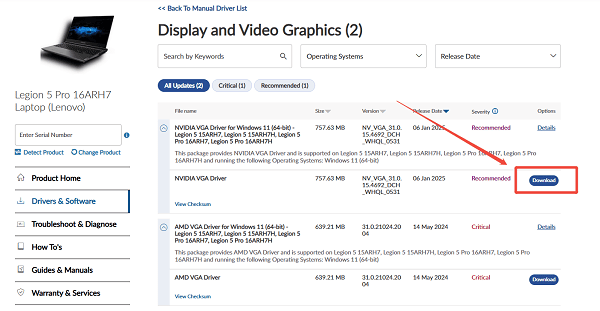
Run the installer and follow the on-screen instructions.
Restart the system after installation.
This ensures access to Lenovo-optimized drivers and utilities.
Method 4: Enable or Roll Back Lenovo Drivers
Some Lenovo devices may be disabled or malfunctioning after updates.
What to Do:
In Device Manager, right-click the Lenovo device and select "Enable" if available.
If the issue started after a recent update, choose Properties > Driver > Roll Back Driver.
Restart your computer after making changes.
Method 5: Check System Files and Hardware Conflicts
System corruption can prevent Lenovo drivers from working correctly.
Additional Fixes:
Run System File Checker by typing sfc /scannow in Command Prompt (Admin).
Remove conflicting third-party driver tools.
Disconnect unnecessary peripherals and reconnect Lenovo devices.
Conclusion
Lenovo drivers not working on Windows can lead to serious performance and hardware issues. Using Driver Talent X is the most efficient way to detect, repair, and update Lenovo drivers automatically. If needed, Device Manager, Windows Update, official Lenovo downloads, and system checks provide reliable alternative solutions.
See also:
How to Fix CoD Vanguard Not Launching on PC
How to Resolve Crashing Issues in Warframe









