
Graphics driver conflicts on Lenovo laptops are a common source of display issues, system instability, and application crashes. When your laptop experiences screen flickering, black screens, poor gaming performance, or even sudden crashes, outdated, corrupted, or conflicting graphics drivers are often the root cause. Understanding how to identify, remove, and update these drivers is crucial to keeping your system stable. This guide walks you through every step to resolve Lenovo laptop graphics driver conflicts.
Check Your Current Graphics Driver
Knowing the installed driver version helps determine if an update or reinstall is needed.
Steps to check your driver:
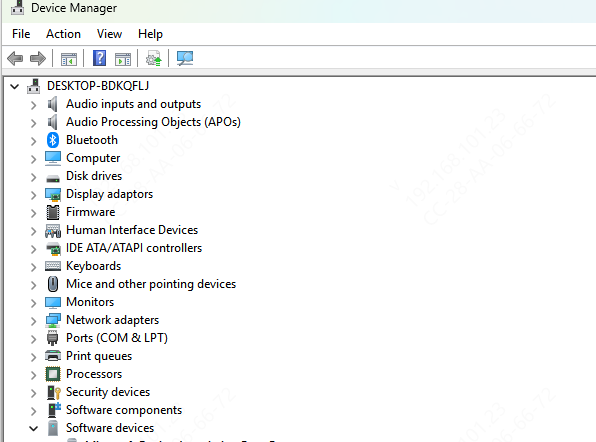
Press Win + X and select Device Manager
Expand Display adapters to see your GPU (Intel, NVIDIA, or AMD)
Right-click the GPU → Properties → Driver tab
Check the driver version and compare it with the latest available on Lenovo Support or the GPU manufacturer's website
If your driver is outdated, corrupted, or incompatible with Windows 11, it may be causing the conflict.
Download Driver
Go to Lenovo Support (support.lenovo.com) and enter your laptop model or serial number
Select Drivers & Software → BIOS/UEFI & Graphics drivers
Download the recommended GPU driver (Intel, NVIDIA, or AMD)
Run the installer and follow the on-screen prompts.
Restart your laptop after installation to apply the driver fully
This ensures your GPU operates with the correct, Lenovo-certified driver optimized for your hardware.
.png "select-product")
Update Drivers Automatically with Driver Talent X
Manually updating drivers can be tedious and prone to errors. Driver Talent X simplifies this process:
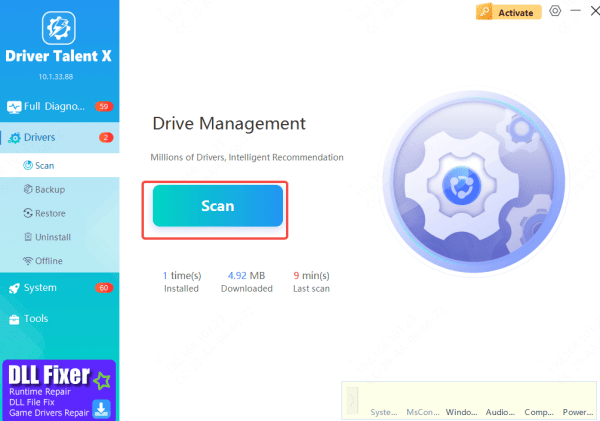
Install Driver Talent X and open the software
Go to Drivers → Scan The tool will detect outdated, missing, or corrupted drivers, including GPU, chipset, and display components
Select the recommended drivers and click Repair Now
Restart your Lenovo laptop to apply updates
This guarantees clean, compatible driver installations, reducing the risk of conflicts.
Update Windows and System Firmware
Graphics driver conflicts may also arise from outdated system files:
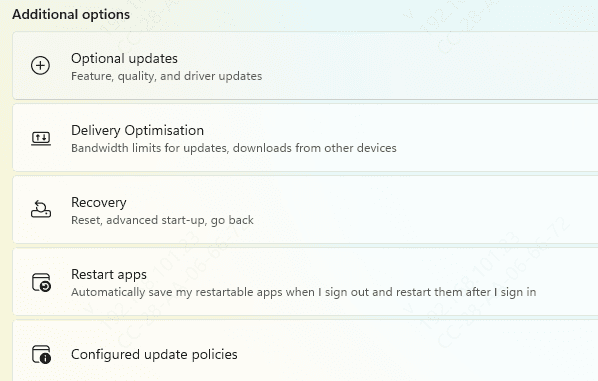
Windows Update: Go to Settings → Windows Update → Check for Updates to install pending updates
BIOS/UEFI update: Use Lenovo Vantage or System Update to ensure firmware compatibility
Updating system software ensures your Lenovo laptop and GPU are fully compatible with Windows 11.
Configure GPU Settings
After updating drivers:
For NVIDIA/AMD GPUs, set preferred GPUs for specific applications (high-performance mode for games)
Adjust screen resolution, refresh rate, and multi-monitor configuration
Verify external monitor connections and display detection
Proper configuration ensures optimal GPU performance and eliminates software-level conflicts

Test and Verify
After updates, verify stability:
Launch graphics-intensive applications or games to check performance
Monitor Device Manager for warnings
Observe system behavior over normal usage (web browsing, stream
ing, etc.)
If issues persist, you may need to check for hardware faults, including failing GPUs or display connectors

Prevent Future Driver Conflicts
Regularly run Driver Talent X or Lenovo System Update to keep drivers current
Avoid installing third-party GPU drivers that are not certified for your laptop
Back up critical system settings before updating drivers or BIOS
Consistent maintenance prevents most driver-related problems, keeping your Lenovo laptop stable and reliable

Symptoms of Graphics Driver Conflicts
Flickering or blank screens: Your laptop may turn on, but the display shows flickers, blank screens, or distorted colors
Blue Screen of Death (BSOD): Sudden crashes with error codes related to graphics drivers or system files
Application crashes: Games or graphics-intensive software fail to launch or crash during use
Device Manager warnings: Yellow exclamation marks appear next to GPU drivers
External monitor issues: Secondary displays are not detected, flicker, or show "No Signal"
Identifying these early allows you to apply the correct solution before hardware damage occurs
Conclusion
Graphics driver conflicts are a common source of display and system issues on Lenovo laptops. By removing old drivers, installing correct GPU drivers, updating system firmware, and using tools like Driver Talent X, you can restore stability, improve performance, and prevent future conflicts. Regular driver maintenance is key to ensuring your laptop operates smoothly for work, gaming, and multimedia.









