
Keeping your Lenovo Legion Go's drivers up to date is crucial for a smooth gaming experience. Updated drivers fix bugs, patch security vulnerabilities, improve system stability, and can even unlock performance gains for newer games. This guide will walk you through the safest and most effective methods to update all critical drivers on your handheld PC.
Update Driver Using Driver Talent X
The easiest and most effective way to update Lenovo drivers is by using an automated tool such as Driver Talent X. It scans your system for outdated, missing, or incompatible drivers and automatically installs the latest correct versions.
Download and Install
Click the "Download" button to get the installer, then run it to set up the application on your computer
Run a System Scan
Open Driver Talent X and go to the "Drivers" section
Click Scan to let the tool inspect your Lenovo device for any drivers that need updating
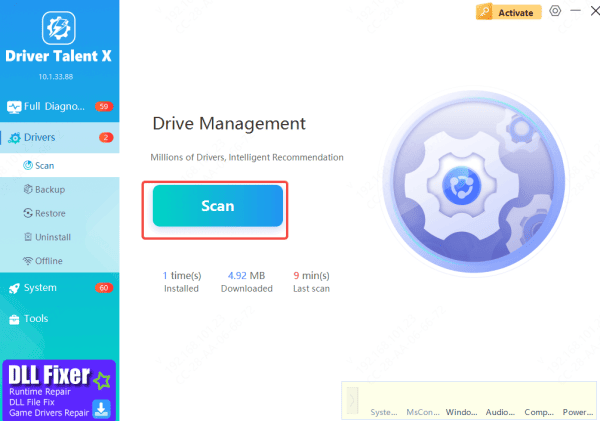
Update Drivers
After the scan finishes, you'll see a list of available driver updates
Select the ones you want—or choose all recommended updates—and click Upgrade or Repair Now

Restart Your Computer
Once the updates are installed, restart your system to allow the new drivers to take effect properly
This approach is ideal for users who prefer a quick, hands‑free driver update process
Update Driver via Lenovo Support Website
Go to the official Lenovo support website
Enter your Legion Go's serial number or select its exact model from the list
Navigate to the "Drivers & Software" section
The site will list all available drivers for your device, organized by category (e.g., Graphics, Chipset, Audio)
Download the installer for the drivers you need, especially prioritizing the GPU, chipset, and audio drivers
Run each installer and follow the on-screen instructions, restarting your device when prompted

Using Lenovo Vantage
Your Legion Go comes with system management software
Open the Lenovo Vantage app or the Legion Space hub
Look for a section called "System Update," "PC Updates," or similar
The software will automatically scan for available driver and BIOS updates specifically for your Legion Go
Review the listed updates and choose to install them
The process is largely automated
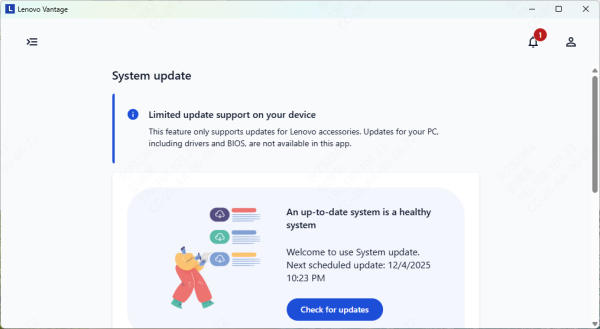
Windows Update
Windows Update often delivers certified driver updates
Go to Settings > Windows Update > Advanced options > Optional updates
If drivers are available, they may be listed here. You can select and install them
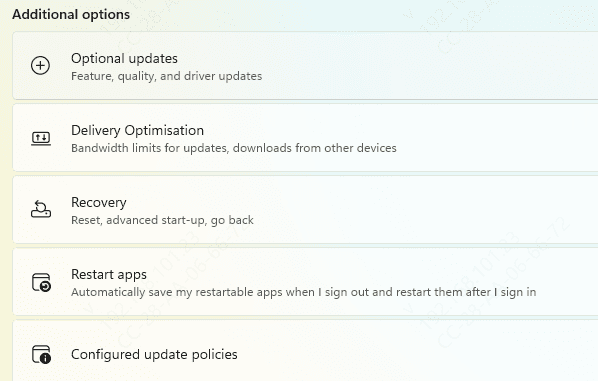
Post-Update Verification & Optimization
After updating, restart your device. Then, verify that everything works:
Launch a demanding game to test performance and stability
Test connected peripherals like headphones, docks, or microSD cards
Check audio playback and microphone input
If you encounter problems like game crashes or stuttering after a GPU update, you can roll back the driver. Go to Device Manager > Display adapters > right-click "AMD Radeon Graphics" > Properties > Driver tab > Roll Back Driver
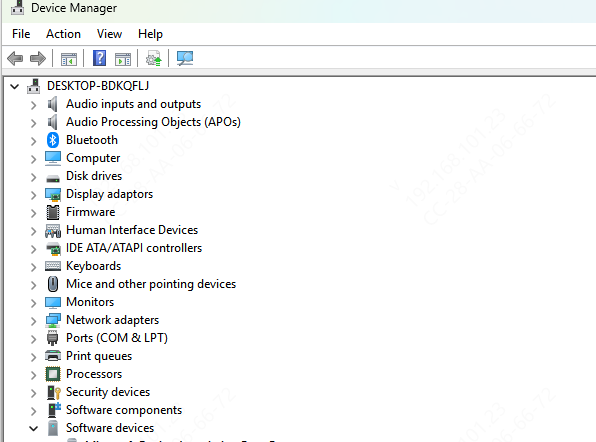
Best Practices & Maintenance Schedule
Update when: you get a new game that recommends newer drivers, you experience a bug that a driver update is known to fix, or once every few months for general maintenance
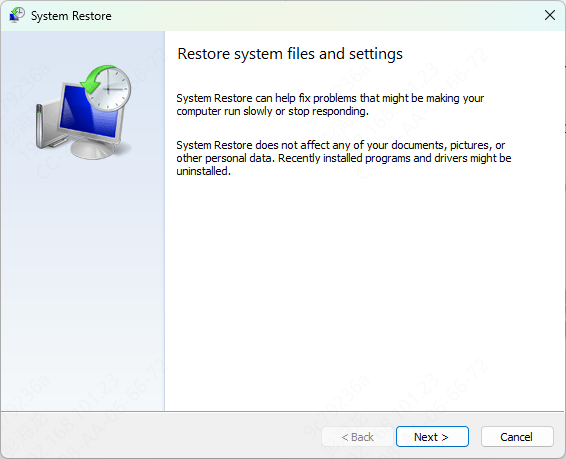
Always create a restore point before updating major drivers like the GPU or chipset
Follow Lenovo's official announcements for critical updates, especially for BIOS
Troubleshooting & Recovery
Clean GPU Install: If you have persistent graphics issues, use AMD's Cleanup Utility or display driver uninstaller (DDU) in Windows Safe Mode to completely remove the old driver, then install the new one fresh
Driver Conflicts: If a device stops working after an update, go to Device Manager, find the device, right-click, and select "Update driver" > "Browse my computer for drivers" > "Let me pick" to choose a different compatible driver from a list
Last Resort Recovery: If your system becomes unstable, use the system restore point you created. As a final option, you can perform a Windows reset (keeping your files) from the recovery settings
Conclusion
Regularly updating your Lenovo Legion Go's drivers is key maintenance. By following this guide, you can ensure your Legion Go runs at its peak performance for every gaming session.









