
USB-C ports are a powerful and versatile part of modern laptops, including Lenovo models like ThinkPad, Yoga, and IdeaPad.However, it's not uncommon for these ports to stop working or to malfunction in some way. Whether it's an issue with charging, data transfer, or connecting to external displays, a malfunctioning USB-C port can be frustrating. This guide will walk you through the common causes and solutions for fixing USB-C ports on Lenovo laptops.
Quick Basic Checks
Before diving into software or hardware fixes, try these basic checks:
Change cables: Test with a different USB-C cable to rule out a faulty or incompatible cable
Inspect the port: Look for any visible damage, dirt, or debris in the USB-C port that could affect its function
Try different ports: If your laptop has multiple USB-C ports, test all of them to see if the issue is isolated to one port
Restart the laptop: Sometimes a simple restart can resolve temporary software issues. Try shutting down your laptop completely and then restarting it
Power reset: Perform a power reset by holding down the power button for about 30 seconds to reset the internal hardware
Update Driver
Driver Talent X automatically scans your system and repairs missing or incompatible related drivers.
Download and Install
Click the "Download" button to get the installer, then install it on your computer
Run a System Scan
Open the tool and navigate to Drivers > Scan
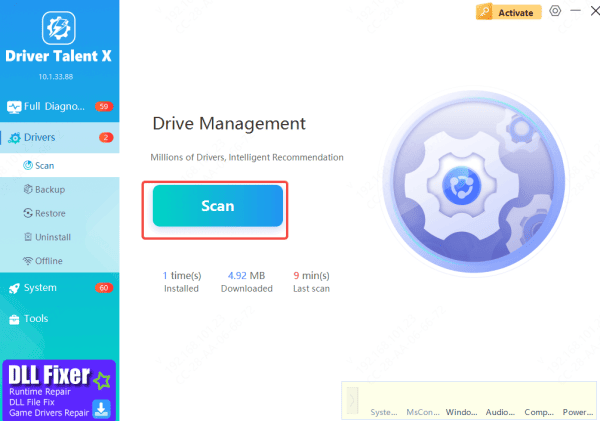
Update Your Drivers
Click Upgrade or Repair Now. Driver Talent X will automatically download and install the correct driver versions

Restart Your PC
Reboot your system to allow the updated drivers to take effect
Windows Settings
Sometimes Windows settings can interfere with USB-C ports:
Power Management: Go to Control Panel > Power Options > Change plan settings > Change advanced power settings. Under USB settings, disable USB selective suspend setting
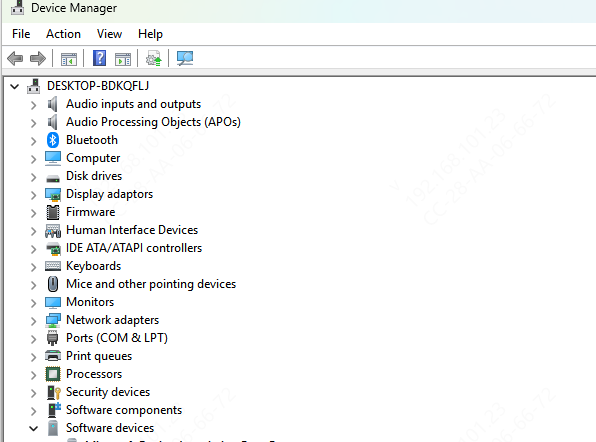
Device Manager: In Device Manager, go to the Power Management tab for each USB device and uncheck "Allow the computer to turn off this device to save power"
System update rollback: If the issue started after a system update, try rolling back the update to see if the problem resolves
Hardware Troubleshooting
If software solutions don't work, it's time to check the hardware:
Inspect the port: Check for any visible physical damage or dirt inside the USB-C port. If the port is dirty, you can gently clean it using compressed air
Test with an external monitor: If the problem is with DisplayPort Alt Mode (video output), try connecting your laptop to an external monitor using a USB-C to HDMI or DisplayPort cable
Test with original charger: Make sure the charging cable and charger are compatible with your laptop's Power Delivery (PD) requirements
Test with a USB-C dock: Try using a different USB-C dock or peripheral to see if the issue persists
Advanced Solutions
If basic troubleshooting doesn't work, here are some advanced fixes:
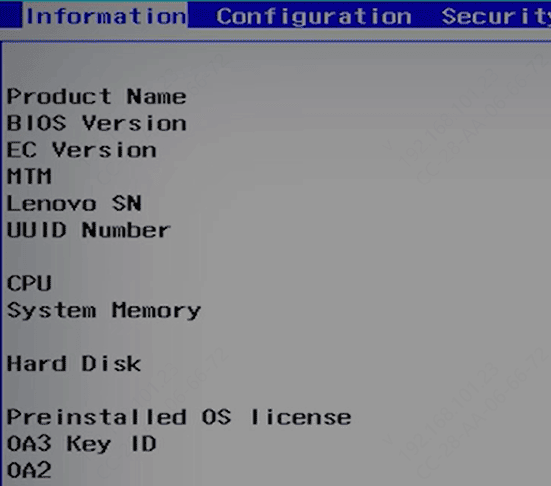
Restore BIOS to default: If the BIOS settings have been changed and are causing the issue, restoring it to default settings can help
Thunderbolt Security Level: If you have a Thunderbolt-enabled laptop, check the Thunderbolt Security Level in the BIOS. It may need to be set to "No Security" for some peripherals to work
Reset Embedded Controller (EC): In some cases, resetting the Embedded Controller (EC) can fix USB-C issues. This can usually be done by performing a power reset or using specific tools provided by Lenovo
Common Symptoms
Before diving into the troubleshooting process, it's essential to identify the symptoms you're experiencing. Some common issues include:
Charging problems: The laptop doesn't charge when connected to a USB-C power source
External monitor issues: The USB-C port fails to transmit video signals to external monitors (this is often related to DisplayPort Alt Mode)
Peripheral connection issues: USB-C docks, external hard drives, or other peripherals aren't recognized
Data transfer failure: The laptop fails to send or receive data via the USB-C port
No response from the port: The USB-C port is completely unresponsive, with no light or functionality
Conclusion
To fix Lenovo USB-C port issues, systematically troubleshoot starting with basic cable and port checks, then update drivers and adjust Windows power settings. If problems persist, inspect for hardware damage or reset BIOS settings. Most issues can be resolved this way; otherwise, seek professional support









