
If your Lenovo webcam is not detected on Windows 11, you're not alone. Many users experience issues such as the camera missing from Device Manager, apps showing a black screen, or error messages saying the camera cannot be found. This problem can affect video calls, online meetings, and daily productivity. This guide walks you through all effective solutions step by step to help you restore your Lenovo webcam on Windows 11.
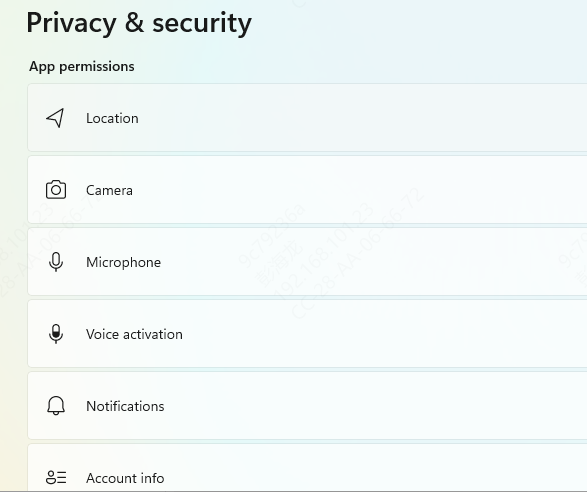
Check Camera Privacy Settings in Windows 11
Windows 11 can block camera access for security reasons.
Press Win + I to open Settings
Go to Privacy & security → Camera
Turn on Camera access
Enable Let apps access your camera
Make sure apps like Zoom, Teams, or Camera are allowed
Restart your app and test the webcam again.
Enable the Camera Using Lenovo Hotkeys or Lenovo Vantage
Some Lenovo laptops allow the camera to be disabled with a keyboard shortcut or system software.
Look for keys like Fn + F8, Fn + Esc, or a key with a camera icon
Press the key combination once to toggle the camera
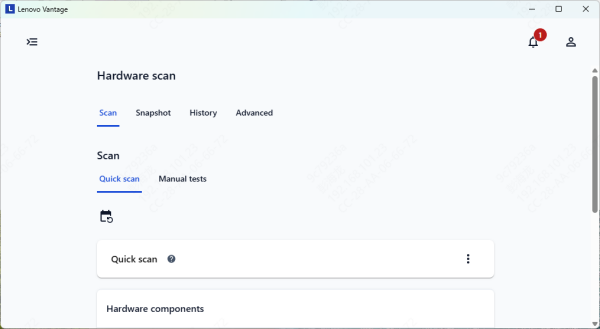
You can also check Lenovo Vantage:
Open Lenovo Vantage
Go to Device Settings → Camera
Make sure the camera is enabled and privacy mode is turned off
Check Device Manager for Camera Detection
Your webcam may be disabled or missing at the driver level.
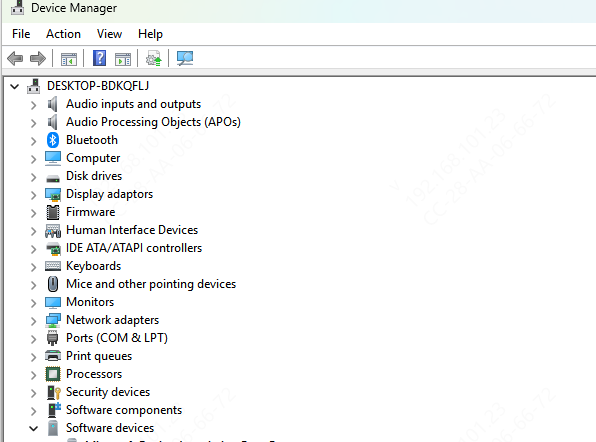
Right-click Start → Device Manager
Expand Cameras, Imaging devices, or Sound, video and game controllers
If the camera appears but is disabled, right-click it and choose Enable device
If the camera shows a warning icon, the driver may be corrupted
If the camera is missing, click View → Show hidden devices
Update Lenovo Webcam Driver
Driver issues are one of the most common causes of a webcam not being detected.
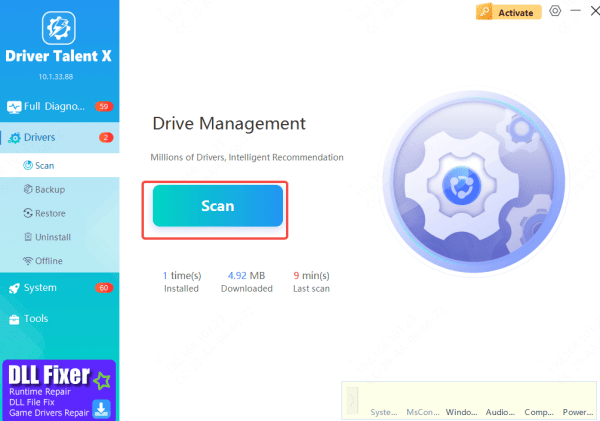
Download & Install Driver Talent X – Get the installer from the website and follow the prompts
Scan Drivers – Open the program, go to Drivers → Scan to check all system drivers, including the camera
Update Camera Driver – Locate the camera under Imaging Devices and click Upgrade or Repair Now
Restart Laptop – Reboot to apply the new driver and restore camera functionality
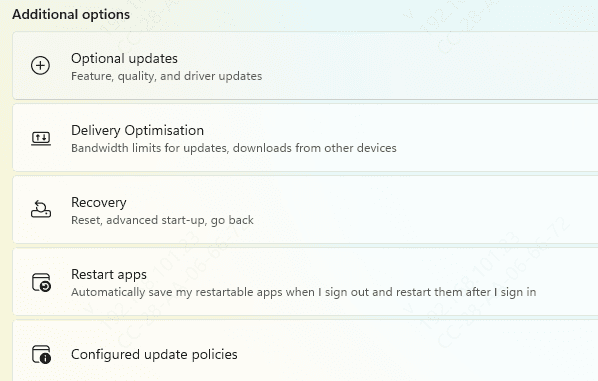
Check Windows Update
Some Windows 11 updates include camera driver fixes.
Go to Settings → Windows Update
Click Check for updates
Install all available updates
Restart your system
If the camera stopped working after a recent update, you can also try rolling back that update.
Enable Webcam in BIOS/UEFI
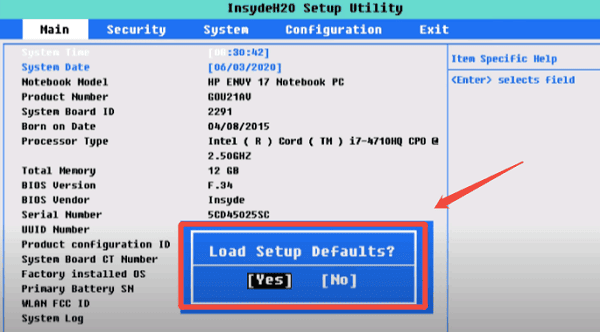
On some Lenovo models, the camera can be disabled at the firmware level.
Restart your laptop
Press F1, F2, or Del during startup (varies by model)
Enter BIOS/UEFI Settings
Look for Camera, I/O Port Access, or Security
Make sure the Integrated Camera is set to Enabled
Save changes and exit
Check for Hardware Issues
If none of the above solutions work:
Inspect the camera area for physical damage
Make sure there is no physical privacy shutter blocking the lens
Try connecting an external USB webcam to test if Windows detects it
If an external webcam works but the internal one does not, the built-in camera may require professional repair.
Common Reasons Why Lenovo Webcam Is Not Detected
Camera disabled in Windows privacy settings
Webcam turned off via Lenovo hotkeys or Lenovo Vantage
Outdated, missing, or corrupted camera drivers
Windows 11 update conflicts
Camera disabled in BIOS/UEFI
Hardware connection or physical damage
Conclusion
A Lenovo webcam not detected on Windows 11 is usually caused by disabled settings, driver problems, or system restrictions—not permanent hardware failure. By checking privacy permissions, enabling the camera in Lenovo settings, updating or reinstalling drivers, and verifying BIOS configurations, most users can restore webcam functionality quickly. If the problem persists after all software fixes, hardware inspection or Lenovo support may be necessary.









