
A non-responsive touchpad on a Lenovo Yoga 7 can be frustrating, especially if you rely on it for daily navigation and productivity. Touchpad issues may appear suddenly after a Windows update, driver change, or system setting adjustment. The good news is that most Lenovo Yoga 7 touchpad problems can be fixed with simple troubleshooting. This guide walks you through all effective methods—from basic checks to advanced solutions—to help you restore your touchpad quickly.
Basic Checks to Try First
Start with these quick fixes before moving on to advanced solutions:
Restart your Lenovo Yoga 7
Disconnect any external USB or Bluetooth mouse
Clean the touchpad surface to remove dirt or moisture
Make sure tablet mode isn't interfering with input
Try pressing Fn + F6 (or the touchpad icon key) to re-enable the touchpad
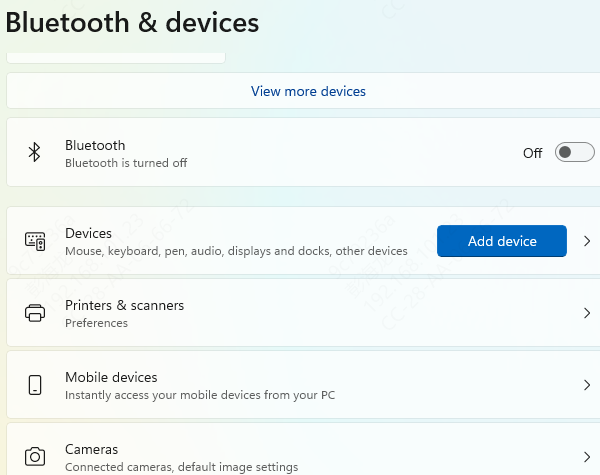
Enable the Touchpad in Windows Settings
Open Settings
Go to Bluetooth & devices
Click Touchpad
Make sure the touchpad is switched On
Update Touchpad Drivers
Outdated, missing, or corrupted drivers are one of the most common reasons why the Lenovo Yoga 7 touchpad stops responding. Updating the touchpad-related drivers can often restore normal functionality.
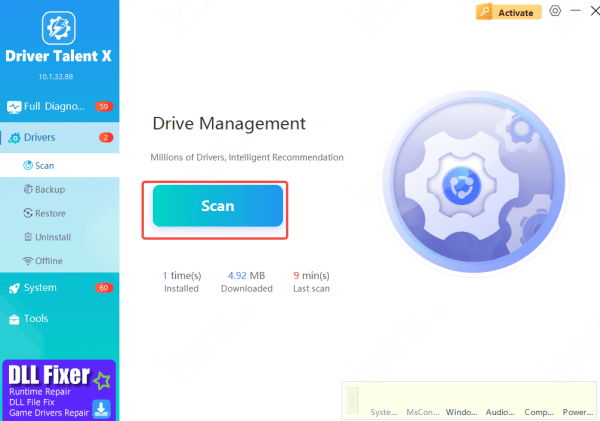
Option 1: Update Drivers Automatically with Driver Talent X
Using a professional driver management tool is the fastest and safest way to fix driver-related touchpad issues
First, download and install Driver Talent X on your Lenovo Yoga 7
Launch the program and click Scan to let it detect problems with your touchpad, input devices, chipset, or controller drivers
Once the scan is complete, Driver Talent X will automatically download and install the correct, Lenovo-compatible drivers for Windows 11
After installation, restart your computer to apply the changes
This method is recommended for users who want a quick, error-free solution without manually searching for drivers
Option 2: Update Touchpad Driver via Device Manager
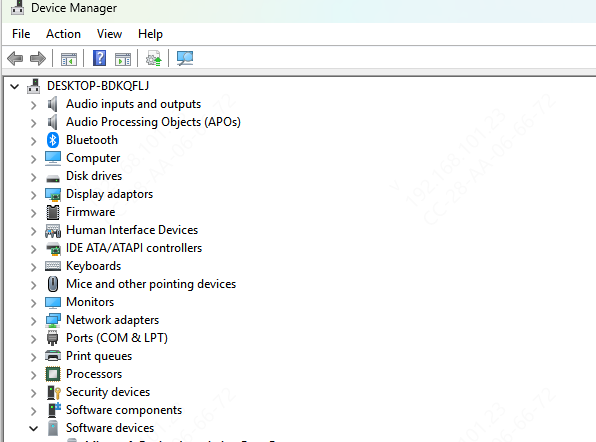
You can also update the touchpad driver manually using Windows Device Manager
Right-click the Start button and select Device Manager
Expand Human Interface Devices or Mice and other pointing devices
Locate your touchpad driver (such as Lenovo Touchpad, ELAN, or Synaptics)
Right-click it and choose Update driver → Search automatically for drivers
Follow the on-screen instructions and restart your laptop if an update is installed
Option 3: Install Drivers Using Lenovo Vantage
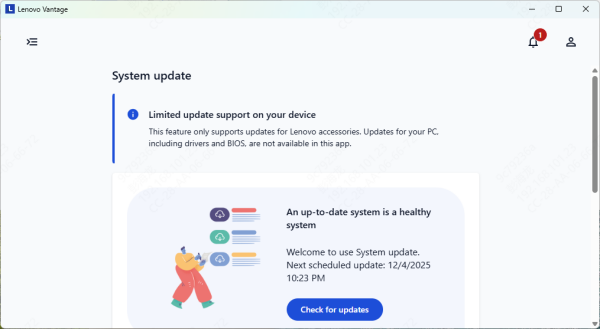
Lenovo Vantage is the official utility for managing system updates and drivers
Open the Microsoft Store, search for Lenovo Vantage, and install it
Launch Lenovo Vantage and go to Device → System Update
Check for available updates related to the touchpad, chipset, or input devices
Download and install the updates, then restart your Lenovo Yoga 7
This ensures you're using Lenovo-approved drivers designed specifically for your model
Option 4: Download Drivers from Lenovo Support Website
If other methods don't work, manually installing drivers from Lenovo's official website is another reliable solution
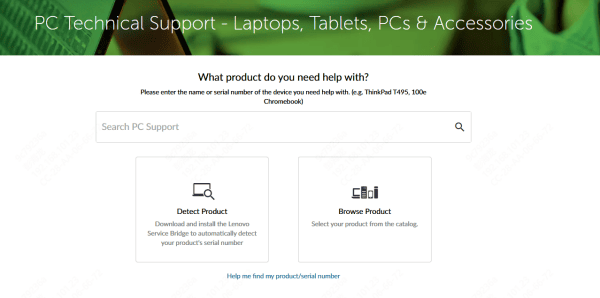
Visit the Lenovo Support website
Enter your exact Lenovo Yoga 7 model number
Go to Drivers & Software
Download the latest versions of the Touchpad, Chipset, and Input drivers
Install each driver and reboot your system
This method is ideal if Windows fails to detect the correct drivers automatically
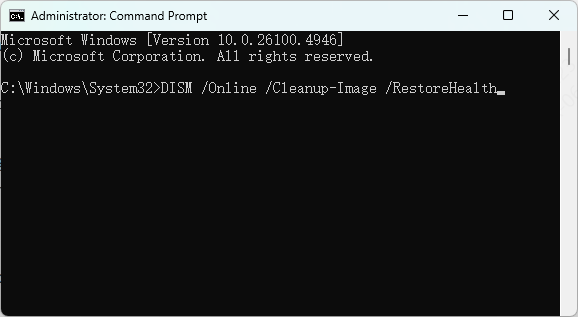
Run System File Checker
Open Command Prompt as Administrator
Type sfc /scannow and press Enter
Wait for the scan to complete and restart your device
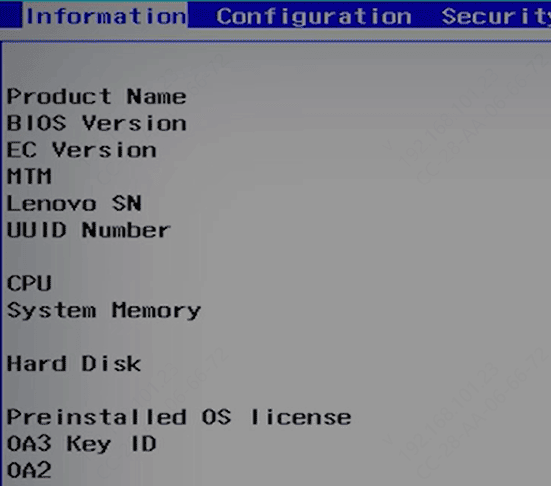
Check Touchpad Settings in BIOS
If the touchpad is disabled in BIOS, Windows won't detect it
Restart your laptop
Press F1, F2, or Delete to enter BIOS
Look for Touchpad or Internal Pointing Device
Make sure it's set to Enabled
Save changes and exit
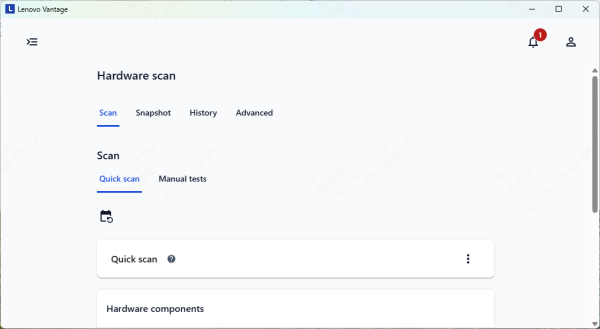
Use Lenovo Vantage for System Updates
Scan for driver updates
Install firmware and BIOS updates
Run hardware diagnostics
Repair system components
Common Reasons Why Lenovo Yoga 7 Touchpad Stops Working
Before fixing the issue, it's helpful to understand the possible causes:
The touchpad was accidentally disabled
Outdated, missing, or corrupted touchpad drivers
Windows update conflicts
Incorrect touchpad or gesture settings
BIOS settings disabling the touchpad
Conflicts with external mouse devices
Hardware damage or internal connection issues
Conclusion
A Lenovo Yoga 7 touchpad not working is usually caused by software settings, driver issues, or system updates rather than hardware failure. By following the steps in this guide—from basic checks and driver updates to BIOS and system repairs—you can resolve most touchpad issues quickly and safely. Start with the simplest fixes first, and only move to advanced solutions if necessary to restore full touchpad functionality.









