
Reviving your Lenovo Yoga 7i's battery life requires more than just swapping hardware—it demands a complete process. This guide provides essential steps from safely disabling the old battery in BIOS, to physically installing the new unit, and finally updating critical power management drivers for optimal performance.
Step 1: Disable Battery
Go to Control Panel and view by Large icons or Small icons
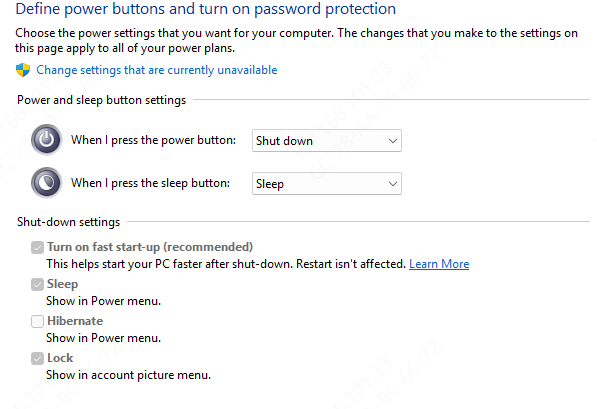
Click Power Options, and then click Choose what the power buttons do on the left pane
Click Change settings that are currently unavailable at the top. If prompted by User Account Control (UAC), click Yes
Clear the Turn on fast startup check box, and then click Save changes.
Now that Fast Startup has been disabled, shut down your computer
Press the power button.
Tap the F1 key repeatedly to enter the Setup menu
Select the Config menu.
Select the Power menu option
Select the Disable Built-in Battery menu option
Select Yes in the confirmation box
Step 2: Disconnecting and Removing the Old Battery
Locate the Battery Connector: Find the wide, flat ribbon cable connecting the battery to the motherboard. It is usually secured by a ZIF (Zero Insertion Force) connector with a flip-up latch.
Disconnect the Battery (CRITICAL STEP): Use your fingernail or a plastic tool to gently flip up the small latch on the battery connector
Once the latch is vertical (90 degrees), the cable should be loose. Gently pull it straight out of the socket
This disconnects all internal power, making the rest of the process safe.
.png "untighten-screws")
Step 3: Remove the Battery
The battery is secured by four to six Phillips-head screws.
Remove them all
The battery may have adhesive strips underneath
Gently lift from one corner. If it resists, you can use a piece of dental floss or a thin plastic card in a "sawing" motion to cut through the adhesive
Carefully lift the battery out and place it aside for proper recycling
.png "remove-battery")
Step 4: Installing the New Battery
Prepare the Bay: If there is any leftover adhesive, clean it with a cotton swab lightly moistened with isopropyl alcohol. Let it dry completely
Position the New Battery: Place the new battery into the chassis, aligning it perfectly with the screw holes
Secure It: Replace and tighten all the battery screws. Do not over tighten
Reconnect the Cable: Insert the battery's ribbon cable back into its motherboard connector Ensure it is straight and even. Press the latch firmly back down to its original flat, horizontal position to lock the cable in place
.png "instal-battery")
Update the battery driver
Please update your battery driver after replacing the battery. If your power management, battery, USB or chipset driver is outdated, the system may not be able to detect the charger correctly or stop charging completely. Driver Talent X provides a method for automatically identifying and fixing these problems with just a few clicks.
Download and install Driver Talent X
Click the "Download" button to obtain the installation program
Run the installation file and follow the steps on the screen to complete the installation
Run scan
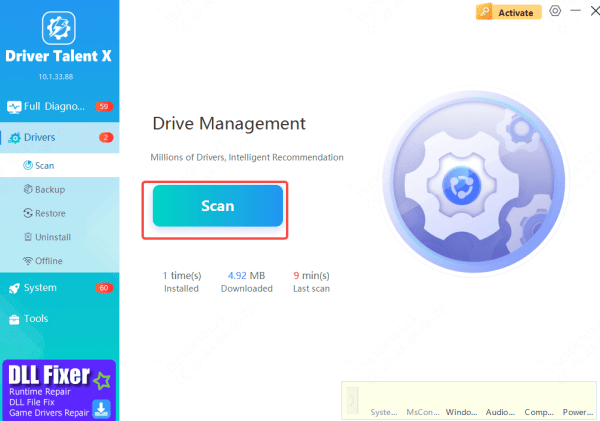
Open Driver Talent X and click Drivers→Scan
This program will inspect all components related to charging
Update the driver
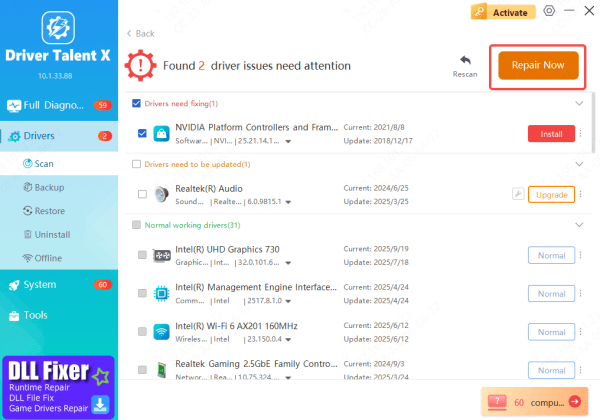
Select all recommended updates or fixes
Driver Talent X will automatically download and install the correct driver version required to restore stable charging function
Restart the laptop
After the update is completed, restart the Lenovo laptop
Restarting can ensure that Windows loads the new power driver correctly
Conclusion
With the new battery installed and system drivers updated, your Yoga 7i now has restored its mobility and reliability. Consider enabling battery conservation modes for long-term health, properly recycle the old battery, and enjoy your renewed device's performance.









