The Logitech G213 Prodigy is a popular budget gaming keyboard known for its spill-resistant design, integrated palm rest, Mech-Dome tactile keys, dedicated media controls, and customizable LIGHTSYNC RGB backlighting. Why customize the RGB? It personalizes your desk, enhances gaming vibes (e.g., red for FPS intensity), syncs with other Logitech G gear, or simply reduces eye strain with softer tones. This guide covers 2 methods, plus troubleshooting.
Method 1: Change Colors Using On-Keyboard Shortcuts (No Software Needed)
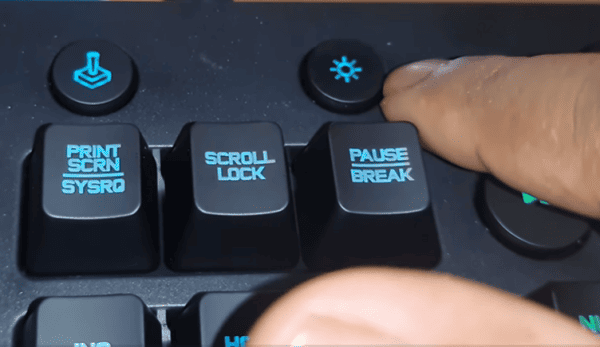
Press the Backlight key once → Toggle lighting on/off
Hold the Backlight key + repeatedly press 0 → Cycle through preset single/static colors (white, red, blue, green, etc)
Hold the Backlight key + press 1–9 → Switch between different lighting effects and modes
Brightness control: Some users report using dedicated + / – keys near media controls (or Fn combinations) to adjust overall brightness. If not responsive, check G HUB overrides
Reset to default: Hold Backlight + 0 for a few seconds (or cycle until blue/default returns)
Pros: Works instantly, even in BIOS or without drivers; no internet/software required
Cons: Limited to factory presets — no custom zone colors, no saving profiles, no audio visualizer or game sync
Method 2: Advanced Customization with Logitech G HUB Software
For true personalization — per-zone colors, custom animations, syncing with games or music, and saving profiles — use Logitech G HUB (free from Logitech).
Download & Install G HUB
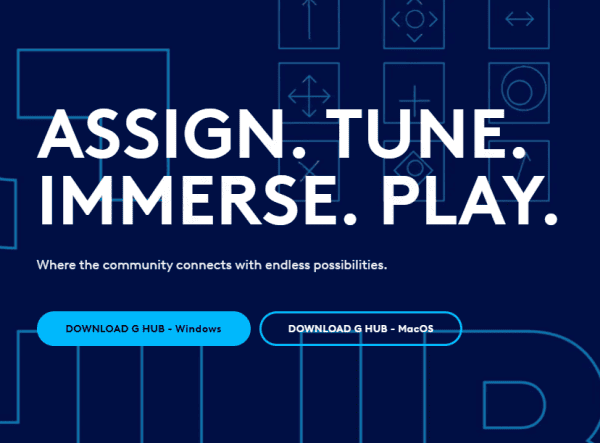
Go to the official site: logitechg.com/ghub (or search "Logitech G HUB download")
Uninstall old Logitech Gaming Software first to prevent conflicts
Install, launch, and let it auto-detect your G213 (plug it in if not already)
Detect the Keyboard
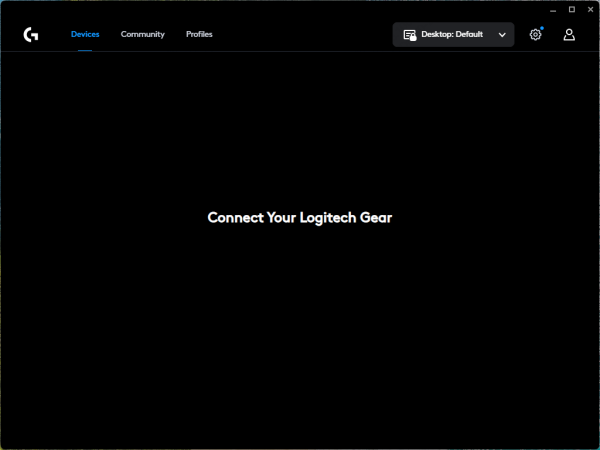
In G HUB, go to Devices → your G213 should appear
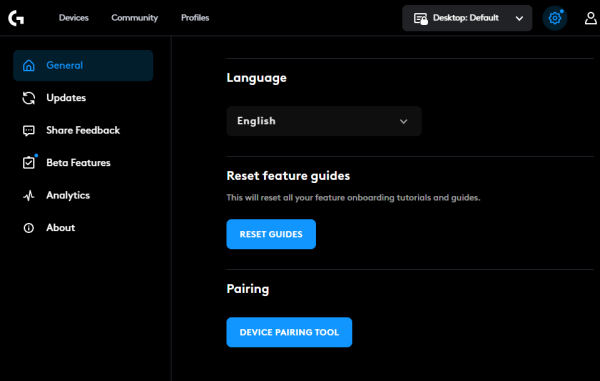
If not detected: try USB replug, restart G HUB, or check for firmware updates in the app
Customize Lighting
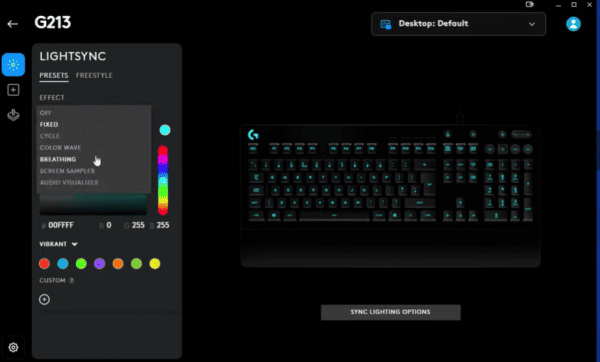
Click the LIGHTSYNC or Lighting tab
Quick options
Fixed/Static: Pick one color for the whole keyboard
Presets: Breathing, color cycle, audio visualizer (lights react to music/system audio), etc
Zones mode: Select individual zones (5 total) → use color wheel or RGB sliders for custom colors per zone
Freestyle/Advanced: Paint patterns, adjust speed/intensity, or import community profiles
Effects & Sync: Enable game integration (LIGHTSYNC reacts to supported games), sync with other G peripherals, or use Windows Dynamic Lighting (if enabled in Windows 11 settings — note: this can sometimes override G HUB)
Save as a Profile → Assign to specific games/apps for auto-apply (e.g., red zones for shooters, blue for work)
Bonus Tip: Keep Your Logitech G213 Working Smoothly with Driver Talent X
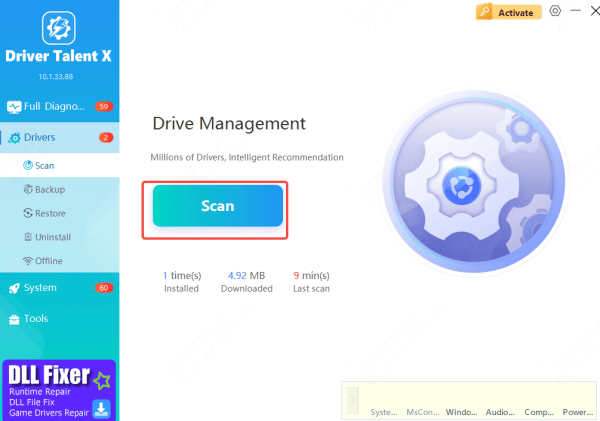
If your Logitech G213 lighting controls or G HUB detection ever act up, outdated or faulty drivers may be the cause. To avoid manual troubleshooting, you can use Driver Talent X, a simple driver management tool that automatically scans and updates drivers for keyboards and other peripherals.
With Driver Talent X, you can:
Automatically detect and update Logitech keyboard drivers
Fix driver-related issues that prevent G HUB from recognizing your G213
Save time by avoiding manual driver downloads
Keeping your system drivers up to date helps ensure stable RGB lighting control and smooth performance from your Logitech G213.
Quick fix if lights won't respond
Try a different USB port (direct to PC, avoid hubs)
Ensure G HUB (if installed) isn't running and overriding settings — close it
Restart your PC
Advanced tips
Create profiles: "Office" (soft white/low brightness), "Gaming" (vibrant RGB wave), "Chill" (slow breathing purple)
Audio visualizer: Great for music — lights pulse to beats
Game sync: In supported titles, lighting reacts to in-game events (e.g., health low = red flash)
Common G HUB issues
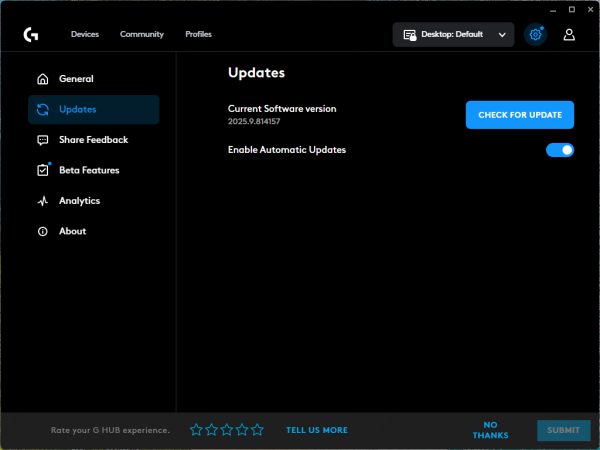
Not detecting? Reinstall, update firmware via G HUB, or disable Windows Dynamic Lighting
Settings reset after reboot? Ensure profiles are saved and G HUB runs at startup
Lights override shortcuts? G HUB takes priority when open — close it to use onboard controls
Conclusion
Start simple: Use Backlight + 0/1–9 for instant fun. Once comfortable, install G HUB for zone-level magic and profiles. Enjoy your customized G213!









