
Logitech cameras, including popular models like the Logitech C920, Logitech StreamCam, and Logitech Brio, offer a range of features suitable for video calls, streaming, and content creation. To optimize the performance and fully access the capabilities of your Logitech camera, you need the appropriate camera software. This guide will walk you through downloading and installing Logitech camera software, as well as troubleshooting common issues.
Types of Logitech Camera Software
Depending on your needs and the type of camera you're using, Logitech offers several software options:
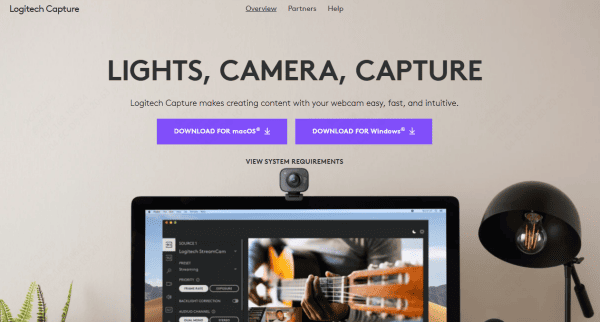
Logitech Capture
This software is ideal for video recording and streaming. It allows you to manage your camera's video settings, such as resolution, frame rate, and layout options
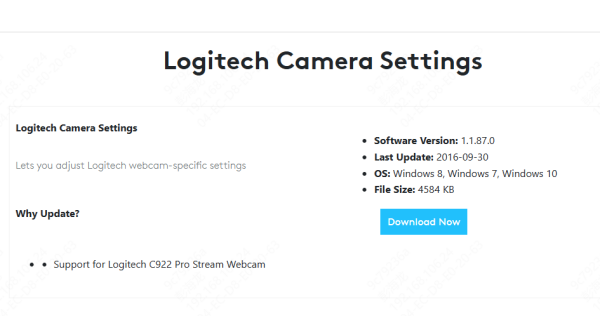
Logitech Camera Settings
A lightweight application for adjusting basic camera configurations like focus, exposure, and white balance. This is useful for webcams like the Logitech C920
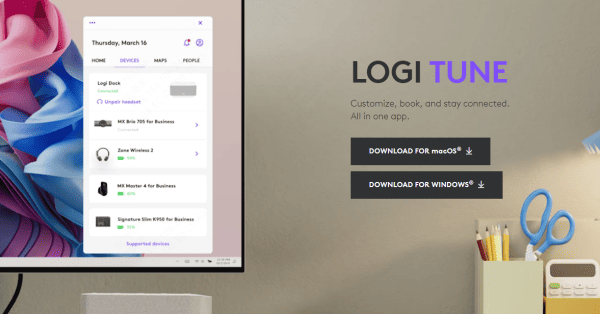
Logitech Logi Tune
Tailored for Logitech business webcams, Logi Tune helps users adjust camera settings and manage video conferencing experiences
Logitech G Hub (for gaming webcams)
If you're using a Logitech camera for gaming, such as the Logitech StreamCam, G Hub offers advanced settings, including software for managing Logitech peripherals like the G Pro gaming mouse alongside your webcam

Understanding which software suits your camera needs will make the installation process easier.
Steps to Download Logitech Camera Software
Step 1: Visit the Official Logitech Website
Open your web browser and go to the official Logitech website: logitech.com
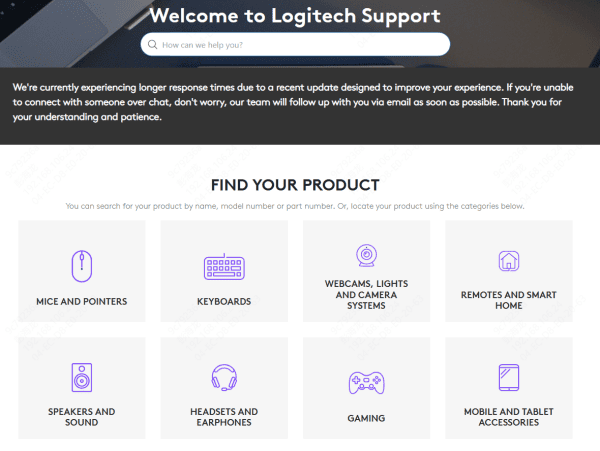
Scroll to the Support section, which is typically found in the website's footer
Step 2: Search for Your Camera Model
In the search bar, type in your specific camera model, such as Logitech C920, Logitech StreamCam, or Logitech Brio
From the search results, click on your camera model to access the product page
Step 3: Select the Right Software
Once you're on the camera's product page, look for the Downloads or Support section
Depending on your camera, you'll find a selection of software available for download. Choose the appropriate software (e.g., Logitech Capture, Logitech Camera Settings, Logitech Logi Tune, or Logitech G Hub)
Step 4: Download the Software
Click on the Download button for the software compatible with your operating system
Wait for the download to complete
Troubleshooting Common Download or Installation Issues
Problem 1: Software Not Downloading
Ensure that your internet connection is stable. If the download is not starting or failing, try using a different browser or restart your internet connection
Make sure you're accessing the correct download link for your camera model
Problem 2: Installation Errors
Double-check the system requirements for the software
Problem 3: Camera Not Detected After Installation
Drivers oudated may causes sysyem not detected camera. To save time and avoid the hassle of manually updating drivers, Driver Talent X is a great tool for automatically finding and updating any outdated or missing drivers, including those for your Logitech camera.
Download Driver Talent X from the official website and install it on your PC
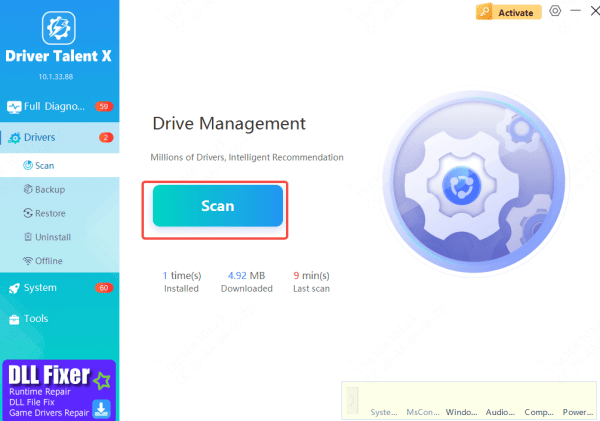
Open Driver Talent X and navigate to Drivers → Scan. The software will automatically detect outdated or missing drivers, including the one for your Logitech camera
Once the scan is complete, click Repair Now or Update to let Driver Talent X automatically update your Logitech camera driver
After the update is finished, restart your computer to apply the changes
Finally, test your camera to see if the issue has been resolved
This streamlined process allows you to keep your drivers up to date with minimal effort

Conclusion
By following this guide, you should now have the Logitech camera software installed and configured on your computer. Whether you're using it for casual video calls or professional streaming, the right software will ensure your Logitech camera works at its best. Always check for driver updates to ensure you're using the latest features and fixes for optimal performance. If you encounter any issues that cannot be resolved with these steps, Logitech's support team is available for further assistance









