
The Logitech C920 is one of the most popular webcams on the market, well known for its sharp 1080p video quality, reliable autofocus, and dual built-in microphones. It's widely used for video calls, live streaming, online meetings, and content creation. However, like any USB device, the Logitech C920 can sometimes run into problems—such as not being detected, showing a black screen, or delivering poor video quality. The good news is that most issues are easy to fix with the right steps. This guide walks you through setup instructions and proven solutions to get your Logitech C920 camera working properly again.
How to Set Up the Logitech C920 Camera
The Logitech C920 is a plug-and-play webcam, meaning no driver installation is required in most cases.
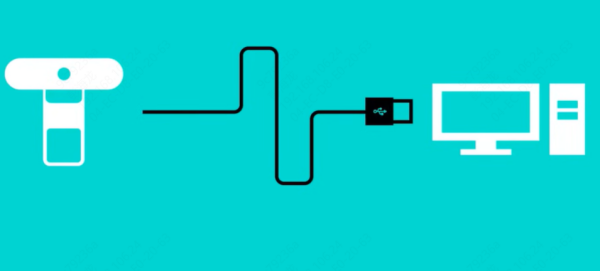
Plug the camera directly into a USB port on your computer
Avoid USB hubs during initial setup
Wait a few seconds for the system to recognize the device
A small LED light on the camera usually turns on when it's active
Windows should automatically detect the camera
Install Logitech Camera Software (Optional)
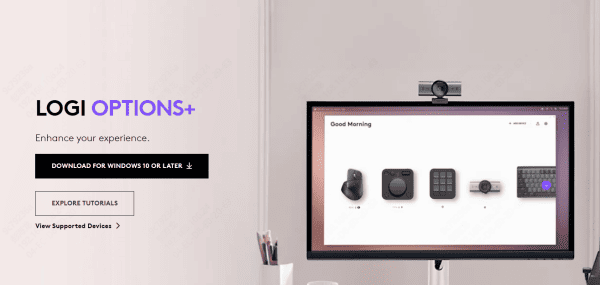
While the camera works without extra software, installing Logitech software gives you more control
Logitech G Hub or Logi Tune lets you adjust brightness, contrast, autofocus, and field of view
Helps resolve compatibility issues with video apps
Fix Logitech C920 Not Detected by Computer
Check the USB Connection
Start with the basics:
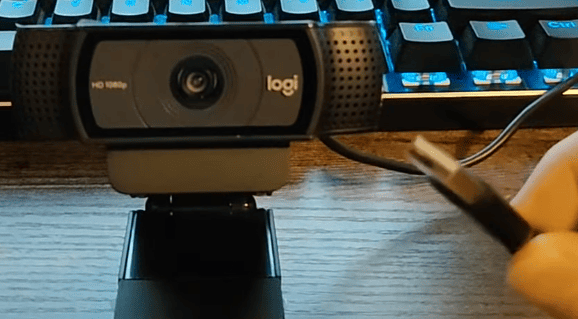
Unplug the camera and reconnect it
Try a different USB port
Avoid front-panel USB ports on desktop PCs
Test the camera on another computer
If it works elsewhere, the issue is likely software-related
Logitech C920 Not Working in Zoom, Teams, or OBS
If the camera works in one app but not another:
Check the camera selection inside the app's settings
Close other programs using the webcam
Restart the app after changing permissions
Update the app to the latest version
Only one application can access the camera at a time
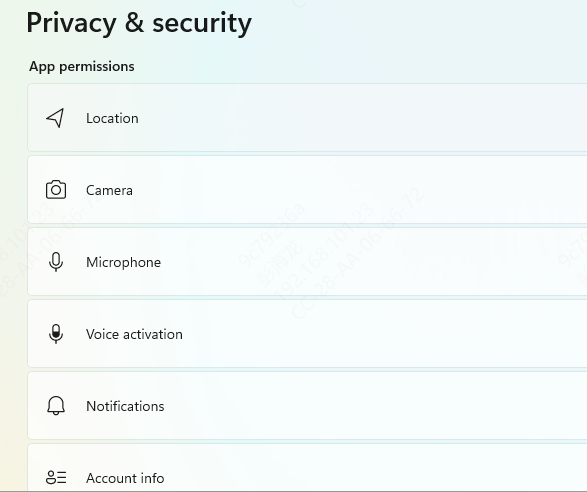
Enable Camera in Windows Settings
Sometimes Windows blocks camera access by default
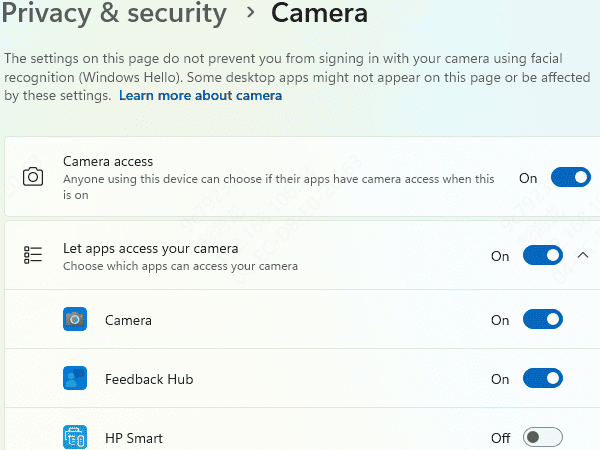
Go to Settings → Privacy & Security → Camera
Turn Camera access ON
Allow apps to access the camera
Make sure apps like Zoom, Teams, or OBS are enabled
Restart the app afterward
Check the Camera in Device Manager
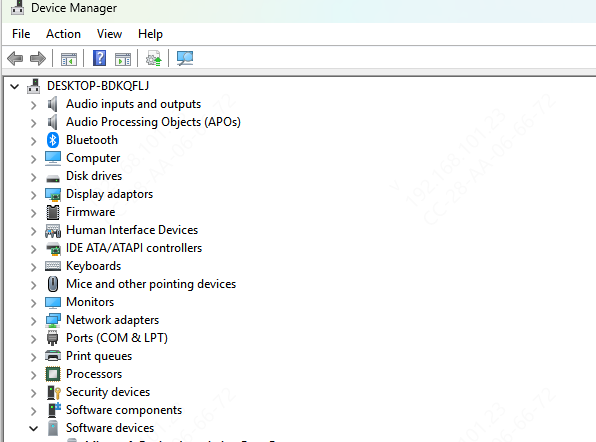
Right-click Start and open Device Manager
Look under Cameras or Imaging Devices
If Logitech C920 appears:
Right-click and select Enable device
Or choose Uninstall device, then restart your PC
If it doesn't appear at all, the driver may be missing or corrupted
Update Logitech C920 Drivers
Driver issues are one of the most common reasons the Logitech C920 stops working—especially after Windows updates.
Automatic Driver Update with Driver Talent X
If you want a fast and hassle-free solution, Driver Talent X is a reliable option
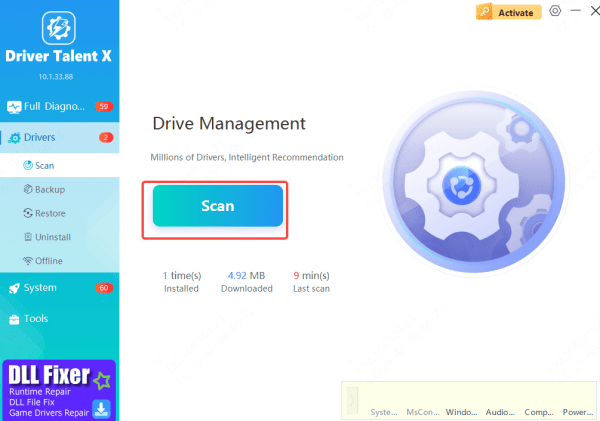
Download and install Driver Talent X
Open the program and go to Drivers → Scan
It will detect outdated, missing, or faulty drivers, including your Logitech camera and USB drivers
Click Repair Now or Update to fix the issue automatically
Restart your computer after the update
This method saves time and reduces the risk of installing the wrong driver manually
Common Reasons Logitech C920 Is Not Working
If your camera isn't working, it's usually caused by one of the following:
Loose or faulty USB connection
Camera disabled in system settings
Privacy permissions blocking camera access
Outdated, missing, or corrupted drivers
Conflicts caused by Windows updates
Another app already using the camera
Conclusion
The Logitech C920 is a reliable and high-quality webcam, but software conflicts, driver issues, or privacy settings can occasionally stop it from working. By following the steps in this guide—especially checking permissions and updating drivers—you can resolve most problems quickly. For a smoother experience and fewer future issues, keeping your drivers updated with tools like Driver Talent X can make a big difference. With the right setup, your Logitech C920 should be back to delivering clear, professional-quality video in no time.









