
The Logitech G733 LIGHTSPEED Wireless RGB Gaming Headset is a popular wireless gaming headset known for its lightweight design, excellent battery life (up to 29 hours), PRO-G audio drivers, detachable Blue VO!CE microphone, and customizable LIGHTSYNC RGB lighting. To unlock the full potential—such as RGB customization, advanced EQ settings, Blue VO!CE voice filters, surround sound, profiles, and firmware updates—you must install the official Logitech G HUB software. This guide walks you through the complete driver download process step by step.
Prerequisites
G733 headset + LIGHTSPEED USB receiver
Available USB-A port (direct connection preferred; avoid hubs for first setup)
Internet for downloads/updates
Charge the headset fully via USB-C first
Admin rights on your PC
.jpg "g733")
Method 1: Install Logitech G HUB
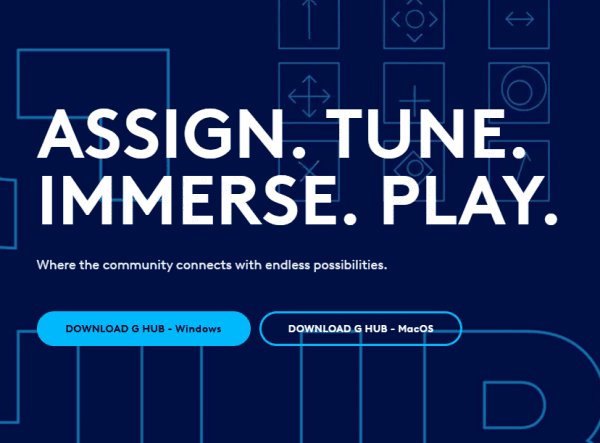
Download Logitech G HUB from official website
Run the installer
Launch G HUB and sign in (optional for cloud sync)
With dongle inserted and headset on, G HUB auto-detects the G733
Check for firmware updates in G HUB (Settings → Firmware tab) and install if available
This is the official way to access all G733 features
Method 2: Windows Built-in Driver Update / Rollback
Some users experience muffled sound, no audio, or conflicts (e.g., with Dolby Atmos or certain updates). Try forcing Windows to use or refresh its generic USB audio driver:
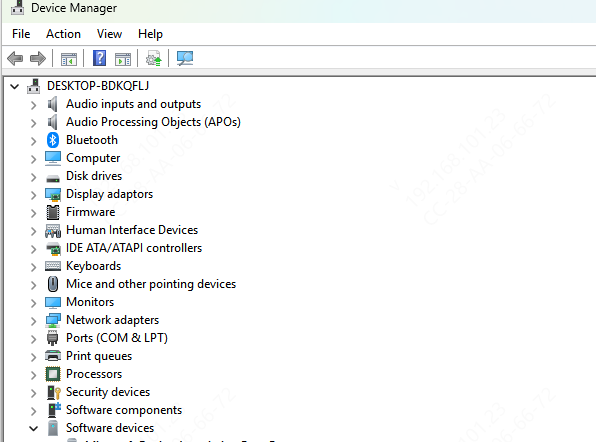
Right-click Start → Device Manager
Expand "Sound, video and game controllers" or "Audio inputs and outputs"
Find entries like "Logitech G733 Gaming Headset" or "USB Audio Device"
Right-click → Update driver → "Browse my computer for drivers" → "Let me pick from a list" → Select "USB Audio Device" or "High Definition Audio Device" (generic option)
If issues persist, right-click → Uninstall device (check "Delete the driver software" if available), unplug/replug dongle to force reinstall
Method 3: Using Driver Talent X for Automated Driver Updates
Keeping your Logitech G733 headset running at peak performance means ensuring its USB drivers are up to date. One of the easiest ways to do this is by using Driver Talent X, a powerful software tool that automatically detects outdated drivers and installs the latest versions for you. Here's how you can use Driver Talent X to make sure your headset is always optimized:
Step 1: Download and Install Driver Talent X
Go to the official Driver Talent X website
Click on the download button to get the latest installer for your system
Run the installer and follow the on-screen instructions to complete the installation process
Step 2: Run a System Scan
Open Driver Talent X: Once installed, open the application
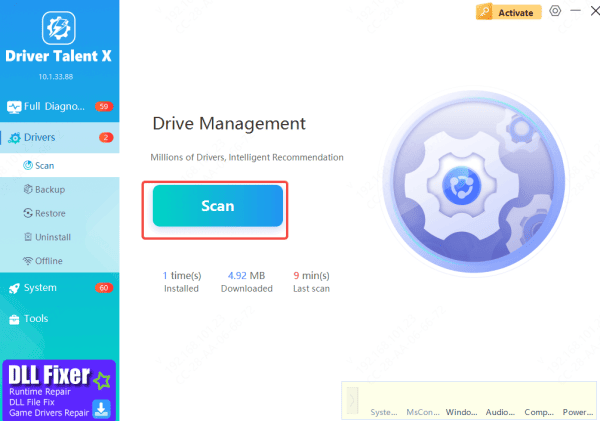
Navigate to Drivers: Go to the Drivers section in the left-hand menu
Click Scan: Hit the Scan button to allow Driver Talent X to scan your system for outdated, missing, or incompatible drivers
Step 3: Update Drivers
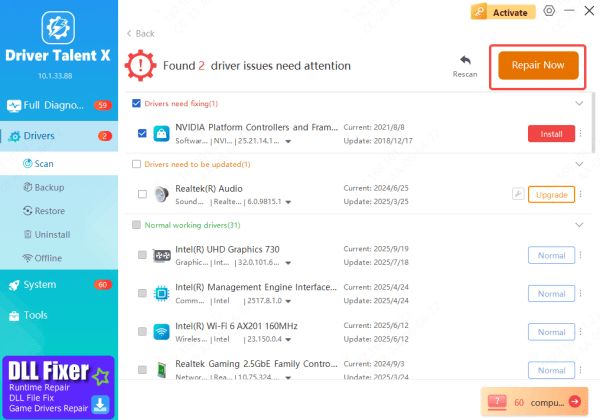
View the Results: After the scan finishes, Driver Talent X will display a list of drivers that need to be updated
Select the Required Drivers: Choose the drivers related to your Logitech G733 headset or other peripherals
Click Repair Now or Update: Hit Repair Now or Update to automatically install the latest drivers for your headset
Step 4: Restart Your System
Reboot Your PC: After the updates are installed, restart your computer to allow Windows to properly load the new drivers
Test Your Headset: Once your system restarts, check the functionality of your Logitech G733 to ensure it's working as expected
Conclusion
Installing the correct USB drivers for your Logitech G733 headset is essential for optimal performance. With the right drivers, you'll enjoy smooth audio and microphone functionality. To simplify this, use Driver Talent X, which automatically detects and updates all your system's drivers, including those for your G733 headset. Regularly updating your drivers ensures your headset delivers top-notch performance for gaming, calls, and media. Get your drivers up to date and enjoy the best possible audio experience.









