
Logitech gaming keyboards are known for their stunning RGB lighting, responsive keys, and highly customizable profiles, making them a favorite among gamers and content creators. However, it can be incredibly frustrating when your keyboard suddenly stops lighting up, leaving your setup looking dull or making it harder to see keys in low-light environments. This guide will walk you through every possible solution, from basic checks to advanced fixes, to get your Logitech gaming keyboard's lights back to normal.
Check Power and USB Connection
Make sure your keyboard is firmly plugged into a working USB port
If using a wireless keyboard, check that the battery is fully charged or replace it if necessary
Avoid USB hubs for the initial setup—plug the keyboard directly into the motherboard's USB port for the most stable connection
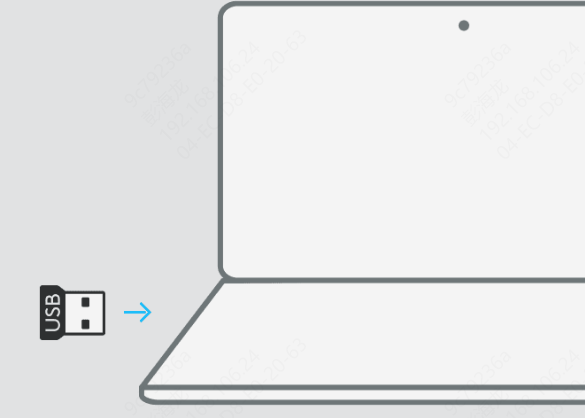
If you got a receiver, plug it to you pc
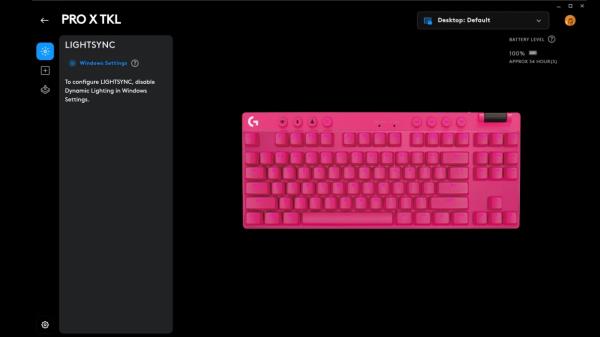
Check Logitech G Hub or Logitech Gaming Software
Logitech keyboards rely on Logitech G Hub or Logitech Gaming Software (LGS) to manage RGB lighting and macros:
Open G Hub or LGS and make sure your keyboard is detected
Navigate to the lighting settings and ensure the RGB lights are enabled
If the lighting profile looks correct but still doesn't work, try resetting the profile to default
Some advanced lighting effects may not work if the profile is corrupted or misconfigured
.png "check-bright-setting")
Update Drivers
Keep your keyboard driver updated to make sure your keyboard run smoothly.
Update via Device Manager
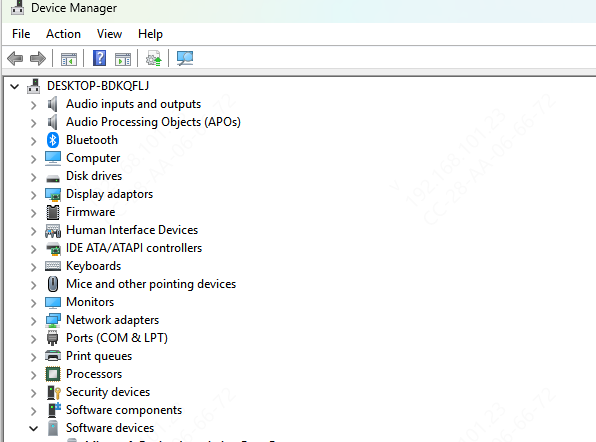
Open Device Manager → expand Keyboards → right-click your Logitech keyboard → select Update driver
Check for updates via Windows Update to ensure your system's USB controllers are current
Use Driver Talent X for Automatic Updates (Recommended)
Updating drivers manually can be tedious, and installing the wrong driver might cause further problems. Driver Talent X simplifies this process:
Download and install Driver Talent X from the official website
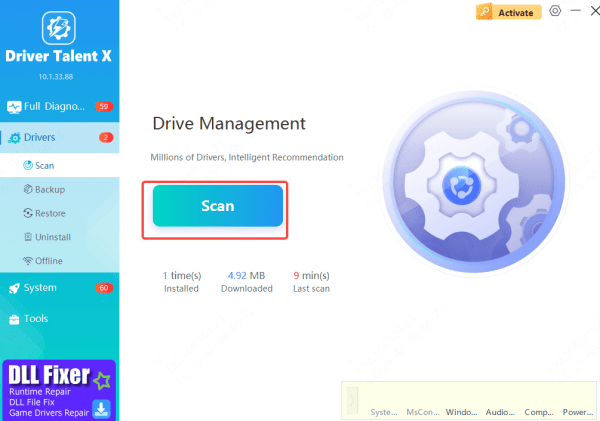
Launch the program and navigate to Drivers → Scan
The software will detect outdated, missing, or corrupted drivers for your keyboard and USB controllers
Click Repair Now or Update, and Driver Talent X will automatically install the correct drivers
Restart your PC to apply the changes
Adjust Windows Power & USB Settings
Power management settings in Windows can sometimes turn off USB devices to save energy, which can prevent your keyboard from lighting up:
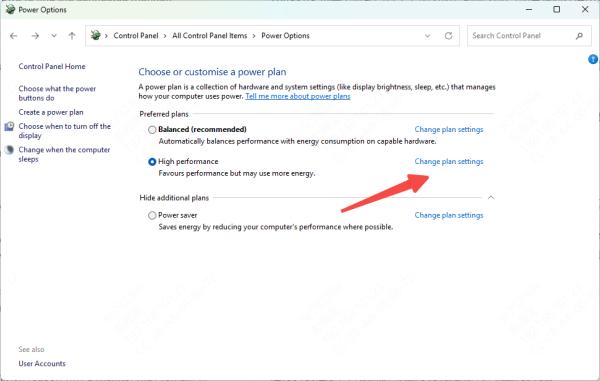
Go to Control Panel → Power Options → select High Performance
Click Change plan settings → Advanced power settings → USB settings → USB selective suspend → Disabled
Plug the keyboard into a rear USB port if front ports are causing intermittent power issues
This step is especially important for desktop PCs, where front-panel USB ports sometimes don't provide enough consistent power for RGB lighting
Reset or Reflash the Keyboard
Many Logitech keyboards allow a factory reset, which can fix persistent lighting issues:
Refer to your keyboard's manual for the reset procedure (often involves holding specific key combinations)
Open Logitech G Hub and reapply default lighting settings after the reset
Test the RGB lighting to see if it's restored
Resetting clears stored profiles or configurations that could be interfering with the lighting system
Conclusion
A Logitech gaming keyboard not lighting up is usually fixable without buying a new keyboard. Start with basic connection checks, verify software and lighting settings, and ensure your drivers are updated—with Driver Talent X making this process fast and simple. Adjust USB and power settings if needed, test on another PC, and reset the keyboard as a last step. Following these steps should restore your keyboard's RGB lighting so you can enjoy your full gaming setup again.









